401 Unauthorized Error with Google AI Studio (Imagen 3) despite correct GCP setup
Status: Open · Asked by 松本昭彦 on · 0 views
Hello Pabbly Team,
I am consistently getting a "401 Unauthorized" error when using the "Google AI Studio (Imagen 3)" action to generate images.
The strange thing is that the **"Google AI Studio (Gemini)" action for text generation works perfectly fine** using the exact same connection and Google Cloud Project. This proves that my basic connection, Project ID, and billing setup are correct.
To troubleshoot, I have already confirmed the following on my Google Cloud Platform account:
1. The Vertex AI API is enabled.
2. A valid billing account is linked to the project.
3. My user account has the "Vertex AI User" IAM role assigned.
4. I have tried reconnecting my Google Account in Pabbly multiple times.
Since the Gemini text generation works but the Imagen 3 image generation does not, it strongly suggests the issue is specific to the "Google AI Studio (Imagen 3)" integration itself.
Could you please investigate if this is a known issue or if there are any additional steps required for this specific action?
Thank you for your help.
Hi @tokyo2025,
Google AI Studio (Gemini) and Google AI Studio (Imagen 3) are two different action applications; one working fine does not necessarily guarantee that the other will work as well.
Please establish a new connection with your Google account and check if that resolves your issue. Kindly record your screen while setting up the new connection, and if the issue persists, share the video in this thread. We have moved this thread to Private Discussions to maintain confidentiality.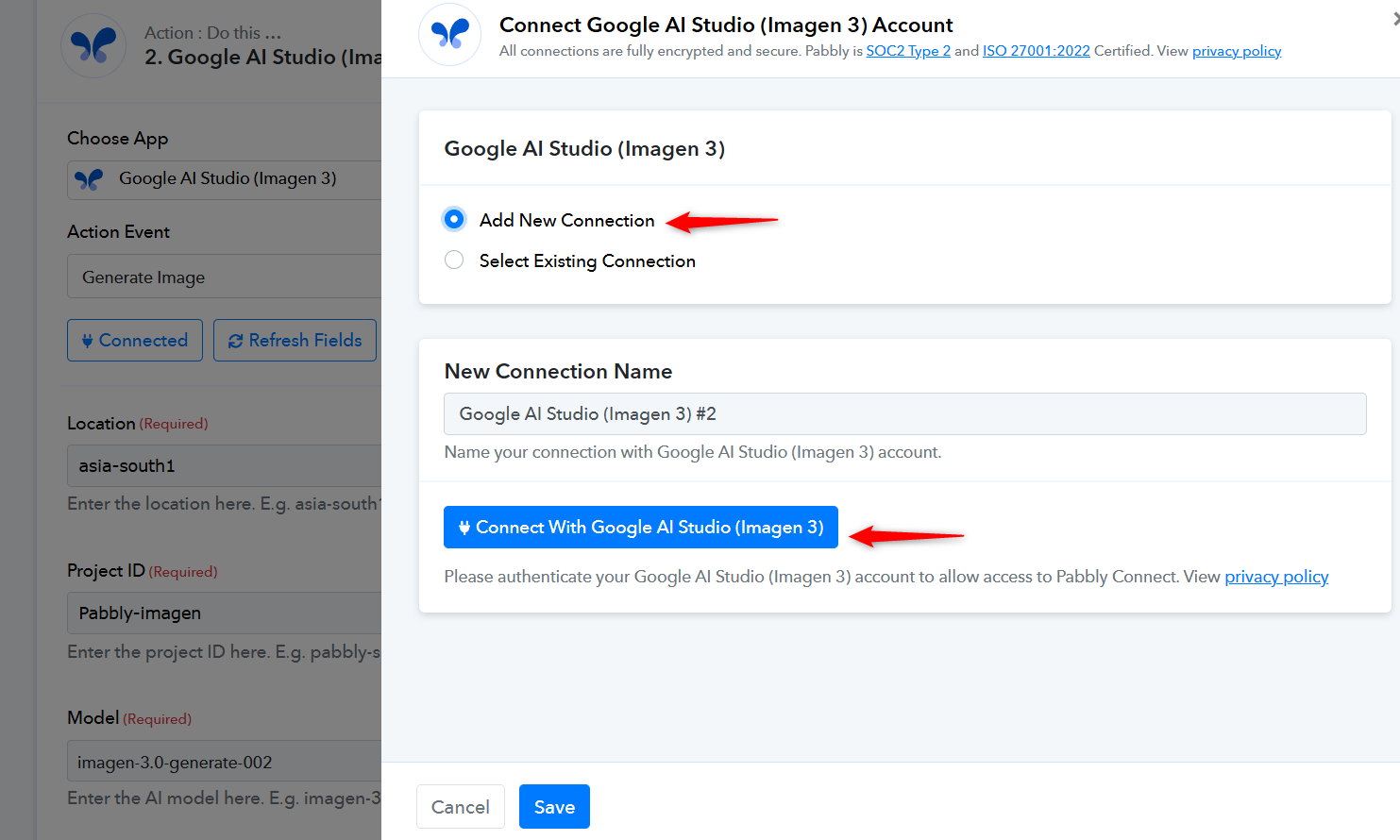
Hello Preeti,
Thank you for your prompt and helpful response. I'm happy to report that the issue is now solved!
Your suggestion to create a "New Connection" was the key. The problem was indeed on the Google Cloud Platform side and required a more detailed setup than I initially realized.
For anyone else who might face this `401 Unauthorized` or `403 access_denied` error, here is what I had to do to fix it:
1. In the Google Cloud Console, I went to "APIs & Services" -> "Credentials".
2. I had to create a new "OAuth Client ID".
3. This first required me to configure the "OAuth Consent Screen".
4. The final, critical step was that my app was in "Testing" mode, so I had to add my own email address to the "Test Users" list on the consent screen settings.
After setting up the OAuth Client ID and Secret and using them to create the new connection in Pabbly, the Imagen 3 action worked perfectly.
Thank you again for pointing me in the right direction!
Best regards.
Thank you for the update. We are glad we were able to help.
Thanks & Regards,
Arshil Ahmad
Customer Support Associate
? Pabbly.com
?Rate your support