Company Logo Not Showing in Gmail Inbox for Emails Sent via Pabbly Connect Automation Description:
Status: Closed · Asked by Damandeep Singh on · 0 views
Hi everyone,
I'm using Pabbly Connect to automate email sending. The workflow takes email addresses from Google Sheets and sends emails successfully.
However, I've noticed that when recipients receive these automated emails, our company's logo does not appear next to the sender's name in their Gmail inbox. Instead, Gmail shows the default generic avatar.
I would like the emails to display our company logo in the recipient's inbox, just like branded emails from other companies.
Current setup:
- Trigger: Google Sheets (new row with email address)
- Action: Send automated email via Pabbly Connect
- Emails are delivered successfully
- Sender domain is already configured
My questions:
- Is this something that can be configured within Pabbly Connect?
- Do I need to set up BIMI (Brand Indicators for Message Identification) or make changes to my domain's DNS records?
- Are there any other requirements (such as DMARC, SPF, DKIM, or a Verified Mark Certificate) to make the company logo appear in Gmail?
Any guidance or documentation would be greatly appreciated. Thank you!
Hello Damandeep,
Thank you for reaching out to us and for sharing the detailed information.
Could you kindly share the workflow URL where you have configured this setup? Additionally, please provide:
A screenshot showing how the email is currently appearing in the recipient's inbox.
A screenshot or example showing how you would like it to appear (with the company logo).
This will help us better understand the setup and determine whether the behavior is related to the email-sending configuration, domain settings, or something outside of Pabbly Connect.
Once we have these details, we'll review them and assist you further.
Thanks and Regards,Preeti Paryani
Customer Success Associate,
Pabbly.com
Please find the requested workflow URL and screenshots attached for your review.
Workflow URL: https://connect.pabbly.com/v2/app/workflow/mapping/IjU3NjcwNTZjMDYzMjA0M2M1MjZlNTUzZDUxMzQi_pc
Kindly check these details and let me know how to resolve the issue with the company logo not appearing in the Gmail inbox.
Best regards,
Damandeep Singh
Hello Damandeep,
Thank you for reaching out to us and for sharing the detailed information.
Could you kindly share the workflow URL where you have configured this setup? Additionally, please provide:
A screenshot showing how the email is currently appearing in the recipient's inbox.
A screenshot or example showing how you would like it to appear (with the company logo).
This will help us better understand the setup and determine whether the behavior is related to the email-sending configuration, domain settings, or something outside of Pabbly Connect.
Once we have these details, we'll review them and assist you further.
Thanks and Regards,
Hello Damandeep,
Thank you for sharing the workflow URL and the screenshot.
We checked your workflow and would like to clarify that Pabbly Connect and the Gmail API do not provide any parameter to send or control the sender logo/avatar. The logo displayed in the recipient's Gmail inbox is determined by Gmail and your domain's email authentication settings.
To have your company logo displayed consistently, you should ensure that the following are properly configured for your sending domain:
SPF record
DKIM authentication
DMARC policy (preferably set to enforcement mode)
BIMI (Brand Indicators for Message Identification) record
In some cases, Gmail may also require a Verified Mark Certificate (VMC) for displaying a verified brand logo.
If emails sent manually from the same Gmail/Google Workspace account already show the logo, then emails sent through the Gmail API should generally behave the same way since the sender identity remains unchanged. However, the final display of the logo is controlled by the recipient's email provider and domain reputation settings rather than by the API request itself.
We recommend reviewing your domain's SPF, DKIM, DMARC, and BIMI configuration to ensure everything is set up correctly.
Hi Preeti,
Please find the requested workflow URL and screenshots attached for your review.
Workflow URL: https://connect.pabbly.com/v2/app/workflow/mapping/IjU3NjcwNTZjMDYzMjA0M2M1MjZlNTUzZDUxMzQi_pc
Kindly check these details and let me know how to resolve the issue with the company logo not appearing in the Gmail inbox.
Best regards,
Damandeep SinghOn Thu, Jul 2, 2026 at 4:00 PM Pabbly Support <[email protected]> wrote:Hello Damandeep,
Thank you for reaching out to us and for sharing the detailed information.
Could you kindly share the workflow URL where you have configured this setup? Additionally, please provide:
A screenshot showing how the email is currently appearing in the recipient's inbox.
A screenshot or example showing how you would like it to appear (with the company logo).
This will help us better understand the setup and determine whether the behavior is related to the email-sending configuration, domain settings, or something outside of Pabbly Connect.
Once we have these details, we'll review them and assist you further.
Thanks and Regards,
Preeti Paryani
Customer Success Associate,
Pabbly.com
Thanks and Regards,
Preeti Paryani
Customer Success Associate,
Pabbly.com
I am experiencing an issue with a Google Sheets automation I set up.
I have been manually adding entries to the designated column, and although all testing showed as successful, no emails were actually sent to the users. Furthermore, this process has somehow consumed my entire month's task quota.
Could you please look into why the tasks were consumed without the emails being delivered?
Link to Workflow URL: https://connect.pabbly.com/v2/app/workflow/mapping/IjU3NjcwNTZjMDYzMjA0M2M1MjZlNTUzZDUxMzQi_pc
Regards,
Damandeep Singh
Hello Damandeep,
Thank you for sharing the workflow URL and the screenshot.
We checked your workflow and would like to clarify that Pabbly Connect and the Gmail API do not provide any parameter to send or control the sender logo/avatar. The logo displayed in the recipient's Gmail inbox is determined by Gmail and your domain's email authentication settings.
To have your company logo displayed consistently, you should ensure that the following are properly configured for your sending domain:
SPF record
DKIM authentication
DMARC policy (preferably set to enforcement mode)
BIMI (Brand Indicators for Message Identification) record
In some cases, Gmail may also require a Verified Mark Certificate (VMC) for displaying a verified brand logo.
If emails sent manually from the same Gmail/Google Workspace account already show the logo, then emails sent through the Gmail API should generally behave the same way since the sender identity remains unchanged. However, the final display of the logo is controlled by the recipient's email provider and domain reputation settings rather than by the API request itself.
We recommend reviewing your domain's SPF, DKIM, DMARC, and BIMI configuration to ensure everything is set up correctly.
On Jul 2, 2026, 10:38 AM, Damandeep Singh <[email hidden]> wrote:Hi Preeti,
Please find the requested workflow URL and screenshots attached for your review.
Workflow URL: https://connect.pabbly.com/v2/app/workflow/mapping/IjU3NjcwNTZjMDYzMjA0M2M1MjZlNTUzZDUxMzQi_pc
Kindly check these details and let me know how to resolve the issue with the company logo not appearing in the Gmail inbox.
Best regards,
Damandeep SinghOn Thu, Jul 2, 2026 at 4:00 PM Pabbly Support <[email hidden]> wrote:Hello Damandeep,
Thank you for reaching out to us and for sharing the detailed information.
Could you kindly share the workflow URL where you have configured this setup? Additionally, please provide:
A screenshot showing how the email is currently appearing in the recipient's inbox.
A screenshot or example showing how you would like it to appear (with the company logo).
This will help us better understand the setup and determine whether the behavior is related to the email-sending configuration, domain settings, or something outside of Pabbly Connect.
Once we have these details, we'll review them and assist you further.
Thanks and Regards,
Preeti Paryani
Customer Success Associate,
Pabbly.com
Thanks and Regards,
Hello Damandeep,
Thank you for reaching out to us and for sharing the workflow details.
We checked your workflow and identified the reason why the emails were not being sent.
The field mapped under the Recipient Email Address in your Gmail action was originally mapped to a key named "Email Address" (with a capital A in "Address"). However, the latest data coming from your Google Sheet contains the header "Email address" (with a lowercase a in "address").
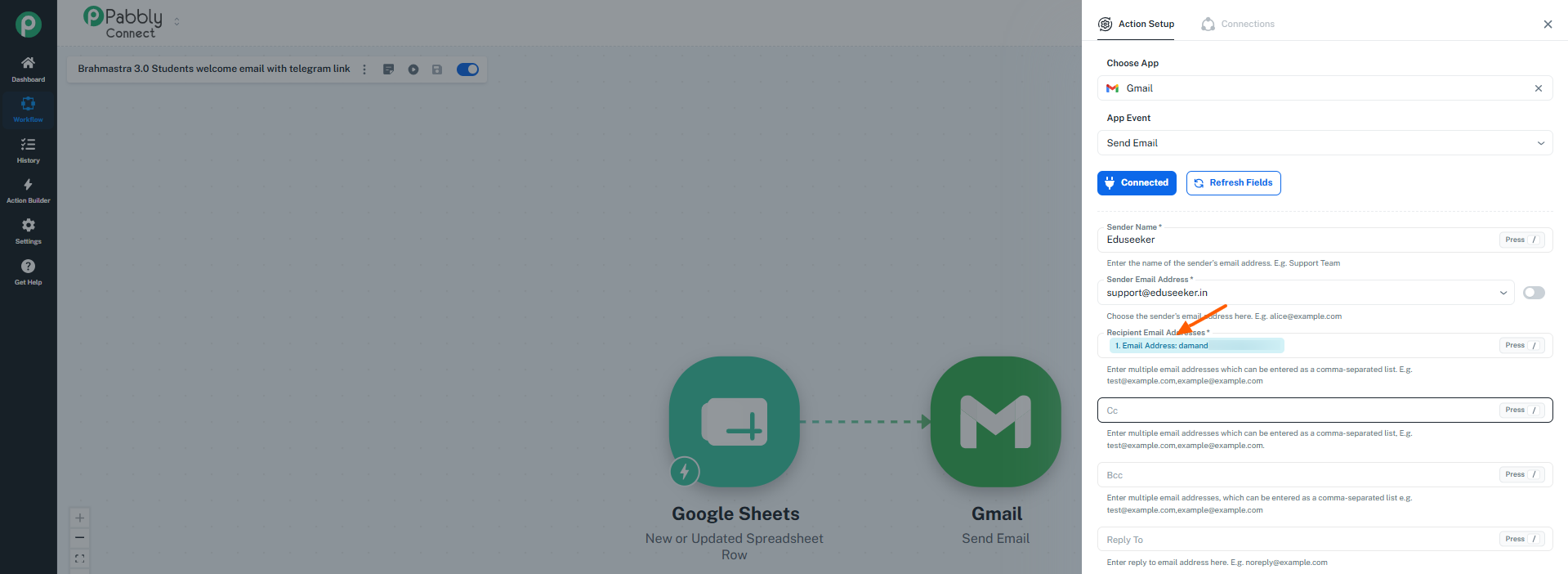
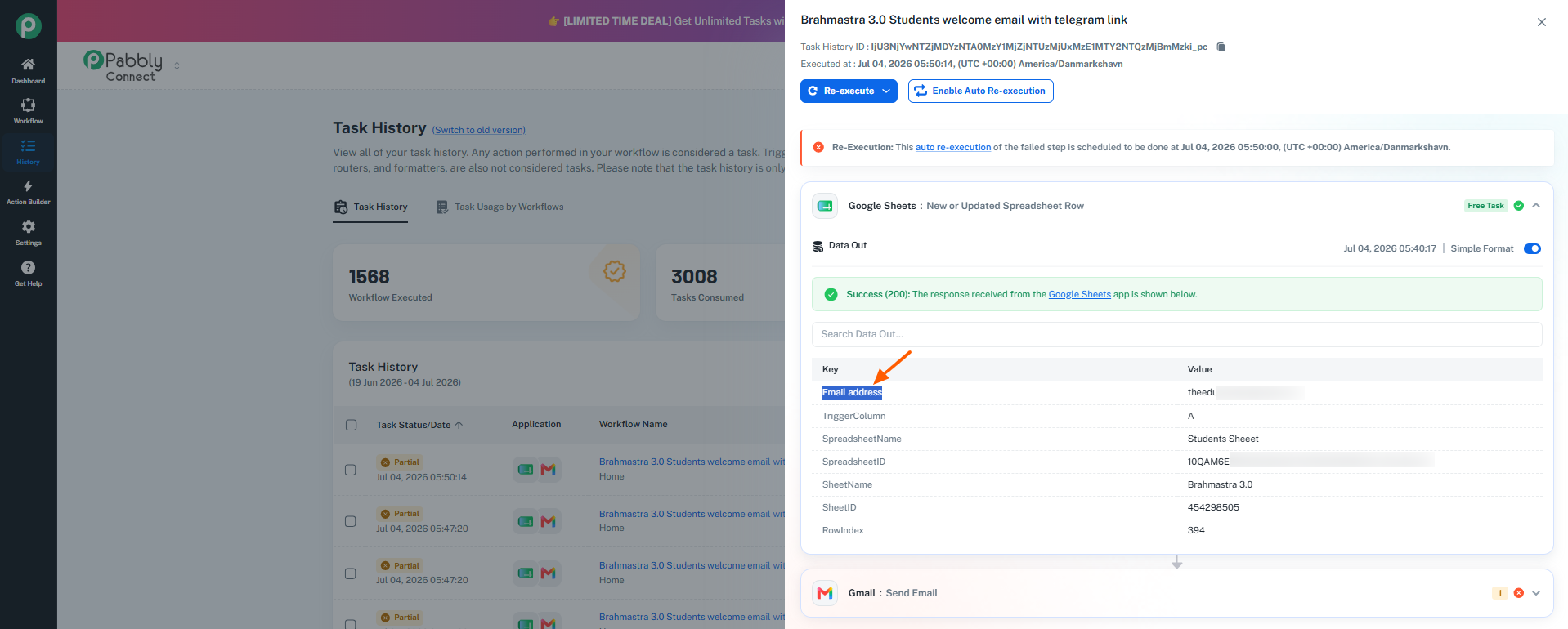
Since Pabbly Connect maps data based on exact key names, the Gmail action is unable to find the previously mapped field. As a result, the Gmail step is failing with an error similar to "Recipient email is required", because no email address is being passed to the action.
To resolve this issue, please:
Capture a fresh response in your Google Sheets trigger.
Ensure that the Google Sheet header name is finalized and consistent.
Open the Gmail action and remap the latest Email address field received from the trigger.
Save the action.
Re-execute the failed task histories or wait for the next workflow execution.
Regarding the task consumption, we noticed that your monthly task quota has been exhausted primarily due to this workflow. Your current plan includes 3,000 tasks per month, and based on the task usage pattern in your account, it appears that 3,000 tasks may not be sufficient for your monthly requirements.
You may want to explore our recurring plans with higher task limits here:
https://www.pabbly.com/connect/#pricing
Please make the above changes and let us know if you need any further assistance.
Note: Stacking Lifetime plans is not allowed.
Hello Preeti,
I am experiencing an issue with a Google Sheets automation I set up.
I have been manually adding entries to the designated column, and although all testing showed as successful, no emails were actually sent to the users. Furthermore, this process has somehow consumed my entire month's task quota.
Could you please look into why the tasks were consumed without the emails being delivered?
Link to Workflow URL: https://connect.pabbly.com/v2/app/workflow/mapping/IjU3NjcwNTZjMDYzMjA0M2M1MjZlNTUzZDUxMzQi_pc
Regards,
Damandeep SinghOn Thu, Jul 2, 2026 at 4:38 PM Pabbly Support <[email protected]> wrote:Hello Damandeep,
Thank you for sharing the workflow URL and the screenshot.
We checked your workflow and would like to clarify that Pabbly Connect and the Gmail API do not provide any parameter to send or control the sender logo/avatar. The logo displayed in the recipient's Gmail inbox is determined by Gmail and your domain's email authentication settings.
To have your company logo displayed consistently, you should ensure that the following are properly configured for your sending domain:
SPF record
DKIM authentication
DMARC policy (preferably set to enforcement mode)
BIMI (Brand Indicators for Message Identification) record
In some cases, Gmail may also require a Verified Mark Certificate (VMC) for displaying a verified brand logo.
If emails sent manually from the same Gmail/Google Workspace account already show the logo, then emails sent through the Gmail API should generally behave the same way since the sender identity remains unchanged. However, the final display of the logo is controlled by the recipient's email provider and domain reputation settings rather than by the API request itself.
We recommend reviewing your domain's SPF, DKIM, DMARC, and BIMI configuration to ensure everything is set up correctly.
On Jul 2, 2026, 10:38 AM, Damandeep Singh <[email protected]> wrote:Hi Preeti,
Please find the requested workflow URL and screenshots attached for your review.
Workflow URL: https://connect.pabbly.com/v2/app/workflow/mapping/IjU3NjcwNTZjMDYzMjA0M2M1MjZlNTUzZDUxMzQi_pc
Kindly check these details and let me know how to resolve the issue with the company logo not appearing in the Gmail inbox.
Best regards,
Damandeep SinghOn Thu, Jul 2, 2026 at 4:00 PM Pabbly Support <[email protected]> wrote:Hello Damandeep,
Thank you for reaching out to us and for sharing the detailed information.
Could you kindly share the workflow URL where you have configured this setup? Additionally, please provide:
A screenshot showing how the email is currently appearing in the recipient's inbox.
A screenshot or example showing how you would like it to appear (with the company logo).
This will help us better understand the setup and determine whether the behavior is related to the email-sending configuration, domain settings, or something outside of Pabbly Connect.
Once we have these details, we'll review them and assist you further.
Thanks and Regards,
Preeti Paryani
Customer Success Associate,
Pabbly.com
Thanks and Regards,
Preeti Paryani
Customer Success Associate,
Pabbly.com
Thanks and Regards,
Preeti Paryani
Customer Success Associate,
Pabbly.com
Hello Damandeep,
I hope you're doing well.
We wanted to follow up regarding the issue with your Google Sheets to Gmail automation.
As mentioned in our previous email, the workflow was unable to send emails because the mapped field in the Gmail action no longer matched the header name being received from Google Sheets. Since no recipient email address was passed to the Gmail action, the step failed and the workflow continued consuming tasks for each execution attempt.
Could you please confirm whether you have:
Captured a fresh response in the Google Sheets trigger.
Remapped the Email address field in the Gmail action.
Saved the workflow and tested it again.
Once these changes have been made, please let us know the results. If you are still facing any issues, we'll be happy to investigate further.
We look forward to your update.
Thanks and Regards,Preeti Paryani
Customer Success Associate,
Pabbly.com
Hello Damandeep,
I hope you're doing well.
We wanted to follow up and check whether you had a chance to review our previous reply and make the suggested changes to your workflow.
Additionally, while checking your account, we noticed that your available tasks have been exhausted. You are currently on the Standard Lifetime Plan, which includes 3,000 tasks per month, and it appears that the quota has already been consumed.
Since workflows cannot execute once the monthly task limit has been reached, we are currently unable to verify whether the issue has been resolved from our end.
If you would like your workflows to continue running without interruption, we recommend purchasing one of our recurring plans with a higher task limit:
https://www.pabbly.com/connect/#pricing
Once you have available tasks and have tested the workflow again, please let us know the results, and we'll be happy to assist further.
Thanks and Regards,Preeti Paryani
Customer Success Associate,
Pabbly.com