Connect is setup for Multiple emails for Microsoft 365 but it's not working as intended
Status: Open · Asked by perfectportals on · 0 views
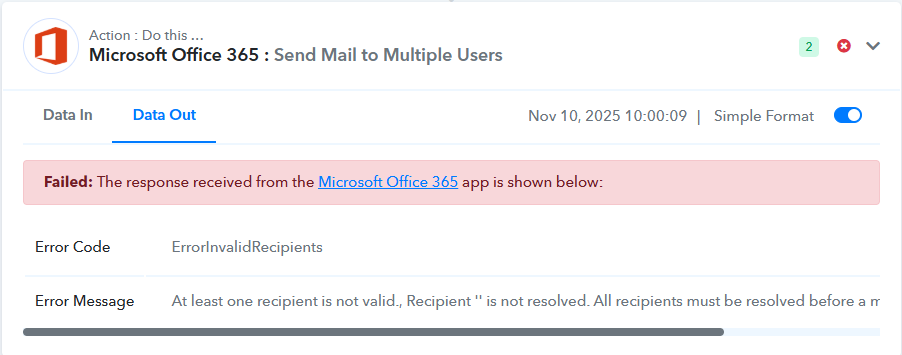
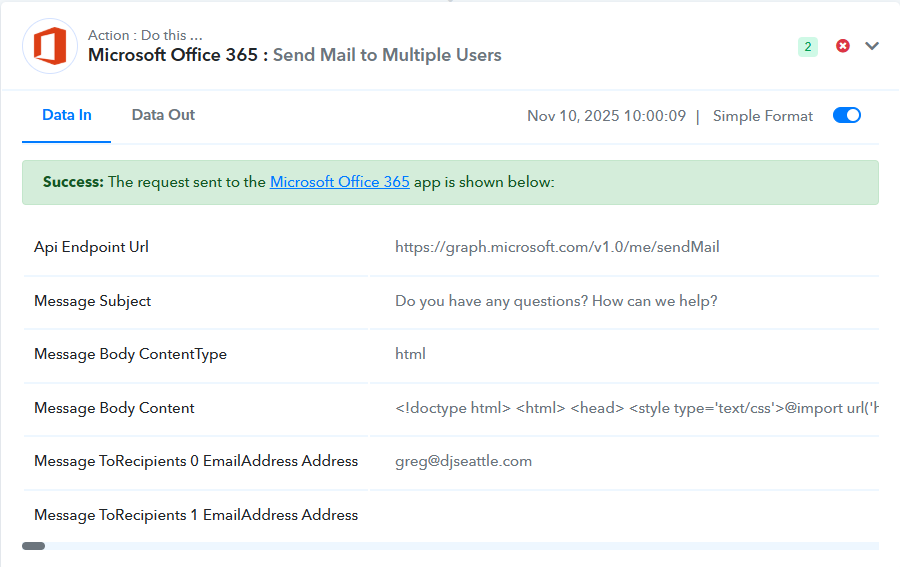
Last week you helped me get the workflow correct for doing a delay for Microsoft 365 emails. However, now that it is set up for multiples it seems to be having an issue when only one email address is present. I have attached a screen shot of the error message. I need it to work whether there is 1 or more email addresses.
Hello @perfectportals,
Thank you for reaching out to us.
As per your current setup, the configuration is static — the system doesn’t differentiate whether one or multiple email addresses are received from the trigger. To handle both cases dynamically, we recommend adding an OpenAI step. Pass the email string to OpenAI and instruct it to extract and format the emails as required for the Microsoft 365 action (as explained in the help text).
This will allow the workflow to function correctly whether there is one or multiple email addresses. Please give it a try and let us know how it goes.
In what place do I put this OpenAI step? I don't know where it needs to go and what the setup looks like.
Hello @perfectportals,
You can add the OpenAI step immediately after the email parser step in your workflow. In this step, use the subject or text field that contains the email addresses as the input.
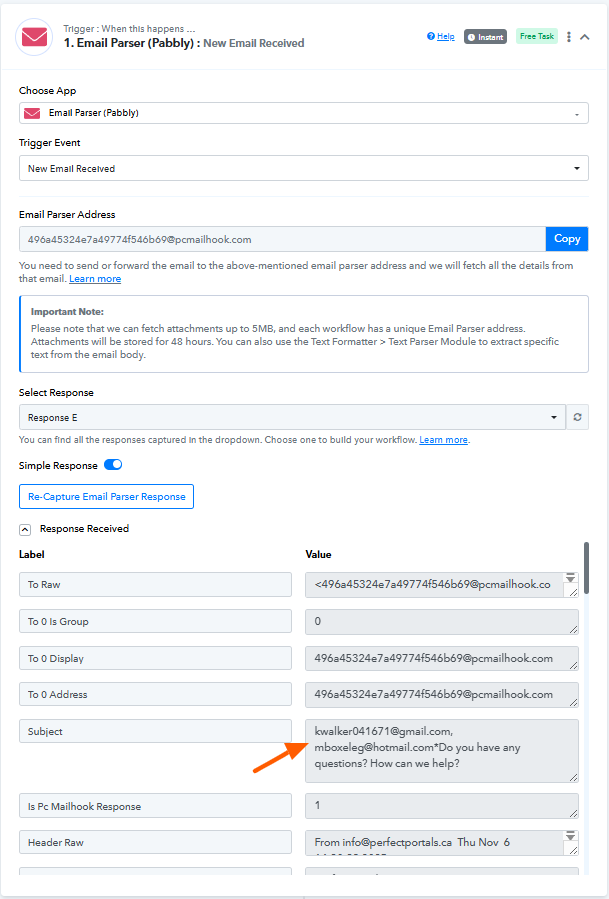
In the OpenAI configuration, instruct it to extract and return only the email addresses in the same format required by the Microsoft 365 – Send Multiple Emails action. You may refer to the task images for a better understanding of the setup.
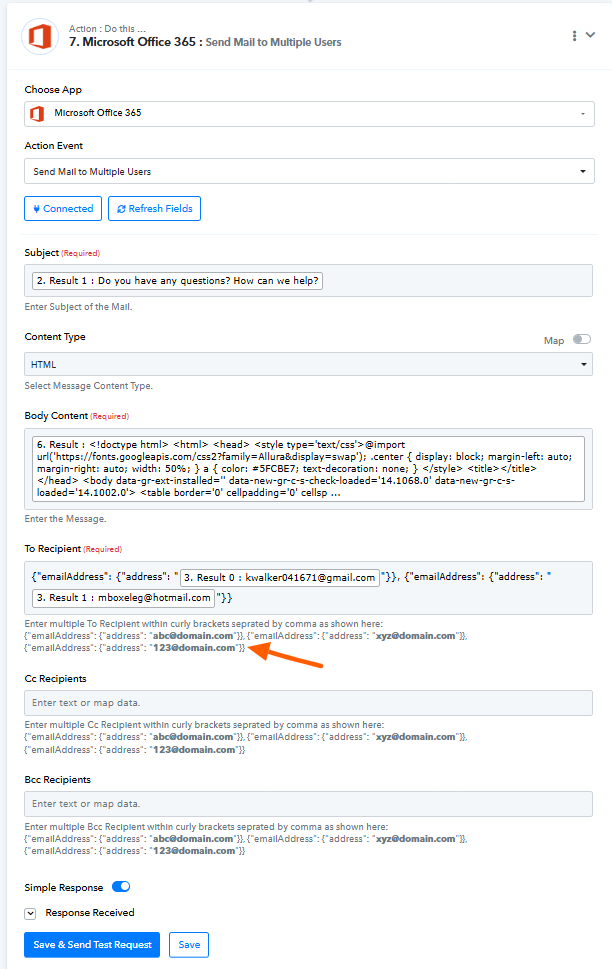
For this, you can use:
OpenAI (ChatGPT, DALL-E, Whisper): Generate Response Using Text Input (Response API)
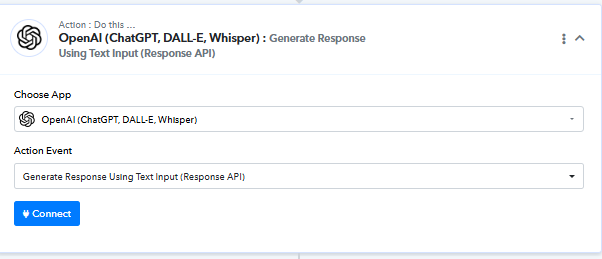
Once configured, this will ensure your workflow works correctly for both single and multiple email addresses.
Do I need to have a paid OpenAI account in order for this to work?
We have added a Python Code step to your workflow that will help extract email addresses from the subject of your email, convert them into the correct format, and pass them to the MS Office 365 action step. This will allow you to handle varying numbers of email addresses received in the trigger step. You don't need OpenAI action step in your workflow.

import re
import jsondef extract_emails(text):
# Regular expression to match valid email addresses
email_pattern = r'[a-zA-Z0-9._%+-]+@[a-zA-Z0-9.-]+\.[a-zA-Z]{2,}'
# Find all email addresses in the input string
emails = re.findall(email_pattern, text)
# Convert to desired format
formatted_emails = [
{"emailAddress": {"address": email}} for email in emails
]
# Convert list of dicts to comma-separated string
result = ", ".join(json.dumps(item) for item in formatted_emails)
return result
# Example usage
text = "Please contact us at [email hidden], [email hidden] or [email hidden] for support."
print(extract_emails(text))
Thanks & Regards,
Arshil Ahmad
Customer Support Associate
? Pabbly.com
?Rate your support
This workflow still isn't working correctly. Please see the partial failed messages in my Task History.
Hello @perfectportals,
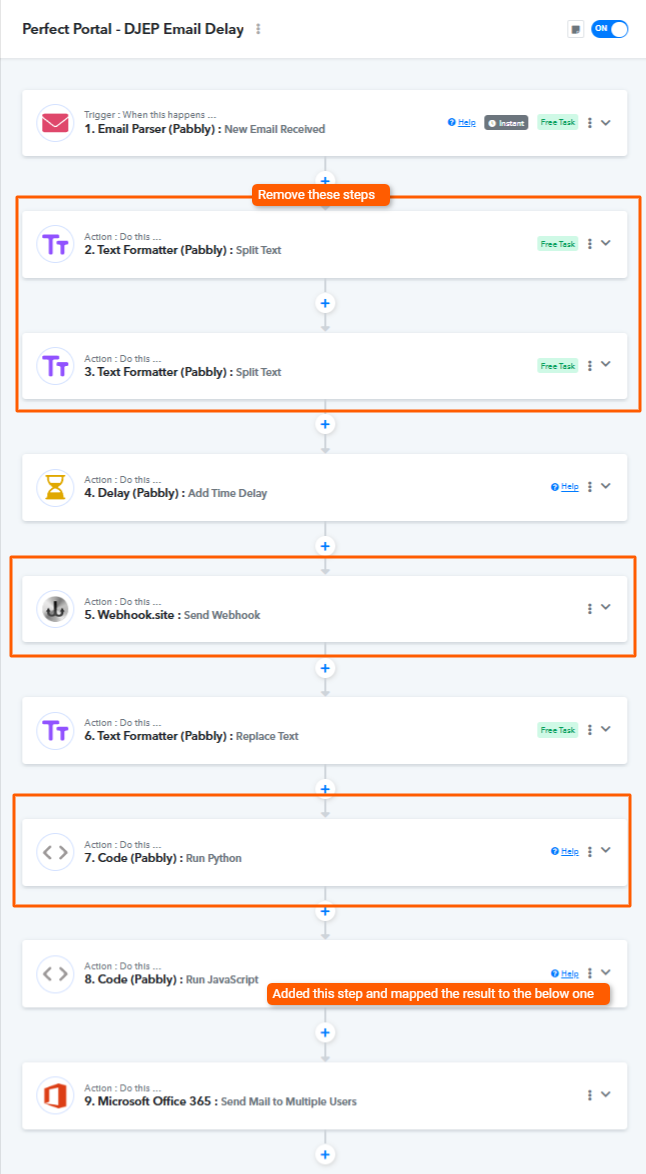
We have added an action as Step 8 in your workflow and mapped the data accordingly. Please test the workflow now.
Additionally, there are a few unnecessary actions. Kindly remove the ones highlighted in the attached image (marked with square boxes), as they are not required.