exceeded your currect quota - wrong
Status: Open · Asked by Limitless on · 0 views
Hey @Limitless,
Thank you for reaching out and for sharing the screenshot.
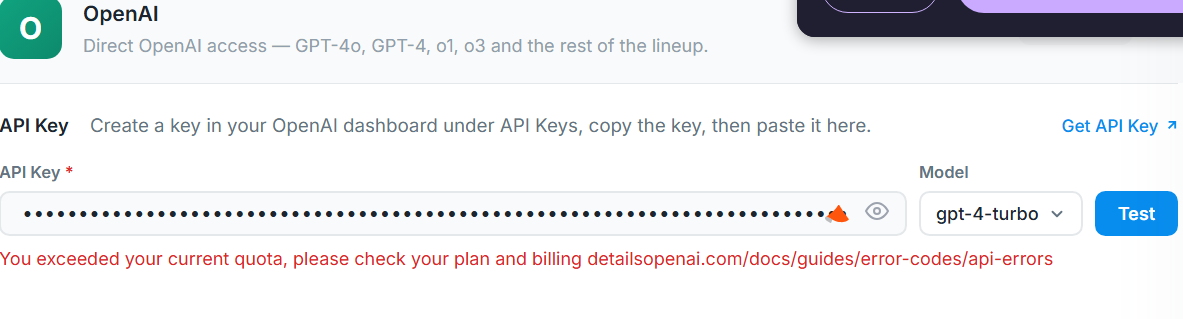
Based on the error shown in your screenshot, the OpenAI API key being used in the connection appears to have exhausted its available quota/credits. This error is being returned directly by OpenAI:
"You exceeded your current quota, please check your plan and billing details."
We recommend checking your OpenAI API usage and quota from the following page:
https://platform.openai.com/settings/organization/usage
Additionally, please verify that your OpenAI account has an active billing method and sufficient credits available.
Once the quota issue is resolved on the OpenAI side, please test the connection again and let us know how it goes.
Hey @Limitless,Thank you for reaching out and for sharing the screenshot.
Based on the error shown in your screenshot, the OpenAI API key being used in the connection appears to have exhausted its available quota/credits. This error is being returned directly by OpenAI:
"You exceeded your current quota, please check your plan and billing details."
We recommend checking your OpenAI API usage and quota from the following page:
https://platform.openai.com/settings/organization/usage
Additionally, please verify that your OpenAI account has an active billing method and sufficient credits available.
Once the quota issue is resolved on the OpenAI side, please test the connection again and let us know how it goes.
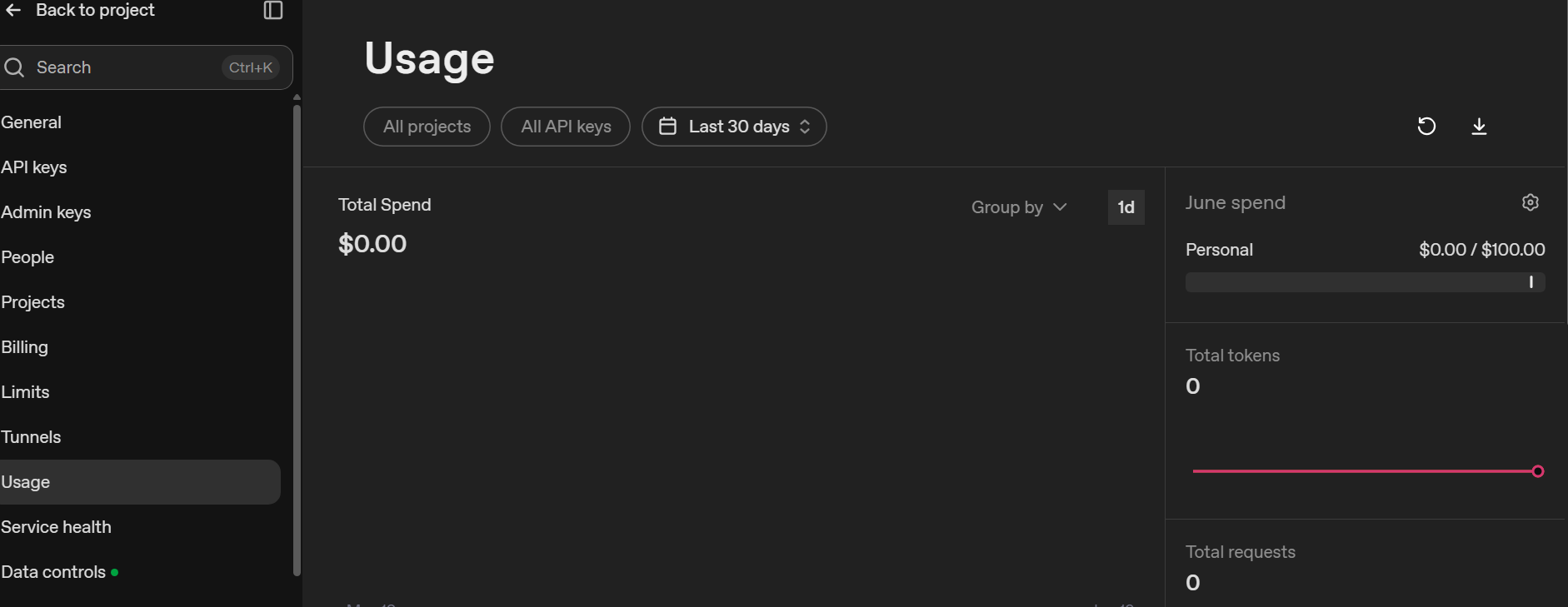
i didnt use it at all.
Hey @Limitless,
Thank you for sharing the screenshot.
Based on the screenshot, it appears that your OpenAI account currently has no API usage and no API tokens available. In many cases, this happens when the account is using a free plan or does not have API billing configured.
Please note that a ChatGPT subscription and OpenAI API access are billed separately. To use OpenAI through API integrations, you need an OpenAI account with API access enabled and an active billing setup.
We recommend checking the following:
- Ensure that API billing is configured in your OpenAI account.
- Verify that you have available API credits or an active pay-as-you-go plan.
- Generate and use an API key from the API Keys section of your OpenAI account.
Once the account is properly configured, please test the connection again and let us know how it goes.