facebook ads insight
Status: Open · Asked by sosmartphone on · 0 views
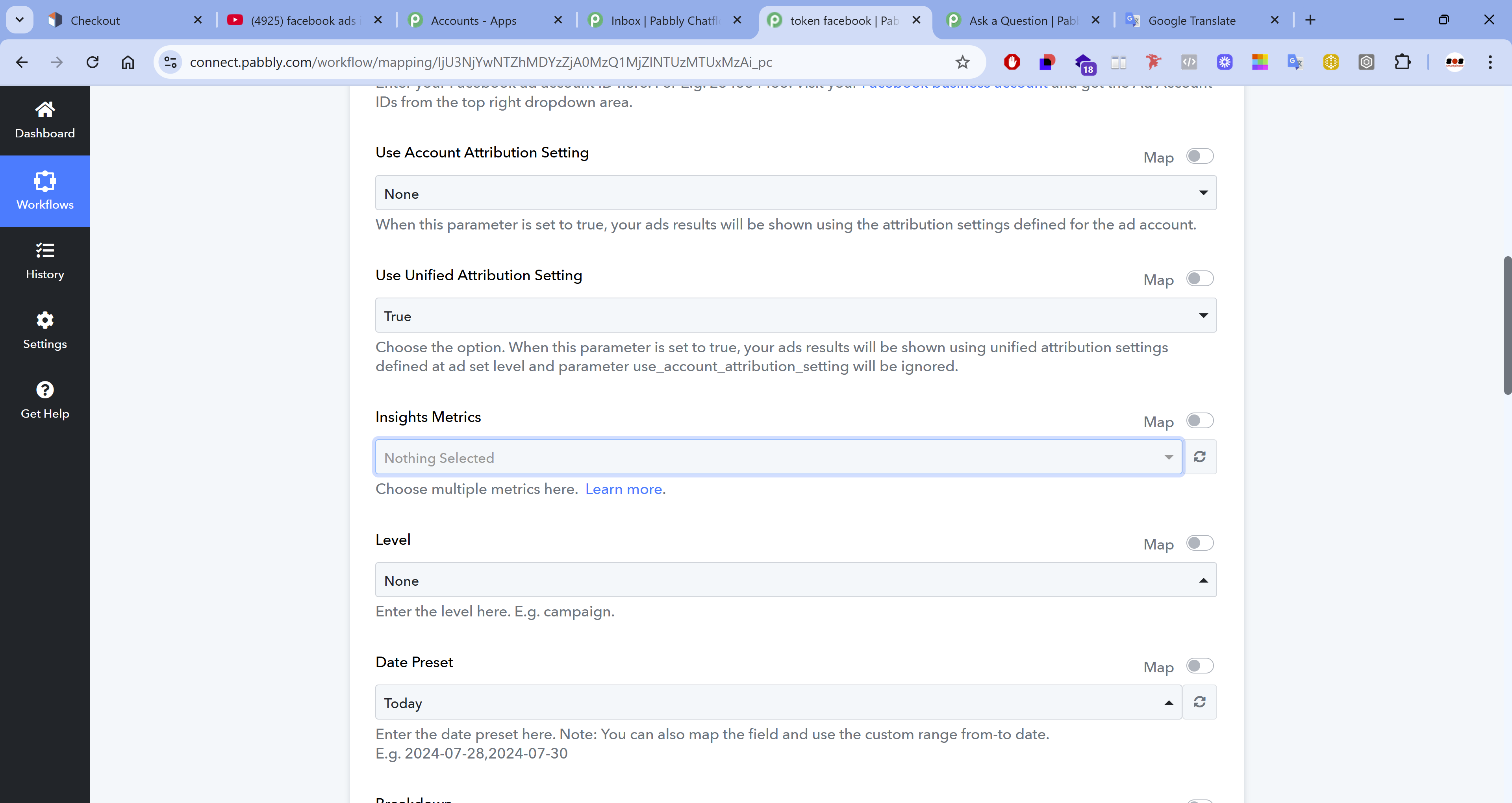
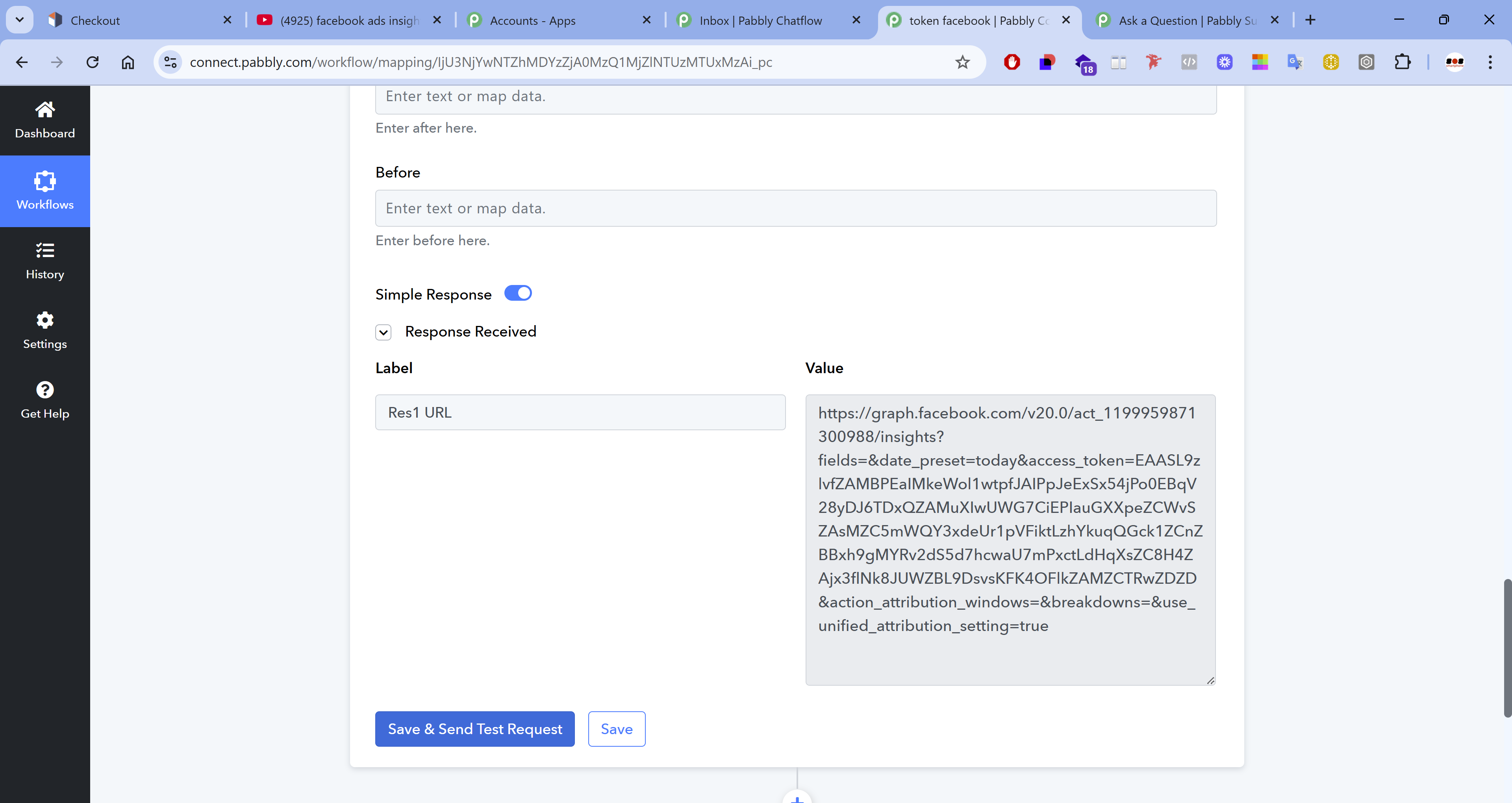
I have this problem in pabbly connect.....I generated my token in my account, I would like to have all the spending information as seen in the youtube guide but it seems that I can not put the parameters or rather I do not know how to put them, if I have this response it means that my token is working.
Hello @dany,
Could you please provide us with the Workflow URL where you are facing this issue? This will help us investigate the problem more effectively and assist you accordingly on whether the token is working well or not. However, as per the shared screenshot,s the token seems to be broken.
Please be aware that to assist you effectively, we may need to access your Pabbly Connect account. If you're comfortable with this, please grant us permission by stating in your next reply:
"You have my permission to log into my Pabbly Connect account and edit the workflow, if required. Here is the registered email address associated with it."
Looking forward to assisting you further.
[IMG width="657px" height="197.942px"]https://lh7-rt.googleusercontent.com/docsz/AD_4nXdcuIRjWSyYq_pK2nGyMvmMM7gjCaqxB8XCjdb1hgcjZwkBPUoIHilzerqd0hJ9plRnOx6y7guHwAWZqGAoafnbBvCjKqAcF7eST9J_2M4Q-Xz0hrbvQJ-4fbLRjVZNBHdit5rjHg?key=nsDumdqHFySLv4i3KkkEsp9o[/IMG]
You have my permission to log into my Pabbly Connect account and edit the workflow, if required. Here is the registered email address associated with it.
You can refresh the 'Insights Metrics' field, select all the relevant metrics you need, and then click 'Save & Send Test Request.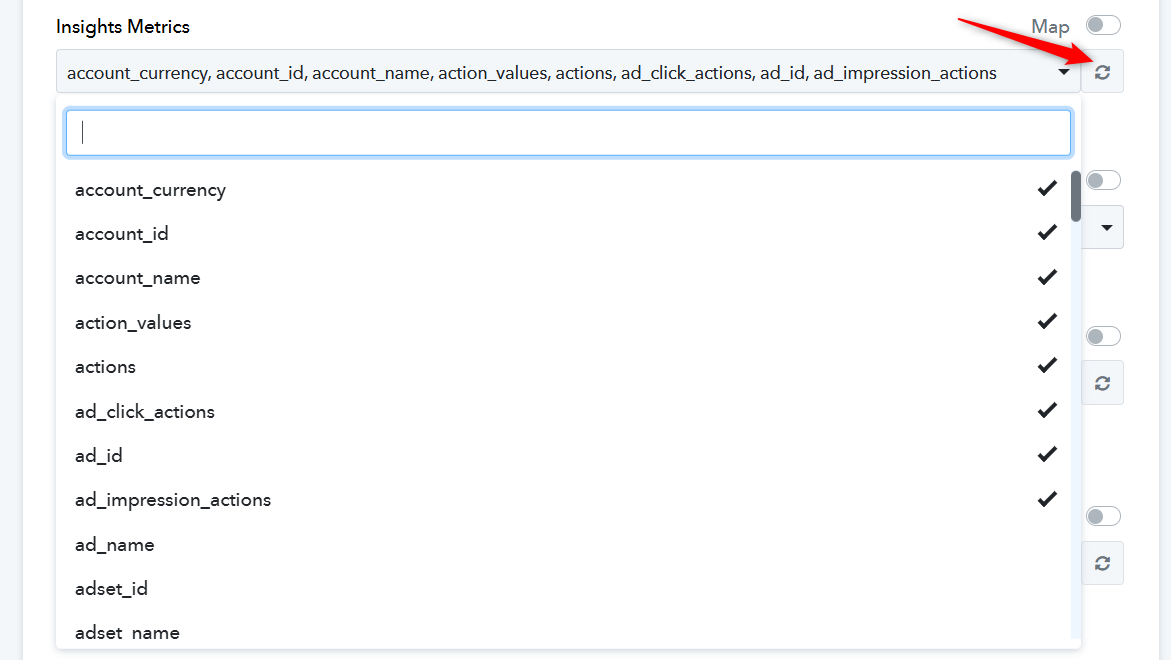
Is it possible to do the same flow with Google Ads? Do we have any guides on this to follow? Thanks for the reply.
Hello @dany ,
Thank you for your query.
We do have the action “Google Ads: Get Google Ads Insights” available in Pabbly Connect, which you can use to create workflows with Google Ads data.
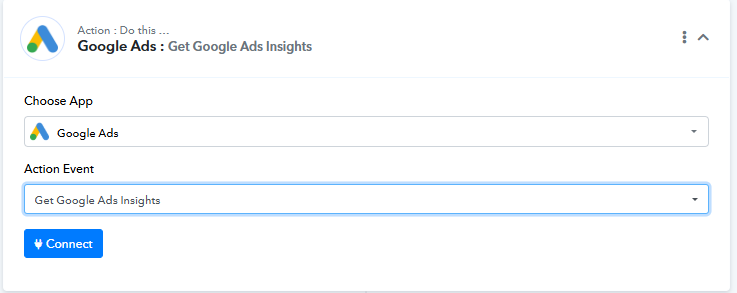
Currently, there is no official guide for setting up this specific step, but you can try configuring it on your own within your workflow.
Where can I find this data in my account?
Hello @dany,
You can view both IDs in one place from your Manager Account (MCC). The Manager ID is visible at the top right of the account, and under the Accounts section, you’ll find the list of all linked accounts with their Customer IDs.
Also, as per the shared image, it seems the connection hasn’t been set up correctly. If the connection was successful, the Manager and Customer IDs would automatically appear in the dropdowns (provided such accounts exist under your login).
can i have a visual screen i cant understand maybe i am going the wrong way thank you very much
Hello @dany,
Currently, there is no official guide available for setting up this specific step, but you can try configuring it directly within your workflow.
The step you’ll need to use is:
Action: Google Ads: Get Google Ads Insights
Fields to configure:
- Manager ID – This is your Google Ads Manager account ID (visible at the top-right corner when you log in to your MCC).
- Customer ID – The specific client account ID you want to fetch data for. You’ll find this under the Accounts section inside your MCC.
- Duration – Select the time period for which you want to retrieve the performance data. The default is TODAY, but you can choose from other options such as YESTERDAY, LAST_7_DAYS, LAST_30_DAYS, etc.
Once you enter these details and test the action, it will pull the performance insights of the chosen Customer Account for the specified duration.
If you’re still unsure, I’d suggest trying a simple test first by setting Duration = TODAY, so you can quickly verify if the data is coming through correctly.
I can't find customer ID
Hi everyone, I’m new here and happy to join the forum. Looking forward to learning and sharing with you all.
Hello @dany ,
It seems that the connection between your Google Ads account and Pabbly Connect is not properly set up. That’s why you are unable to see the Manager ID and Customer ID in the action field dropdown.
I suggest creating a new connection between your Google Ads account and Pabbly Connect. Once the connection is properly established, the Manager ID and Customer ID should appear automatically in the dropdowns, allowing you to configure the “Google Ads: Get Google Ads Insights” action correctly.
Hello @dany ,It seems that the connection between your Google Ads account and Pabbly Connect is not properly set up. That’s why you are unable to see the Manager ID and Customer ID in the action field dropdown.
I suggest creating a new connection between your Google Ads account and Pabbly Connect. Once the connection is properly established, the Manager ID and Customer ID should appear automatically in the dropdowns, allowing you to configure the “Google Ads: Get Google Ads Insights” action correctly.
I deleted and reconnected but this seems to be the result, I'm stuck and can't figure out how to enter the parameters as you say
Please watch the video below to understand how to establish a new connection with your Google Ads account.