Facebook disabled for no reason
Status: Closed · Asked by Richie Ramone on · 0 views
Hello,
Thank you for reaching out, and we're sorry to hear about the issue you're facing.
Based on the information you've shared, this issue is not related to Pabbly Connect. The suspension of your Facebook/Meta account is completely managed by Meta, and we do not have access to review, reinstate, or modify their decisions.
If you believe your account was disabled by mistake or may have been compromised, we recommend the following:
Try recovering your account through Meta's Account Recovery process if you suspect it was hacked.
Visit the Meta Help Center and check for any available account recovery or appeal options.
If you have access to Meta Business Manager, check whether there are any security alerts or unauthorized changes.
If you're unable to submit another review, you may need to wait for any further communication from Meta or explore their available support channels.
Unfortunately, since the decision is entirely on Meta's end, we're unable to intervene or request a review on your behalf.
Once your Facebook account is restored, you should be able to reconnect it with your Pabbly Connect workflows if required. If you need any assistance with reconnecting your workflows after your account is recovered, we'll be happy to help.
We sincerely hope you're able to regain access to your account soon.
Thanks & Regards,Anushka Sahu
Customer Support Associate
🌐 Pabbly.com
very nice

Hello,
Thank you for reaching out, and we're sorry to hear about the issue you're facing.
Based on the information you've shared, this issue is not related to Pabbly Connect. The suspension of your Facebook/Meta account is completely managed by Meta, and we do not have access to review, reinstate, or modify their decisions.
If you believe your account was disabled by mistake or may have been compromised, we recommend the following:
Try recovering your account through Meta's Account Recovery process if you suspect it was hacked.
Visit the Meta Help Center and check for any available account recovery or appeal options.
If you have access to Meta Business Manager, check whether there are any security alerts or unauthorized changes.
If you're unable to submit another review, you may need to wait for any further communication from Meta or explore their available support channels.
Unfortunately, since the decision is entirely on Meta's end, we're unable to intervene or request a review on your behalf.
Once your Facebook account is restored, you should be able to reconnect it with your Pabbly Connect workflows if required. If you need any assistance with reconnecting your workflows after your account is recovered, we'll be happy to help.
We sincerely hope you're able to regain access to your account soon.
Thanks & Regards,
Anushka Sahu
Customer Support Associate
🌐 Pabbly.com
Hello Richie,
That's great to hear that your original Facebook account has been reinstated.
Since you'll now be using your restored Facebook account, you don't need to recreate all of your workflows. Instead, you can update the existing Facebook connection globally so that all workflows using that connection are updated at once.
Please follow these steps:
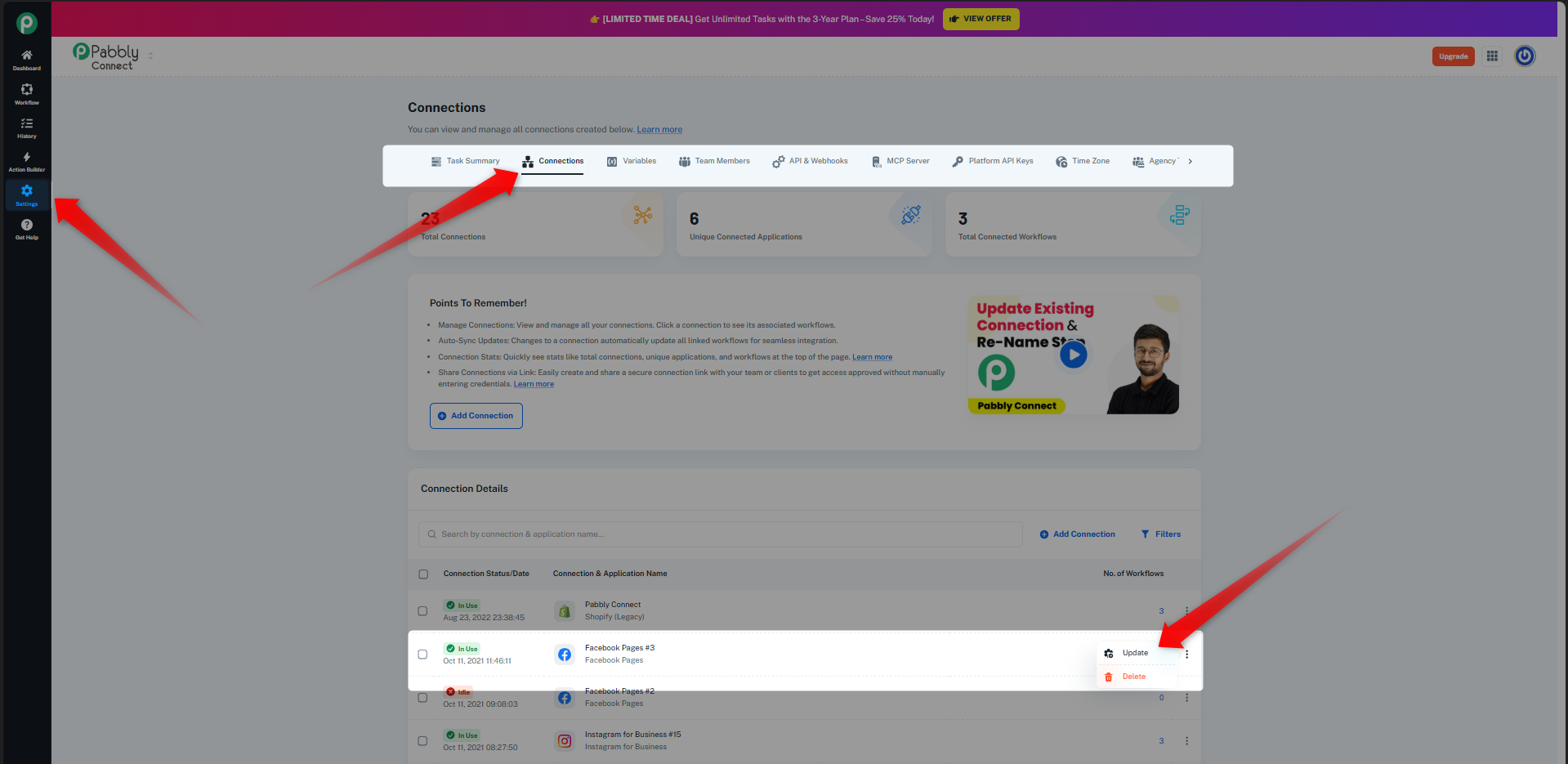
Go to Settings in your Pabbly Connect account.
Open the Connections section.
Find the Facebook connection currently being used in your workflows and click the three dots (⋮) next to it.
Click Update.
Check the option "Update connection data".
Authorize your restored Facebook account and save the connection.
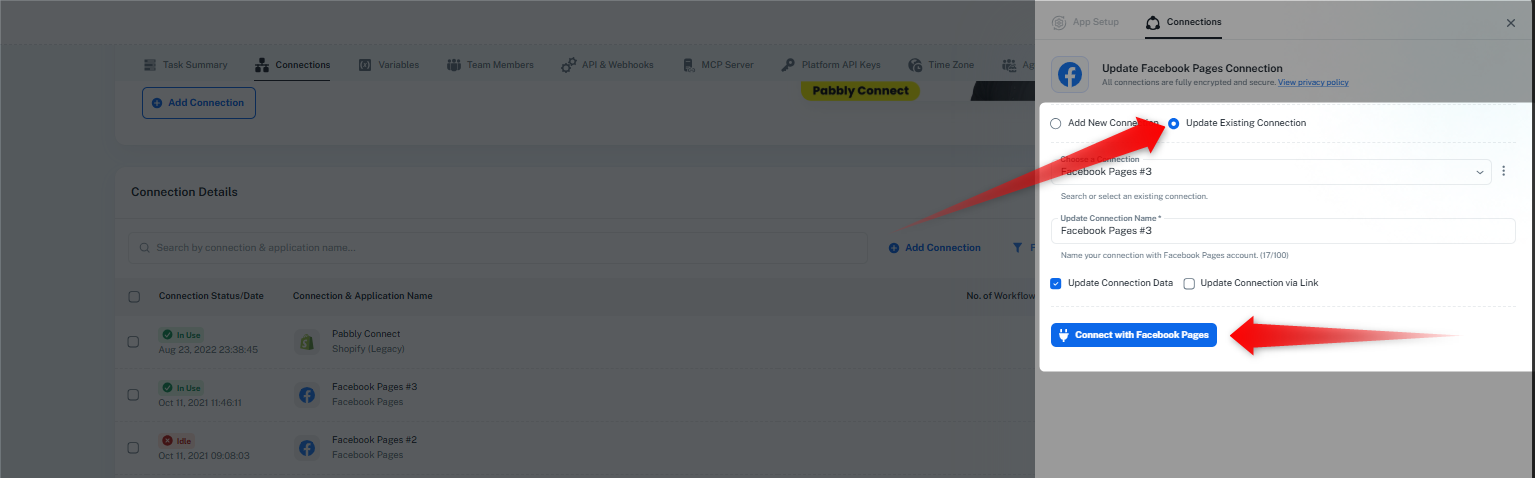
This will update the Facebook connection globally for all workflows using that connection, so you won't need to reconnect each workflow individually.
Once you've updated the connection, please test one of your workflows to ensure everything is working as expected. If you need any assistance during the process, feel free to let us know.
Thanks & Regards,Anushka Sahu
Customer Support Associate
🌐 Pabbly.com
Hello Richie,
That's great to hear that your original Facebook account has been reinstated.
Since you'll now be using your restored Facebook account, you don't need to recreate all of your workflows. Instead, you can update the existing Facebook connection globally so that all workflows using that connection are updated at once.
Please follow these steps:
Go to Settings in your Pabbly Connect account.
Open the Connections section.
Find the Facebook connection currently being used in your workflows and click the three dots (⋮) next to it.
Click Update.
Check the option "Update connection data".
Authorize your restored Facebook account and save the connection.
This will update the Facebook connection globally for all workflows using that connection, so you won't need to reconnect each workflow individually.
Once you've updated the connection, please test one of your workflows to ensure everything is working as expected. If you need any assistance during the process, feel free to let us know.
Thanks & Regards,
Anushka Sahu
Customer Support Associate
🌐 Pabbly.com
Hello,
Thank you for reaching out.
We recommend updating the connection used in the Instagram for Business → Create (Upload) and Publish Photo action step. Kindly create a new connection for this action and authorize it again, then test the workflow.
Additionally, we noticed that you're using the Facebook → Create Page Photo Post (Deprecated) action event. Since this action has been deprecated, we recommend switching to the Facebook → Create Page Photo Post action (non-deprecated) and updating your workflow accordingly.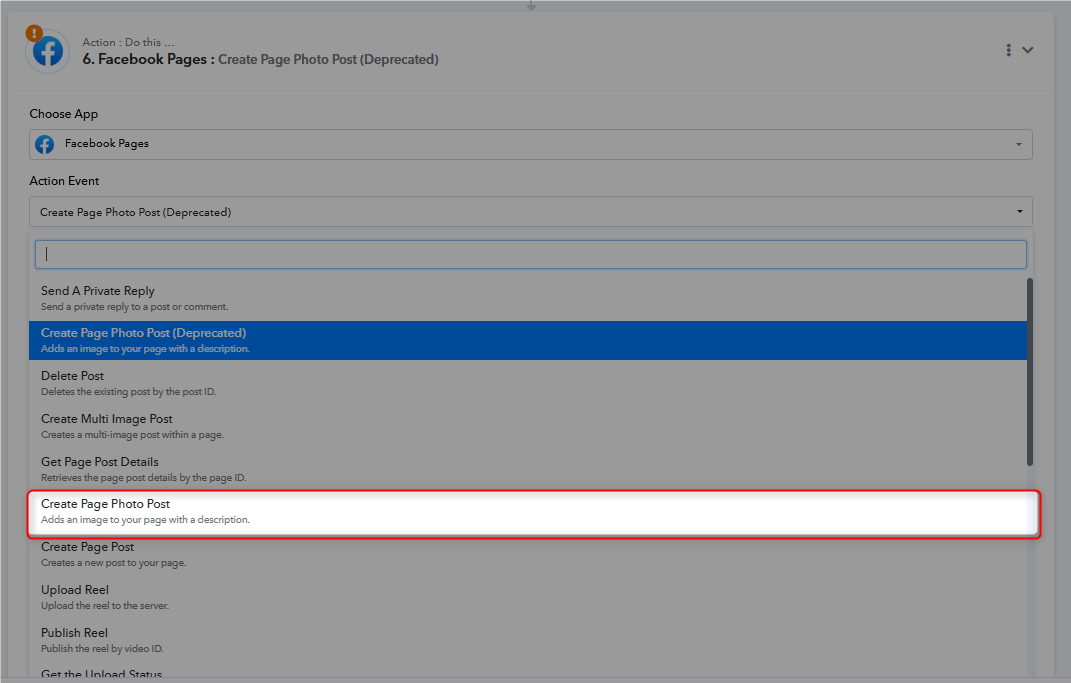
Once you've updated both the connection and the action event, please test the workflow again and let us know if the issue still persists.
Anushka Sahu
Customer Support Associate
🌐 Pabbly.com
Hello,
Thank you for reaching out.
We recommend updating the connection used in the Instagram for Business → Create (Upload) and Publish Photo action step. Kindly create a new connection for this action and authorize it again, then test the workflow.
Additionally, we noticed that you're using the Facebook → Create Page Photo Post (Deprecated) action event. Since this action has been deprecated, we recommend switching to the Facebook → Create Page Photo Post action (non-deprecated) and updating your workflow accordingly.
Thanks & Regards,
Once you've updated both the connection and the action event, please test the workflow again and let us know if the issue still persists.
Anushka Sahu
Customer Support Associate
🌐 Pabbly.com
Hello,
Since you're not able to update the connection for your Instagram for Business action, we recommend referring to the video tutorial below.
Video : https://drive.google.com/file/d/1FWi_beHvUN3nI37flpIVbvp2SsKd8UhF/view?usp=sharing
Please note: This video can only be accessed using the email address [email protected]. Kindly make sure you're logged in with that email before opening the video.
The video explains how to update a connection globally so that the changes are applied across all workflows using that connection.
Please follow the steps shown in the video:
Open Connections in your Pabbly Connect account.
Locate each Instagram for Business connection.
Click the three dots (⋮) next to the connection and select Update.
Check the "Update Connection Data" checkbox.
Reconnect your latest Instagram for Business account.
Repeat these steps for both Instagram for Business connections shown in the video.
Once you've updated both connections, please test your workflow again. If you still face any issues, let us know and we'll be happy to assist you further.
Thanks & Regards,Anushka Sahu
Customer Support Associate
🌐 Pabbly.com
Additionally, we noticed that you're using the Facebook → Create Page Photo Post (Deprecated) action event. Since this action has been deprecated, we recommend switching to the Facebook → Create Page Photo Post action (non-deprecated) and updating your workflow accordingly."
Hello Richie,
Yes, you've found the correct action steps.
Please do not create a new connection directly from the workflow action step. Instead, we recommend updating the connection globally by following the video we shared earlier. This ensures that the updated connection is reflected across all workflows using the same connection.
Video : https://drive.google.com/file/d/1FWi_beHvUN3nI37flpIVbvp2SsKd8UhF/view?usp=sharing
After updating the connection globally, please return to your workflow and verify that the Instagram for Business → Create (Upload) and Publish Photo action in both Route 1 and Route 2 is using the updated connection.
Also, we recommend replacing the Facebook → Create Page Photo Post (Deprecated) action with the Facebook → Create Page Photo Post (non-deprecated) action, as the deprecated action may stop working in the future.
So, in summary:
Follow the video to update the Instagram for Business connection globally.
Confirm that both Instagram action steps (in Route 1 and Route 2) are using the updated connection.
Replace the deprecated Facebook action with the current Create Page Photo Post action.
Test the workflow again.
Please don't worry—we're only updating the connection and replacing the deprecated action. Your workflow logic and routing will remain unchanged.
If you encounter any issue while following the video, let us know exactly which step you're stuck on, and we'll guide you further.
Thanks & Regards,Anushka Sahu
Customer Support Associate
🌐 Pabbly.com
Hello Richie,
Yes, you've found the correct action steps.
Please do not create a new connection directly from the workflow action step. Instead, we recommend updating the connection globally by following the video we shared earlier. This ensures that the updated connection is reflected across all workflows using the same connection.
Video : https://drive.google.com/file/d/1FWi_beHvUN3nI37flpIVbvp2SsKd8UhF/view?usp=sharingAfter updating the connection globally, please return to your workflow and verify that the Instagram for Business → Create (Upload) and Publish Photo action in both Route 1 and Route 2 is using the updated connection.
Also, we recommend replacing the Facebook → Create Page Photo Post (Deprecated) action with the Facebook → Create Page Photo Post (non-deprecated) action, as the deprecated action may stop working in the future.
So, in summary:
Follow the video to update the Instagram for Business connection globally.
Confirm that both Instagram action steps (in Route 1 and Route 2) are using the updated connection.
Replace the deprecated Facebook action with the current Create Page Photo Post action.
Test the workflow again.
Please don't worry—we're only updating the connection and replacing the deprecated action. Your workflow logic and routing will remain unchanged.
If you encounter any issue while following the video, let us know exactly which step you're stuck on, and we'll guide you further.
Thanks & Regards,
Anushka Sahu
Customer Support Associate
🌐 Pabbly.com
But is "we recommend updating the connection globally by following the video we shared earlier. This ensures that the updated connection is reflected across all workflows using the same connection" not the first instructions I was provided in this email thread?If you go back to the middle of this email chain (Mon, Jul 13, 7:48 PM (2 days ago) you will see I was given similar instructions (about global connections) and I followed these steps exactly.I'm now getting very confused about what to do!And it is getting late here - I had hoped to resolve this tonight so I can start website entries tomorrow but I keep waiting 30 minutes for a new response from you...RichieOn Wed, Jul 15, 2026 at 10:32 PM Pabbly Support <[email hidden]> wrote:Hello Richie,
Yes, you've found the correct action steps.
Please do not create a new connection directly from the workflow action step. Instead, we recommend updating the connection globally by following the video we shared earlier. This ensures that the updated connection is reflected across all workflows using the same connection.
Video : https://drive.google.com/file/d/1FWi_beHvUN3nI37flpIVbvp2SsKd8UhF/view?usp=sharingAfter updating the connection globally, please return to your workflow and verify that the Instagram for Business → Create (Upload) and Publish Photo action in both Route 1 and Route 2 is using the updated connection.
Also, we recommend replacing the Facebook → Create Page Photo Post (Deprecated) action with the Facebook → Create Page Photo Post (non-deprecated) action, as the deprecated action may stop working in the future.
So, in summary:
Follow the video to update the Instagram for Business connection globally.
Confirm that both Instagram action steps (in Route 1 and Route 2) are using the updated connection.
Replace the deprecated Facebook action with the current Create Page Photo Post action.
Test the workflow again.
Please don't worry—we're only updating the connection and replacing the deprecated action. Your workflow logic and routing will remain unchanged.
If you encounter any issue while following the video, let us know exactly which step you're stuck on, and we'll guide you further.
Thanks & Regards,
Anushka Sahu
Customer Support Associate
🌐 Pabbly.com--
The updated connections have been connected to my personal Facebook profile of Wilt Wyck.
Okay, I have watched the video and can see I must update the connection on BOTH Instagram For Business connections.Giving it a try now.On Wed, Jul 15, 2026 at 10:44 PM Richie Ramone <[email hidden]> wrote:But is "we recommend updating the connection globally by following the video we shared earlier. This ensures that the updated connection is reflected across all workflows using the same connection" not the first instructions I was provided in this email thread?If you go back to the middle of this email chain (Mon, Jul 13, 7:48 PM (2 days ago) you will see I was given similar instructions (about global connections) and I followed these steps exactly.I'm now getting very confused about what to do!And it is getting late here - I had hoped to resolve this tonight so I can start website entries tomorrow but I keep waiting 30 minutes for a new response from you...RichieOn Wed, Jul 15, 2026 at 10:32 PM Pabbly Support <[email hidden]> wrote:Hello Richie,
Yes, you've found the correct action steps.
Please do not create a new connection directly from the workflow action step. Instead, we recommend updating the connection globally by following the video we shared earlier. This ensures that the updated connection is reflected across all workflows using the same connection.
Video : https://drive.google.com/file/d/1FWi_beHvUN3nI37flpIVbvp2SsKd8UhF/view?usp=sharingAfter updating the connection globally, please return to your workflow and verify that the Instagram for Business → Create (Upload) and Publish Photo action in both Route 1 and Route 2 is using the updated connection.
Also, we recommend replacing the Facebook → Create Page Photo Post (Deprecated) action with the Facebook → Create Page Photo Post (non-deprecated) action, as the deprecated action may stop working in the future.
So, in summary:
Follow the video to update the Instagram for Business connection globally.
Confirm that both Instagram action steps (in Route 1 and Route 2) are using the updated connection.
Replace the deprecated Facebook action with the current Create Page Photo Post action.
Test the workflow again.
Please don't worry—we're only updating the connection and replacing the deprecated action. Your workflow logic and routing will remain unchanged.
If you encounter any issue while following the video, let us know exactly which step you're stuck on, and we'll guide you further.
Thanks & Regards,
Anushka Sahu
Customer Support Associate
🌐 Pabbly.com--
--
"After updating the connection globally, please return to your workflow and verify that the Instagram for Business → Create (Upload) and Publish Photo action in both Route 1 and Route 2 is using the updated connection."- I'm not sure how I tell whether they are using the "updated connection"? Both Routes are using the Instagram account of strangeworld_records
The updated connections have been connected to my personal Facebook profile of Wilt Wyck.My understanding is you MUST have a personal Facebook profile to have an Instagram For Business account.I don't know whether I should go ahead and enter a product OR complete the fixing of the Facebook (Deprecated) ??On Wed, Jul 15, 2026 at 10:51 PM Richie Ramone <[email hidden]> wrote:Okay, I have watched the video and can see I must update the connection on BOTH Instagram For Business connections.Giving it a try now.On Wed, Jul 15, 2026 at 10:44 PM Richie Ramone <[email hidden]> wrote:But is "we recommend updating the connection globally by following the video we shared earlier. This ensures that the updated connection is reflected across all workflows using the same connection" not the first instructions I was provided in this email thread?If you go back to the middle of this email chain (Mon, Jul 13, 7:48 PM (2 days ago) you will see I was given similar instructions (about global connections) and I followed these steps exactly.I'm now getting very confused about what to do!And it is getting late here - I had hoped to resolve this tonight so I can start website entries tomorrow but I keep waiting 30 minutes for a new response from you...RichieOn Wed, Jul 15, 2026 at 10:32 PM Pabbly Support <[email hidden]> wrote:Hello Richie,
Yes, you've found the correct action steps.
Please do not create a new connection directly from the workflow action step. Instead, we recommend updating the connection globally by following the video we shared earlier. This ensures that the updated connection is reflected across all workflows using the same connection.
Video : https://drive.google.com/file/d/1FWi_beHvUN3nI37flpIVbvp2SsKd8UhF/view?usp=sharingAfter updating the connection globally, please return to your workflow and verify that the Instagram for Business → Create (Upload) and Publish Photo action in both Route 1 and Route 2 is using the updated connection.
Also, we recommend replacing the Facebook → Create Page Photo Post (Deprecated) action with the Facebook → Create Page Photo Post (non-deprecated) action, as the deprecated action may stop working in the future.
So, in summary:
Follow the video to update the Instagram for Business connection globally.
Confirm that both Instagram action steps (in Route 1 and Route 2) are using the updated connection.
Replace the deprecated Facebook action with the current Create Page Photo Post action.
Test the workflow again.
Please don't worry—we're only updating the connection and replacing the deprecated action. Your workflow logic and routing will remain unchanged.
If you encounter any issue while following the video, let us know exactly which step you're stuck on, and we'll guide you further.
Thanks & Regards,
Anushka Sahu
Customer Support Associate
🌐 Pabbly.com--
--
--
I just checked the Route 1 and Route 2 and they only say "Instagram For Business" not Instagram For Business #15 as it said in the Settings > ConnectionsOn Wed, Jul 15, 2026 at 11:00 PM Richie Ramone <[email hidden]> wrote:"After updating the connection globally, please return to your workflow and verify that the Instagram for Business → Create (Upload) and Publish Photo action in both Route 1 and Route 2 is using the updated connection."- I'm not sure how I tell whether they are using the "updated connection"? Both Routes are using the Instagram account of strangeworld_records
The updated connections have been connected to my personal Facebook profile of Wilt Wyck.My understanding is you MUST have a personal Facebook profile to have an Instagram For Business account.I don't know whether I should go ahead and enter a product OR complete the fixing of the Facebook (Deprecated) ??On Wed, Jul 15, 2026 at 10:51 PM Richie Ramone <[email hidden]> wrote:Okay, I have watched the video and can see I must update the connection on BOTH Instagram For Business connections.Giving it a try now.On Wed, Jul 15, 2026 at 10:44 PM Richie Ramone <[email hidden]> wrote:But is "we recommend updating the connection globally by following the video we shared earlier. This ensures that the updated connection is reflected across all workflows using the same connection" not the first instructions I was provided in this email thread?If you go back to the middle of this email chain (Mon, Jul 13, 7:48 PM (2 days ago) you will see I was given similar instructions (about global connections) and I followed these steps exactly.I'm now getting very confused about what to do!And it is getting late here - I had hoped to resolve this tonight so I can start website entries tomorrow but I keep waiting 30 minutes for a new response from you...RichieOn Wed, Jul 15, 2026 at 10:32 PM Pabbly Support <[email hidden]> wrote:Hello Richie,
Yes, you've found the correct action steps.
Please do not create a new connection directly from the workflow action step. Instead, we recommend updating the connection globally by following the video we shared earlier. This ensures that the updated connection is reflected across all workflows using the same connection.
Video : https://drive.google.com/file/d/1FWi_beHvUN3nI37flpIVbvp2SsKd8UhF/view?usp=sharingAfter updating the connection globally, please return to your workflow and verify that the Instagram for Business → Create (Upload) and Publish Photo action in both Route 1 and Route 2 is using the updated connection.
Also, we recommend replacing the Facebook → Create Page Photo Post (Deprecated) action with the Facebook → Create Page Photo Post (non-deprecated) action, as the deprecated action may stop working in the future.
So, in summary:
Follow the video to update the Instagram for Business connection globally.
Confirm that both Instagram action steps (in Route 1 and Route 2) are using the updated connection.
Replace the deprecated Facebook action with the current Create Page Photo Post action.
Test the workflow again.
Please don't worry—we're only updating the connection and replacing the deprecated action. Your workflow logic and routing will remain unchanged.
If you encounter any issue while following the video, let us know exactly which step you're stuck on, and we'll guide you further.
Thanks & Regards,
Anushka Sahu
Customer Support Associate
🌐 Pabbly.com--
--
--
--
Hello Richie,
We checked your workflow and found that the Instagram for Business issue has been resolved successfully. You've updated the connection correctly, and the workflow is now using the latest authorized connection.
There is now just one final step remaining.
In both Router 1 and Router 2, please open the Facebook Pages → Create Page Photo Post (Deprecated) action step and change the Action Event to Create Page Photo Post (the non-deprecated version).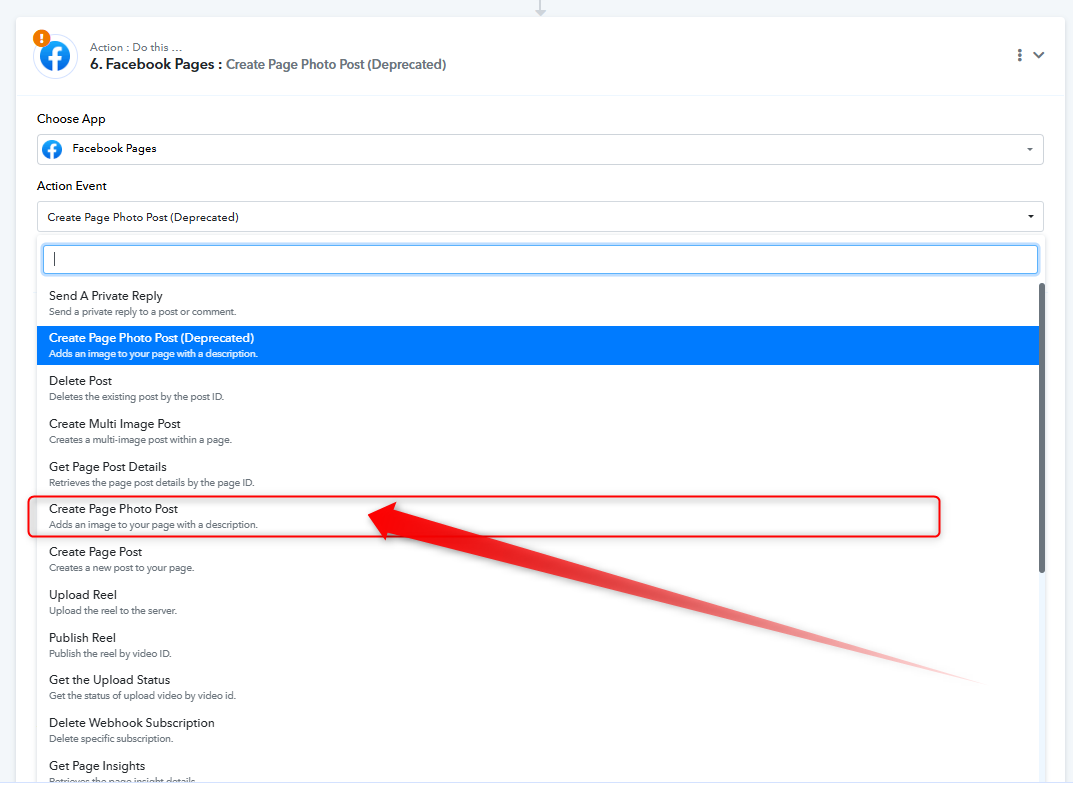
After selecting the new action event:
Re-select the required fields as they were configured previously.
Click Save & Send Test Request.
Please repeat these steps for the Facebook action in both routers.
Once this is done, your workflow will be fully updated and correctly configured.
If you face any difficulty while performing these steps, please let us know.
Thanks & Regards,Anushka Sahu
Customer Support Associate
🌐 Pabbly.com
Hello Richie,
We checked your workflow and found that the Instagram for Business issue has been resolved successfully. You've updated the connection correctly, and the workflow is now using the latest authorized connection.
There is now just one final step remaining.
In both Router 1 and Router 2, please open the Facebook Pages → Create Page Photo Post (Deprecated) action step and change the Action Event to Create Page Photo Post (the non-deprecated version).
After selecting the new action event:
Re-select the required fields as they were configured previously.
Click Save & Send Test Request.
Please repeat these steps for the Facebook action in both routers.
Once this is done, your workflow will be fully updated and correctly configured.
If you face any difficulty while performing these steps, please let us know.
Thanks & Regards,
Anushka Sahu
Customer Support Associate
🌐 Pabbly.com
Hello Richie,
Thank you for the detailed update and for taking the time to follow all the instructions. We understand that you've put in a lot of effort, and we appreciate your patience.
Since this issue has been persisting for quite some time and requires a more detailed investigation, we believe the best way to resolve it is through a live meeting. This will allow us to review your workflow, verify the Facebook and Instagram configurations, and troubleshoot the issue together in real time.
Please schedule a meeting at your convenience using the link below:
Schedule a Meeting: https://calendly.com/d/dtn2-t56-c3p
Please note that the available time slots have already been pre-filled, so you can book a slot that works best for you.
During the meeting, we'll also review the Description field, the Facebook-to-Instagram posting flow, and any other configuration that could be preventing the post from appearing on Instagram.
We look forward to helping you get this resolved.
Thanks & Regards,Anushka Sahu
Customer Support Associate
🌐 Pabbly.com
Hello Richie,
Thank you for the detailed update and for taking the time to follow all the instructions. We understand that you've put in a lot of effort, and we appreciate your patience.
Since this issue has been persisting for quite some time and requires a more detailed investigation, we believe the best way to resolve it is through a live meeting. This will allow us to review your workflow, verify the Facebook and Instagram configurations, and troubleshoot the issue together in real time.
Please schedule a meeting at your convenience using the link below:
Schedule a Meeting: https://calendly.com/d/dtn2-t56-c3p
Please note that the available time slots have already been pre-filled, so you can book a slot that works best for you.
During the meeting, we'll also review the Description field, the Facebook-to-Instagram posting flow, and any other configuration that could be preventing the post from appearing on Instagram.
We look forward to helping you get this resolved.
Thanks & Regards,
Anushka Sahu
Customer Support Associate
🌐 Pabbly.com
Hello Richie,
Thank you for sharing the screenshots.
Based on the images you've shared, it appears that you've mapped the data correctly in the Description field.
At this point, we recommend that you save both action steps and then trigger your workflow again.
Please let us know whether the new execution completes successfully or if you encounter any errors. If the issue still persists after testing, we'll continue investigating it further and help you get it resolved as quickly as possible.
Thanks & Regards,Anushka Sahu
Customer Support Associate
🌐 Pabbly.com
Hello Richie,
Thank you for sharing the screenshots.
Based on the images you've shared, it appears that you've mapped the data correctly in the Description field.
At this point, we recommend that you save both action steps and then trigger your workflow again.
Please let us know whether the new execution completes successfully or if you encounter any errors. If the issue still persists after testing, we'll continue investigating it further and help you get it resolved as quickly as possible.
Thanks & Regards,
Anushka Sahu
Customer Support Associate
🌐 Pabbly.com
Hello Richie,
Yes, you can certainly give it a try.
Based on the screenshots you shared from 2024, it looks like the Description field was mapped. We recommend replicating the same mapping in the current Create Page Photo Post action, then save the step and test the workflow.
If it works, that would save us some time and you can continue with your website entries right away.
If it still doesn't work, no worries—we'll go through it together during our meeting in about 30 minutes and get it sorted out.
Please go ahead and give it a try.
Thanks & Regards,Anushka Sahu
Customer Support Associate
🌐 Pabbly.com
Hello Richie,
Yes, you can certainly give it a try.
Based on the screenshots you shared from 2024, it looks like the Description field was mapped. We recommend replicating the same mapping in the current Create Page Photo Post action, then save the step and test the workflow.
If it works, that would save us some time and you can continue with your website entries right away.
If it still doesn't work, no worries—we'll go through it together during our meeting in about 30 minutes and get it sorted out.
Please go ahead and give it a try.
Thanks & Regards,
Anushka Sahu
Customer Support Associate
🌐 Pabbly.com
Okay, I've gone back in and when I try to map the Description, the option is "insert data from previous step".I don't know which I am supposed to select!On Thu, Jul 16, 2026 at 7:39 PM Pabbly Support <[email hidden]> wrote:Hello Richie,
Yes, you can certainly give it a try.
Based on the screenshots you shared from 2024, it looks like the Description field was mapped. We recommend replicating the same mapping in the current Create Page Photo Post action, then save the step and test the workflow.
If it works, that would save us some time and you can continue with your website entries right away.
If it still doesn't work, no worries—we'll go through it together during our meeting in about 30 minutes and get it sorted out.
Please go ahead and give it a try.
Thanks & Regards,
Anushka Sahu
Customer Support Associate
🌐 Pabbly.com--
I hate having to redo this every time something becomes deprecated.After a couple years, I can never remember what I did previously.So confused.On Thu, Jul 16, 2026 at 7:42 PM Richie Ramone <[email hidden]> wrote:Okay, I've gone back in and when I try to map the Description, the option is "insert data from previous step".I don't know which I am supposed to select!On Thu, Jul 16, 2026 at 7:39 PM Pabbly Support <[email hidden]> wrote:Hello Richie,
Yes, you can certainly give it a try.
Based on the screenshots you shared from 2024, it looks like the Description field was mapped. We recommend replicating the same mapping in the current Create Page Photo Post action, then save the step and test the workflow.
If it works, that would save us some time and you can continue with your website entries right away.
If it still doesn't work, no worries—we'll go through it together during our meeting in about 30 minutes and get it sorted out.
Please go ahead and give it a try.
Thanks & Regards,
Anushka Sahu
Customer Support Associate
🌐 Pabbly.com--
--