Flow is not Connecting, showing Cross sign
Status: Open · Asked by Farooq Shahzad on · 0 views
Hi i am just creating my first flow but its not working like its shows cross on my connection. Kindly help me to troubleshoot this issue so i can make this app in production.
Hi @Farooq Shahzad,
The cross sign does not indicate that there is no connection between the two nodes. The nodes shown in your screenshot are already connected. If you click on the cross sign, the nodes will be disconnected, it is simply a button to quickly remove the connection between them.
Thanks & Regards,
Arshil Ahmad
Customer Support Associate
? Pabbly.com
Alright but when I try to save then it shows invalid flow, can u guide about this. Thabks
Hi @Farooq Shahzad,
We tested saving your flow on our end, and it was saved successfully.
The “Invalid Flow” error you’re encountering could be due to a browser cache issue. We recommend clearing your browser cache, making a small change to the flow, and then trying to save it again.
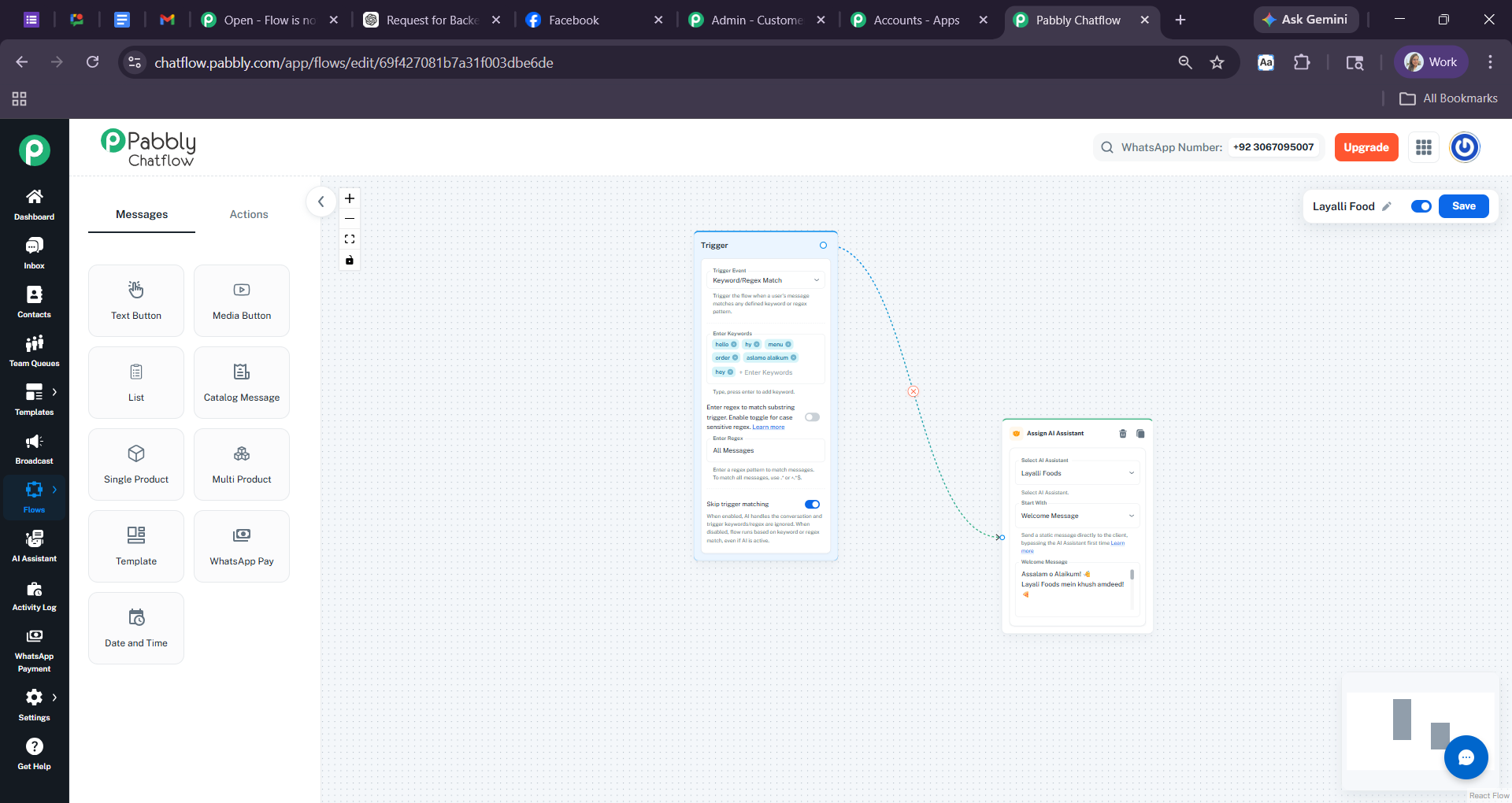
Please try this and let us know how it goes.
Hi @Farooq Shahzad,We tested saving your flow on our end, and it was saved successfully.
The “Invalid Flow” error you’re encountering could be due to a browser cache issue. We recommend clearing your browser cache, making a small change to the flow, and then trying to save it again.
Please try this and let us know how it goes.
Hi @Farooq Shahzad,We tested saving your flow on our end, and it was saved successfully.
The “Invalid Flow” error you’re encountering could be due to a browser cache issue. We recommend clearing your browser cache, making a small change to the flow, and then trying to save it again.
Please try this and let us know how it goes.
Thank you so much issue resolved. I want to sell multiple chatbot to multiple clients how much credit I get.
Hi @Farooq Shahzad,
Thanks for confirming that the issue is now resolved.
Regarding the credit requirement, it mainly depends on the number of outgoing messages your chatbots or flows will send. Based on your expected usage and client requirements, you can choose a suitable plan accordingly.
If you'd like, you can share your approximate monthly message/credit requirements with us, and we’ll help suggest the most suitable plan for your use case.
Hi @Farooq Shahzad,Thanks for confirming that the issue is now resolved.
Regarding the credit requirement, it mainly depends on the number of outgoing messages your chatbots or flows will send. Based on your expected usage and client requirements, you can choose a suitable plan accordingly.
If you'd like, you can share your approximate monthly message/credit requirements with us, and we’ll help suggest the most suitable plan for your use case.
Hi Preeti,
Thanks for the clarification.
At the moment, I’m still in the learning and testing phase, so my message usage is quite low. However, I’m planning to use it for client projects soon, especially for chatbot flows like event bookings and customer inquiries.
I’ll share a more accurate estimate of monthly message/credit requirements once I start working with real clients. Meanwhile, if you can suggest a suitable starter plan for testing and small-scale usage, that would be helpful.
Thanks again for your support.
Currently, our yearly plans start with 10,000 credits/month and scale up based on usage requirements:
https://www.pabbly.com/chatflow/
• 10,000 credits/month → Ideal for testing, learning, and small-scale client projects
• 20,000 credits/month → Suitable for growing usage, multiple clients, and moderate automation
• Unlimited plan → Best suited for high-volume usage, broadcasts, and large-scale automation requirements
Since you are currently in the learning and testing phase with relatively low usage, we would recommend starting with the 10,000 credits yearly plan. It should be a great fit for testing, learning the platform, and handling initial client projects such as event booking and customer inquiry chatbot flows.
However, if you do not require a yearly plan at the moment, you can also continue using the free plan while you explore and test the platform.
The core features remain largely the same across all plans, including chatbot builder, shared inbox, broadcasts, API access, workflows, AI assistants, custom fields, and team collaboration features. The primary difference between the plans is the number of outgoing message credits included each month.
Once you begin working with real clients and have a clearer understanding of your monthly message requirements, you can always upgrade to a higher plan later if needed.
Thanks & Regards,
Arshil Ahmad
Customer Support Associate
? Pabbly.com
Currently, our yearly plans start with 10,000 credits/month and scale up based on usage requirements:
https://www.pabbly.com/chatflow/• 10,000 credits/month → Ideal for testing, learning, and small-scale client projects
• 20,000 credits/month → Suitable for growing usage, multiple clients, and moderate automation
• Unlimited plan → Best suited for high-volume usage, broadcasts, and large-scale automation requirementsSince you are currently in the learning and testing phase with relatively low usage, we would recommend starting with the 10,000 credits yearly plan. It should be a great fit for testing, learning the platform, and handling initial client projects such as event booking and customer inquiry chatbot flows.
However, if you do not require a yearly plan at the moment, you can also continue using the free plan while you explore and test the platform.
The core features remain largely the same across all plans, including chatbot builder, shared inbox, broadcasts, API access, workflows, AI assistants, custom fields, and team collaboration features. The primary difference between the plans is the number of outgoing message credits included each month.
Once you begin working with real clients and have a clearer understanding of your monthly message requirements, you can always upgrade to a higher plan later if needed.
Thanks & Regards,
Arshil Ahmad
Customer Support Associate
? Pabbly.com
Hi Arshil,
Thank you for the detailed explanation and recommendation.
The 10,000 credits plan sounds suitable for my future client projects. For now, I’ll continue exploring and testing the platform on the free plan so I can better understand my actual monthly requirements.
Once I start working with real clients and my usage increases, I’ll definitely consider upgrading to the yearly plan.
Thanks again for your guidance and support.
Hi @Farooq Shahzad,
Thanks for the update. Glad to be of help!
Currently, our yearly plans start with 10,000 credits/month and scale up based on usage requirements:
https://www.pabbly.com/chatflow/• 10,000 credits/month → Ideal for testing, learning, and small-scale client projects
• 20,000 credits/month → Suitable for growing usage, multiple clients, and moderate automation
• Unlimited plan → Best suited for high-volume usage, broadcasts, and large-scale automation requirementsSince you are currently in the learning and testing phase with relatively low usage, we would recommend starting with the 10,000 credits yearly plan. It should be a great fit for testing, learning the platform, and handling initial client projects such as event booking and customer inquiry chatbot flows.
However, if you do not require a yearly plan at the moment, you can also continue using the free plan while you explore and test the platform.
The core features remain largely the same across all plans, including chatbot builder, shared inbox, broadcasts, API access, workflows, AI assistants, custom fields, and team collaboration features. The primary difference between the plans is the number of outgoing message credits included each month.
Once you begin working with real clients and have a clearer understanding of your monthly message requirements, you can always upgrade to a higher plan later if needed.
Thanks & Regards,
Arshil Ahmad
Customer Support Associate
? Pabbly.com
Hi Arshil,
I have a small concern regarding the credit usage. If 10,000 credits can be consumed by just one active restaurant client, then handling multiple client projects may become difficult.
I also noticed that during my testing phase, around 100 credits were used within just 3–4 days. That’s why I’m wondering: if a restaurant owner receives around 100–200 messages daily, the credits may finish very quickly.
Could you kindly guide me on the best ways to minimize credit usage and optimize chatbot flows so that more contacts and conversations can be handled with lower credit consumption?
Thanks.
Hi @Farooq Shahzad,
Thank you for sharing your concern.
Credit consumption in Chatflow occurs whenever an outgoing message is sent, whether the message is sent manually via the inbox or automatically through chatbot flows. In general, each outgoing message consumes one credit.
To optimize credit usage and handle multiple client projects more efficiently, you can consider the following:
- Design chatbot flows carefully to avoid unnecessary or repeated messages.
- Minimize extra follow-up messages wherever possible.
- Use targeted automation so only relevant responses are triggered.
- Assign separate WhatsApp numbers to different clients/restaurants. This helps you manage and distribute credit usage more effectively per client. Learn more about it here.
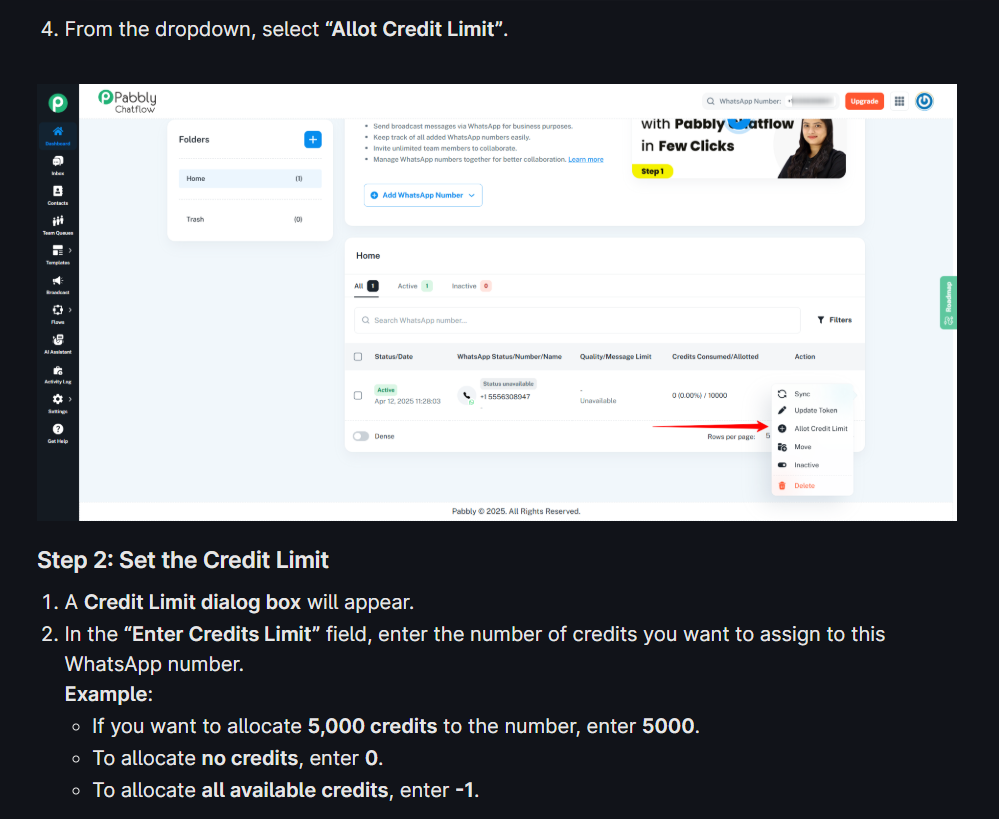
Additionally, we offer multiple plans based on usage requirements. For higher-volume businesses such as restaurants handling large numbers of daily conversations, you may consider the Unlimited yearly plan. This plan provides an initial allocation of 1 lakh credits, and once 80% of the credits are exhausted, they can be reset once within a day, making it suitable for managing high-message-volume use cases.
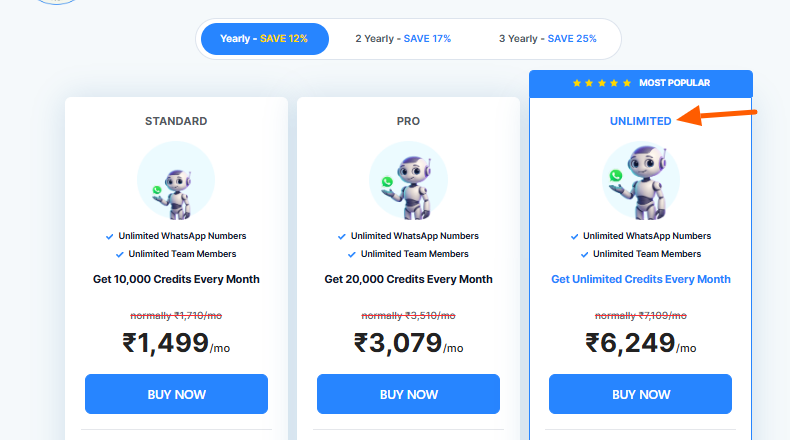
Please let us know if you would like more details regarding the available plans or best practices for optimizing chatbot flows.
Hi @Farooq Shahzad,Thank you for sharing your concern.
Credit consumption in Chatflow occurs whenever an outgoing message is sent, whether the message is sent manually via the inbox or automatically through chatbot flows. In general, each outgoing message consumes one credit.
To optimize credit usage and handle multiple client projects more efficiently, you can consider the following:
- Design chatbot flows carefully to avoid unnecessary or repeated messages.
- Minimize extra follow-up messages wherever possible.
- Use targeted automation so only relevant responses are triggered.
- Assign separate WhatsApp numbers to different clients/restaurants. This helps you manage and distribute credit usage more effectively per client. Learn more about it here.
Additionally, we offer multiple plans based on usage requirements. For higher-volume businesses such as restaurants handling large numbers of daily conversations, you may consider the Unlimited yearly plan. This plan provides an initial allocation of 1 lakh credits, and once 80% of the credits are exhausted, they can be reset once within a day, making it suitable for managing high-message-volume use cases.
Please let us know if you would like more details regarding the available plans or best practices for optimizing chatbot flows.
Hi Preeti,
I would also appreciate it if you could share some best practices for optimizing chatbot flows and reducing unnecessary credit consumption. Since I plan to use this for restaurant and event booking clients in the future, I want to design the flows in the most efficient way possible.
I also have another question. If in the future I want to connect multiple WhatsApp numbers, for example 50 WhatsApp numbers for different clients, would I need to purchase a separate API for each WhatsApp number?
Also, are these APIs purchased from a third-party platform, or are they provided directly by Pabbly/Chatflow?
Thanks again for your support.
To optimize chatbot flows and reduce unnecessary credit consumption, we would recommend the following best practices:
- Keep the flow structure simple and avoid unnecessary loops or repeated message steps.
- Use buttons, quick replies, and list messages wherever possible instead of open-ended AI conversations, as they consume fewer credits.
- Add proper filters and conditions to ensure messages are only triggered when required.
- Store user responses in custom fields so the bot does not need to ask the same questions repeatedly.
- Use AI steps only where genuinely needed, such as handling dynamic queries, while keeping standard booking flows rule-based.
Regarding multiple WhatsApp numbers, each WhatsApp number needs to have its own WhatsApp Business API onboarding/setup on Meta’s side. However, you do not need to purchase separate Pabbly Chatflow accounts for each number.
So, in your example, if you manage 50 client WhatsApp numbers:
- You can connect all 50 numbers inside one Pabbly Chatflow account.
- Pabbly Chatflow itself does not charge extra per connected number.
- Each number must still be individually connected to the WhatsApp Business Platform (Cloud API).
- You can manage all numbers, inboxes, chatbots, broadcasts, and automations centrally from one dashboard.
Thanks & Regards,
Arshil Ahmad
Customer Support Associate
? Pabbly.com
To optimize chatbot flows and reduce unnecessary credit consumption, we would recommend the following best practices:
- Keep the flow structure simple and avoid unnecessary loops or repeated message steps.
- Use buttons, quick replies, and list messages wherever possible instead of open-ended AI conversations, as they consume fewer credits.
- Add proper filters and conditions to ensure messages are only triggered when required.
- Store user responses in custom fields so the bot does not need to ask the same questions repeatedly.
- Use AI steps only where genuinely needed, such as handling dynamic queries, while keeping standard booking flows rule-based.
Regarding multiple WhatsApp numbers, each WhatsApp number needs to have its own WhatsApp Business API onboarding/setup on Meta’s side. However, you do not need to purchase separate Pabbly Chatflow accounts for each number.
So, in your example, if you manage 50 client WhatsApp numbers:
- You can connect all 50 numbers inside one Pabbly Chatflow account.
- Pabbly Chatflow itself does not charge extra per connected number.
- Each number must still be individually connected to the WhatsApp Business Platform (Cloud API).
- You can manage all numbers, inboxes, chatbots, broadcasts, and automations centrally from one dashboard.
Thanks & Regards,
Arshil Ahmad
Customer Support Associate
? Pabbly.com
Hi Arshil,
Thank you for the clarification. I have two more questions regarding the WhatsApp API setup.
First, how will I know from where and how to connect the API for each WhatsApp number? Is the API connection/setup done directly through Pabbly Chatflow, or does it need to be connected separately through Meta/Facebook Developer settings?
Second, when adding a client’s WhatsApp number, does every client need to have their own Facebook Business Portfolio/Business Manager account created first? Or can I simply take access to the client’s existing Facebook page and connect their WhatsApp number from there?
Thanks again for your guidance.
The WhatsApp API connection setup is done directly from within Pabbly Chatflow itself. During the connection process, you will be redirected to Meta, where you simply log in with the relevant Facebook account and grant the required permissions. So, you generally do not need to manually configure anything inside Facebook Developer settings unless you are using a completely custom Meta app setup.
For most users, the process is straightforward:
- Open Pabbly Chatflow
- Click to add/connect a WhatsApp number
- Log in via Meta/Facebook
- Select the Business Portfolio and WhatsApp account
- Complete OTP verification for the number
- The number gets connected to Chatflow
Watch the videos shared below:
Embedded signup method
youtube.com/watch?v=J2YKHvlSMP8
There is also a Manual Token Method
youtube.com/watch?v=iPg0W3Ra3Og
Regarding client accounts, ideally each client should have their own Meta Business Portfolio (Business Manager) because WhatsApp Business API numbers are officially tied to a business entity on Meta’s side.
However, you do not necessarily need to create a new Business Manager from scratch for every client if they already have one. In most cases:
- The client can simply add you as a partner/employee/admin to their existing Facebook Business Portfolio.
- You can then connect and manage their WhatsApp number through their existing setup.
- Access to just the Facebook Page alone may not always be sufficient because WhatsApp API permissions are usually managed at the Business Portfolio level, not only the page level.
Thanks & Regards,
Arshil Ahmad
Customer Support Associate
? Pabbly.com
The WhatsApp API connection setup is done directly from within Pabbly Chatflow itself. During the connection process, you will be redirected to Meta, where you simply log in with the relevant Facebook account and grant the required permissions. So, you generally do not need to manually configure anything inside Facebook Developer settings unless you are using a completely custom Meta app setup.
For most users, the process is straightforward:
- Open Pabbly Chatflow
- Click to add/connect a WhatsApp number
- Log in via Meta/Facebook
- Select the Business Portfolio and WhatsApp account
- Complete OTP verification for the number
- The number gets connected to Chatflow
Watch the videos shared below:Embedded signup method
youtube.com/watch?v=J2YKHvlSMP8
There is also a Manual Token Method
youtube.com/watch?v=iPg0W3Ra3Og
Regarding client accounts, ideally each client should have their own Meta Business Portfolio (Business Manager) because WhatsApp Business API numbers are officially tied to a business entity on Meta’s side.
However, you do not necessarily need to create a new Business Manager from scratch for every client if they already have one. In most cases:
- The client can simply add you as a partner/employee/admin to their existing Facebook Business Portfolio.
- You can then connect and manage their WhatsApp number through their existing setup.
- Access to just the Facebook Page alone may not always be sufficient because WhatsApp API permissions are usually managed at the Business Portfolio level, not only the page level.
Thanks & Regards,
Arshil Ahmad
Customer Support Associate
? Pabbly.com
Hi Arshil,
I’m facing another issue regarding Meta Developer access. When I open the Meta Developer page, it shows the message: “You don’t have access. This feature isn’t available to you yet.”
I’ve attached the screenshot for reference.
Could you please guide me on why this happens and how I can get access to the Meta Developer dashboard? Is there any specific requirement, verification, or setup needed from my side?
Any solution or guidance would be really helpful.
Thanks.
Hi Farooq,
It seems that the particular Meta Business account you are trying to access is either not owned by you or your profile does not currently have the required permissions to access it. Because of this, Meta is showing the message: “You don’t have access. This feature isn’t available to you yet.”
Could you please confirm the following:
- Is this your own Meta Business account or your client’s account?
- Do you currently have admin access to that Business Portfolio?
- Has the client added your Facebook profile with the required permissions?
In most cases, this issue occurs when the logged-in Facebook account lacks sufficient access to the Meta Business Portfolio or Developer account.
Please confirm the above so we can guide you further accordingly.
Hi Farooq,It seems that the particular Meta Business account you are trying to access is either not owned by you or your profile does not currently have the required permissions to access it. Because of this, Meta is showing the message: “You don’t have access. This feature isn’t available to you yet.”
Could you please confirm the following:
- Is this your own Meta Business account or your client’s account?
- Do you currently have admin access to that Business Portfolio?
- Has the client added your Facebook profile with the required permissions?
In most cases, this issue occurs when the logged-in Facebook account lacks sufficient access to the Meta Business Portfolio or Developer account.Please confirm the above so we can guide you further accordingly.
Hi Preeti,
Thank you for your response. Please find my answers below:
1. This is my own Meta Business Account, not a client's account.
2. Yes, I have Full Admin (Full Control) access to this Business Portfolio. I can see my name "Farooq Shahzad (you)" listed with "Full Control - Everything" permissions and the status is Active as of May 8, 2026.
3. Since this is my own account, there is no client involved.
Despite having full admin access, I am still seeing the message: "You don't have access. This feature isn't available to you yet." on the specific feature I am trying to use in Pabbly.
Kindly look into this issue and guide me on how to resolve it.
Thanks & Regards,
Farooq Shahzad
Thank you for the clarification and for sharing the screenshot. Since this is your own Meta Business Portfolio and your profile already has “Full Control - Everything” access, the issue is likely not related to Business Manager permissions.
In such cases, the error “You don't have access. This feature isn't available to you yet.” usually occurs due to one of the following reasons on Meta’s side:
- Meta Developer account is not created yet
Even if you have a Meta Business account, you must separately register as a Meta Developer using your Facebook profile.
You can create/check it here:
Meta for Developers
After opening the page:
- Log in with the same Facebook profile
- Accept the Developer Terms & Policies
- Complete phone/email verification if prompted
- Developer account requires verification
Meta may restrict Developer dashboard access until:
- Your Facebook account is verified
- Two-factor authentication (2FA) is enabled
- Your account passes META integrity checks
You can enable 2FA here:
Facebook Security Settings
- Business verification is pending/incomplete
Some WhatsApp and Developer features require Business Verification inside Meta Business Settings.
You can check the verification status here:
Meta Business Settings
Look for:
- Business Verification status
- Legal business details
- Domain verification (if required)
- New Meta accounts may have temporary restrictions
If the Business Portfolio or Facebook profile was created recently, Meta sometimes delays access to Developer products for security reasons. In such cases, waiting 24–72 hours after enabling 2FA and completing profile verification often resolves the issue automatically. - Browser/session-related issue
Please also try:
- Opening the Developer dashboard in Incognito mode
- Clearing browser cache/cookies
- Trying from desktop browser instead of mobile
- Logging out and logging back into Facebook
Also ensure that you are logged into the exact Facebook profile that owns the Business Portfolio.
Thanks & Regards,
Arshil Ahmad
Customer Support Associate
? Pabbly.com
Thank you for the clarification and for sharing the screenshot. Since this is your own Meta Business Portfolio and your profile already has “Full Control - Everything” access, the issue is likely not related to Business Manager permissions.In such cases, the error “You don't have access. This feature isn't available to you yet.” usually occurs due to one of the following reasons on Meta’s side:
- Meta Developer account is not created yet
Even if you have a Meta Business account, you must separately register as a Meta Developer using your Facebook profile.
You can create/check it here:
Meta for DevelopersAfter opening the page:
- Log in with the same Facebook profile
- Accept the Developer Terms & Policies
- Complete phone/email verification if prompted
- Developer account requires verification
Meta may restrict Developer dashboard access until:
- Your Facebook account is verified
- Two-factor authentication (2FA) is enabled
- Your account passes META integrity checks
You can enable 2FA here:
Facebook Security Settings
- Business verification is pending/incomplete
Some WhatsApp and Developer features require Business Verification inside Meta Business Settings.
You can check the verification status here:
Meta Business SettingsLook for:
- Business Verification status
- Legal business details
- Domain verification (if required)
- New Meta accounts may have temporary restrictions
If the Business Portfolio or Facebook profile was created recently, Meta sometimes delays access to Developer products for security reasons. In such cases, waiting 24–72 hours after enabling 2FA and completing profile verification often resolves the issue automatically.- Browser/session-related issue
Please also try:
- Opening the Developer dashboard in Incognito mode
- Clearing browser cache/cookies
- Trying from desktop browser instead of mobile
- Logging out and logging back into Facebook
Also ensure that you are logged into the exact Facebook profile that owns the Business Portfolio.Thanks & Regards,
Arshil Ahmad
Customer Support Associate
? Pabbly.com
Hi Arshil,
Alhamdulillah, the Meta Developer account issue is now resolved. I tried again yesterday and everything is working properly now. Thank you so much for your support and guidance throughout the process.
I have another question regarding the WhatsApp Business API.
Are there any monthly charges from Meta itself for using the WhatsApp Business API that we need to pay separately to Meta?
Also, during the permanent API setup, Meta asks to connect a payment card. Could you please explain why the card is required and what type of charges are billed through it?
My concern is that in the future we may need to connect multiple client WhatsApp numbers, for example 50 or even 100 client numbers. In that case, would we need to pay Meta separately for each WhatsApp number/API connection? And how is the billing calculated for multiple client accounts?
Thanks again for your support.
Hi @Farooq Shahzad,
Glad to hear that the Meta Developer account issue has been resolved and everything is working properly now.
Regarding your questions about the WhatsApp Business API:
Meta does charge separately for WhatsApp Business API usage based on their conversation-based pricing model. The charges are calculated according to the type of conversations/messages initiated (marketing, utility, authentication, etc.) and the country of the recipient.
You can check the official Meta pricing details here:
https://developers.facebook.com/docs/whatsapp/pricing/
During the permanent API setup, Meta asks you to add a payment card because all WhatsApp API conversation charges are billed directly by Meta through that payment method.
There are generally no fixed monthly charges from Meta just for connecting a WhatsApp number. The billing mainly depends on the number and category of conversations/messages sent and received through each WhatsApp Business Account.
So, if in the future you connect multiple client WhatsApp numbers (for example, 50 or 100 numbers), Meta will bill each WhatsApp Business Account according to its respective usage and conversation volume.
Pabbly Chatflow has its own subscription pricing separately for the features provided, while Meta charges are directly billed by Meta based on WhatsApp API usage.
Please let us know if you have any other questions.
Hi @Farooq Shahzad,Glad to hear that the Meta Developer account issue has been resolved and everything is working properly now.
Regarding your questions about the WhatsApp Business API:
Meta does charge separately for WhatsApp Business API usage based on their conversation-based pricing model. The charges are calculated according to the type of conversations/messages initiated (marketing, utility, authentication, etc.) and the country of the recipient.
You can check the official Meta pricing details here:
https://developers.facebook.com/docs/whatsapp/pricing/During the permanent API setup, Meta asks you to add a payment card because all WhatsApp API conversation charges are billed directly by Meta through that payment method.
There are generally no fixed monthly charges from Meta just for connecting a WhatsApp number. The billing mainly depends on the number and category of conversations/messages sent and received through each WhatsApp Business Account.
So, if in the future you connect multiple client WhatsApp numbers (for example, 50 or 100 numbers), Meta will bill each WhatsApp Business Account according to its respective usage and conversation volume.
Pabbly Chatflow has its own subscription pricing separately for the features provided, while Meta charges are directly billed by Meta based on WhatsApp API usage.
Please let us know if you have any other questions.
Hi Preeti,
Thank you for the clarification. I have one more important question regarding billing management for client accounts.
In the future, when we connect WhatsApp Business API for different clients, what would be the recommended approach for the payment method?
Since Meta automatically deducts API usage charges based on conversation volume, we may not always know in advance how much usage a particular client will generate.
So, would it be better and safer to connect the client’s own payment card/payment method to their WhatsApp Business Account instead of using our own card?
Or is there any recommended best practice for agencies/freelancers managing multiple client WhatsApp APIs?
Kindly guide me on the safest and most professional approach for handling client billing and Meta API charges.
Thanks again for your support.
Hi,
Yes, the recommended and safest approach is to use the client’s own payment card in their Meta payment settings.
This way, Meta directly charges the client based on their WhatsApp API usage, and you do not have to manage billing for multiple client accounts manually.
For agencies/freelancers managing many WhatsApp numbers, this is generally considered the most professional and scalable setup.
Hi,Yes, the recommended and safest approach is to use the client’s own payment card in their Meta payment settings.
This way, Meta directly charges the client based on their WhatsApp API usage, and you do not have to manage billing for multiple client accounts manually.
For agencies/freelancers managing many WhatsApp numbers, this is generally considered the most professional and scalable setup.
Hi Preeti,
I have two more questions.
First:
If we don’t set up the permanent WhatsApp API and only use it temporarily for 1 or 2 months, will we still need to add a payment card in Meta payment settings?
Second:
Does Pabbly Chatflow have any feature where we can provide a separate dashboard for our clients so they can monitor their own customer conversations and orders?
For example, they should be able to see:
Which orders are confirmed
Which are still pending
Manage their customer queries
And also check their available credit balance
However, the important point is that they should NOT be added as team members in our Pabbly account and should not have access to our main account.
Or is there any similar client dashboard or management feature planned for the future?
Thanks again for your support.
Hi,
Regarding your first question, could you please clarify what you mean by temporarily setting up the WhatsApp Cloud API?
Even while using a test number, Meta may still require a payment method to be added, as WhatsApp API/template message usage is billed directly by Meta based on their pricing model. So, in most cases, adding a payment method is required.
Regarding your second question, currently, Pabbly Chatflow does not have a feature where you can provide a separate restricted client dashboard under your own account without adding them as team members.
The possible alternative would be to create separate Pabbly Chatflow accounts for each client using their own email address and help them set up their account individually. This way:
- Clients can access only their own account/data.
- They will not have access to your main account.
- Each account remains completely separate.
As of now, a centralized client dashboard/white-label style access feature is not planned. However, you can surely submit this as a feature request on our roadmap here:
https://roadmap.pabbly.com/b/pabbly-chatflow-new-feature-request-bugs
Hi,Regarding your first question, could you please clarify what you mean by temporarily setting up the WhatsApp Cloud API?
Even while using a test number, Meta may still require a payment method to be added, as WhatsApp API/template message usage is billed directly by Meta based on their pricing model. So, in most cases, adding a payment method is required.
Regarding your second question, currently, Pabbly Chatflow does not have a feature where you can provide a separate restricted client dashboard under your own account without adding them as team members.
The possible alternative would be to create separate Pabbly Chatflow accounts for each client using their own email address and help them set up their account individually. This way:
- Clients can access only their own account/data.
- They will not have access to your main account.
- Each account remains completely separate.
As of now, a centralized client dashboard/white-label style access feature is not planned. However, you can surely submit this as a feature request on our roadmap here:
https://roadmap.pabbly.com/b/pabbly-chatflow-new-feature-request-bugs
Hi Preeti,
Thanks for your detailed response.
One follow-up question regarding the second point:
If we cannot provide a separate client dashboard inside Pabbly Chatflow, what would be the best practical solution to share client-specific data with them?
Specifically, how can we allow each client to view:
Their available credit balance
Their conversation details and order status
without giving them access to our main account or adding them as team members?
Is there any recommended workaround, integration, or reporting method for this use case?
Thanks again for your guidance.
Hi,
Without providing account access, it would not be possible for users to view these details directly.
However, please note that team member access in Pabbly Chatflow works separately for each WhatsApp number. So, if you add a particular client as a team member for a specific number, they will only be able to access and view the details related to that specific number and not other client numbers/accounts.
Currently, without team member access, there is no direct way or workaround for clients to access conversation details, order status, or credit balance inside Chatflow.
Hi,Without providing account access, it would not be possible for users to view these details directly.
However, please note that team member access in Pabbly Chatflow works separately for each WhatsApp number. So, if you add a particular client as a team member for a specific number, they will only be able to access and view the details related to that specific number and not other client numbers/accounts.
Currently, without team member access, there is no direct way or workaround for clients to access conversation details, order status, or credit balance inside Chatflow.
Hi @preeti And @Arshill
Thank you so much for all your support and detailed guidance. Honestly, your team explained everything very clearly, and I am really happy with the way you handled all my questions. I truly appreciate the support from the entire Pabbly team.
I have one personal request.
I am looking for a teacher, mentor, or senior friend who can help me learn Pabbly completely from beginner to advanced level. I watched many Pabbly Connect videos on YouTube, but some are in English and some are in Hindi. I cannot understand English very quickly.
I am a Pakistani boy, but I can understand spoken Hindi very well, just not written Hindi.
My future goal is to build my own company using Pabbly Connect, where I can provide services like AI assistants, chatflows, appointment systems, automations, and customer support solutions for clients.
I believe Pabbly Connect is a very powerful tool for marketing and automation if someone learns it deeply and properly.
So, if possible, could you please help guide me in this journey? For example:
- Connecting me with a mentor or trainer
- Suggesting a proper learning path
- Recommending any Hindi-speaking community or guidance source
I am very passionate about learning this field, and with the right direction, I believe I can build something great in the future.
Thanks again to the entire Pabbly support team for your kindness and support.
Thank you so much for your kind words and appreciation. We are really happy to know that our support and guidance helped you.
To learn Pabbly Connect from beginner to advanced level, we would suggest the following:
- Watch Pabbly Connect tutorials regularly on our YouTube channel
https://www.youtube.com/@Pabbly - Join the official Pabbly Facebook community where many Pabbly experts and users actively share workflows, use cases, automation ideas, and help each other solve problems
https://www.facebook.com/groups/193632914749672/ - Practice by creating small workflows daily and gradually move towards advanced automations
- Explore workflow templates and real-world use cases to understand how businesses automate their processes
Currently, we do not have a dedicated mentorship or trainer program, but our community is very supportive and many experienced users regularly help beginners grow.
We wish you all the very best on your automation journey, and our team will always be happy to support you whenever needed.
Thanks & Regards,
Arshil Ahmad
Customer Support Associate
? Pabbly.com
Hi Preeti,
I also wanted to ask whether we can build AI agents inside Pabbly Connect using workflows and automations?
If yes, then which actions/modules are generally recommended for creating AI-based workflows and customer support automations?
I would also like to understand how credit consumption works inside workflows. For example, which types of actions consume more credits and what are the best practices to keep credit usage as low as possible while still handling customer conversations efficiently?
Thanks again for your guidance and support.
Hello,
Yes, you can create AI-agent-based workflows using AI modules like OpenAI, AI Assistant (Pabbly), Google AI Studio (Gemini), and generate responses for customer queries.
To optimize credit/task usage:
- Use Routers, Filters, and Iterators smartly
- Avoid unnecessary API/AI calls
- Keep workflows as minimal as possible
- Trigger AI actions only when required
Generally, external API and AI-generation steps consume more tasks compared to internal logic steps.
You can try setting up the workflow, and if you face any issues, we’ll be happy to assist you further.
Tutorial reference: