Google Calendar Workflow Trigger for New and Rescheduled Events
Status: Open · Asked by Bobby on · 0 views
Hello Pabbly Connect Support Team,
I am currently building a workflow in Pabbly Connect with Google Calendar, and I need help finding the most reliable way to trigger the workflow in the following cases:
- when an existing Google Calendar event is rescheduled or its date/time is changed
- when a new event is created for the same attendee email
At the moment, I tested the Google Calendar triggers such as New and Updated Event (Instant) / Event Updated, but I noticed that when I only change the event date/time in Google Calendar, the workflow does not always trigger correctly.
Hi @kumarbobbyldh,
Thanks for reaching out.
The most reliable way to set up a Google Calendar trigger is to use a fresh/new calendar when configuring the trigger. Please ensure that the calendar you select does not contain past events, as older events can sometimes affect trigger behavior.
For your use case (new + rescheduled events), we recommend using the New or Updated Event (Instant) Trigger event
We’ve tested this on our end, and when only the event date/time is changed, the workflow triggers successfully.
Since you mentioned it’s not working as expected in your case, could you please:
- Share a specific example where the trigger did not fire, or
- Provide a short screencast showing the issue
You can also share the workflow URL where you tested this, so we can review and assist you more accurately.
Looking forward to your response.
yes i test it but its not showing me that data that i modify in google calendar can we meet ?
Hi @kumarbobbyldh,
Yes, you are correct.
As of now, the Google Calendar trigger does not provide specific indicators to identify exactly what was updated (e.g., only date/time change). While the trigger will return the updated event data, it does not highlight which particular field was modified, so it’s not possible to reliably detect if the event was specifically rescheduled.
Any changes made to the event will be reflected in the response, but there isn’t a dedicated field to confirm that only the time/date was updated.
This is a current limitation. We will check this further with our team to see if there’s any possible workaround or enhancement. Once we have an update, we will get back to you.
Thanks for your understanding.
is any way to find which event is updated or if its create a new one using same email and same how i can find its updated
Hey @kumarbobbyldh.
You're right that the New or Updated Event (Instant) trigger for Google Calendar doesn't have a dedicated key to distinguish between a newly created event and a rescheduled one — both come in with the same fields. Here's a workaround you can set up to handle this:
Step 1 – Trigger Set up Google Calendar > New or Updated Event (Instant) as your trigger.
Step 2 – Add a Google Sheets > Lookup Row action to search for the Event ID (coming from the trigger) in your sheet. This helps us determine whether the event has been seen before.
Step 3 – Router Based on the lookup result, set up a Router with two branches:
Branch A – Row Exists (Event was already tracked = possible reschedule)
- Filter – Check if the start date and end date from the Google Sheets lookup match the start date and end date from the trigger. If they match, it means the event has not been rescheduled — stop execution for this branch.
- Delay – Add a delay for the time after which the reminder should be sent.
- Google Calendar > Get Event – Fetch the latest event details using the Event ID from the trigger.
- Filter – Check if the start date from Get Event matches the start date from the trigger. Also, verify that the event status is equal to "confirmed" to ensure cancelled or deleted events are excluded.
- ✅ If both conditions are met → proceed to send the reminder.
Branch B – Row Doesn't Exist (New event)
- Google Sheets > Add Row – Log the Event ID, start date, and end date into your sheet to track it going forward.
- Delay – Add a delay for the time after which the reminder should be sent.
- Google Calendar > Get Event – Fetch the event details using the Event ID.
- Filter – Check if the start date from Get Event matches the start date from the trigger. Also, verify that the event status is equal to "confirmed" to ensure cancelled or deleted events are excluded.
- ✅ If both conditions are met → proceed to send the reminder.
This way, you can reliably handle both new events and rescheduled ones within the same workflow, while also making sure reminders are only sent when the date has actually changed and the event is still active. Let me know if you need help mapping any of the fields!
allow me time let me test if i see any problem i ping you
Sure, please take your time and let us know how it goes.
hi i try i have a this event when this event is created i store a google event id in google sheet when i try to update it there date in pabbly workflow id did not match what i can do
https://connect.pabbly.com/workflow/mapping/IjU3NjcwNTZmMDYzMTA0MzQ1MjZlNTUzNzUxMzYi_pc
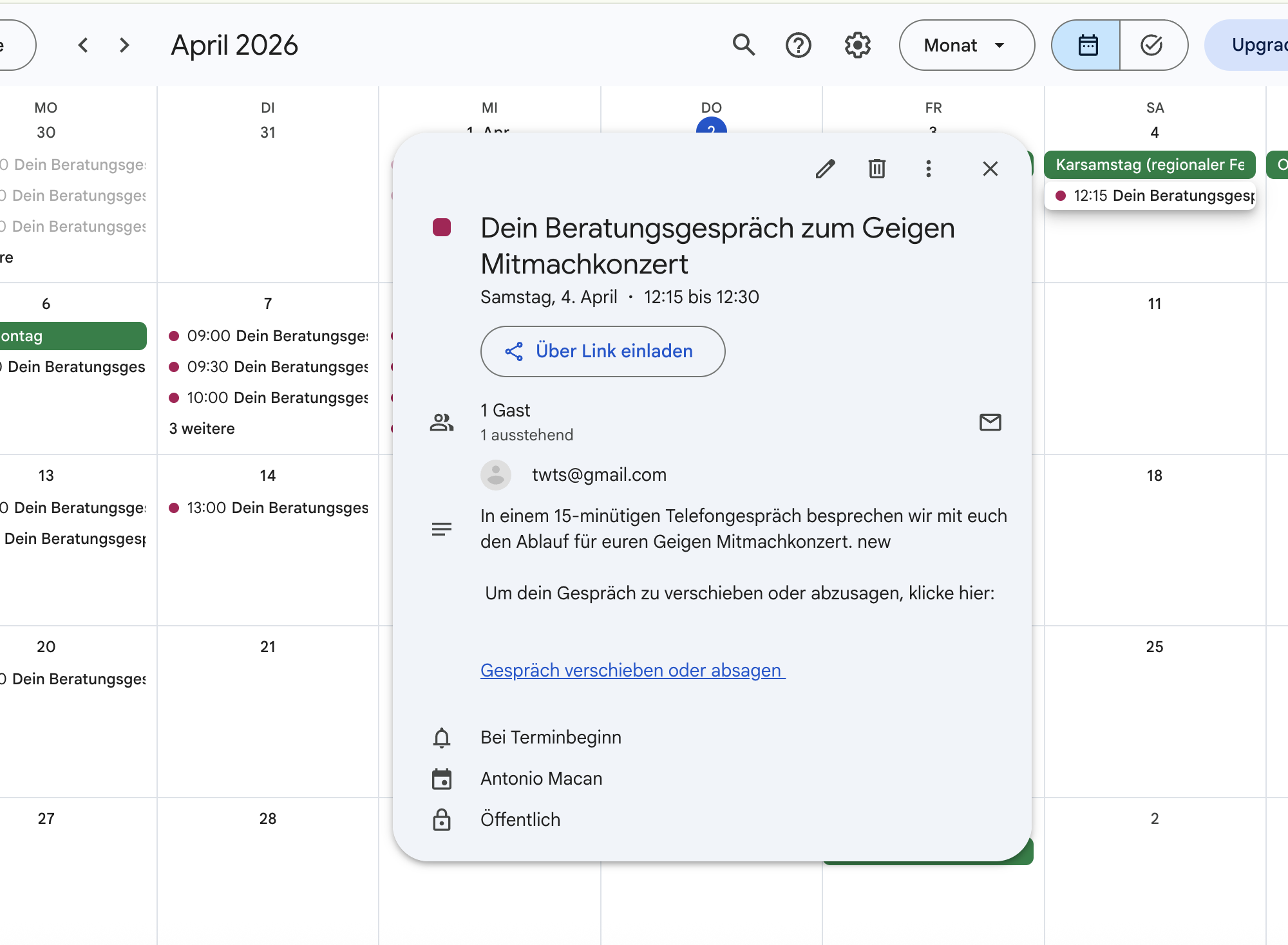
Hey @kumarbobbyldh,
You can use the “Get Event by ID” action instead.
We have modified your workflow accordingly, and with this action, the event is now being retrieved correctly.
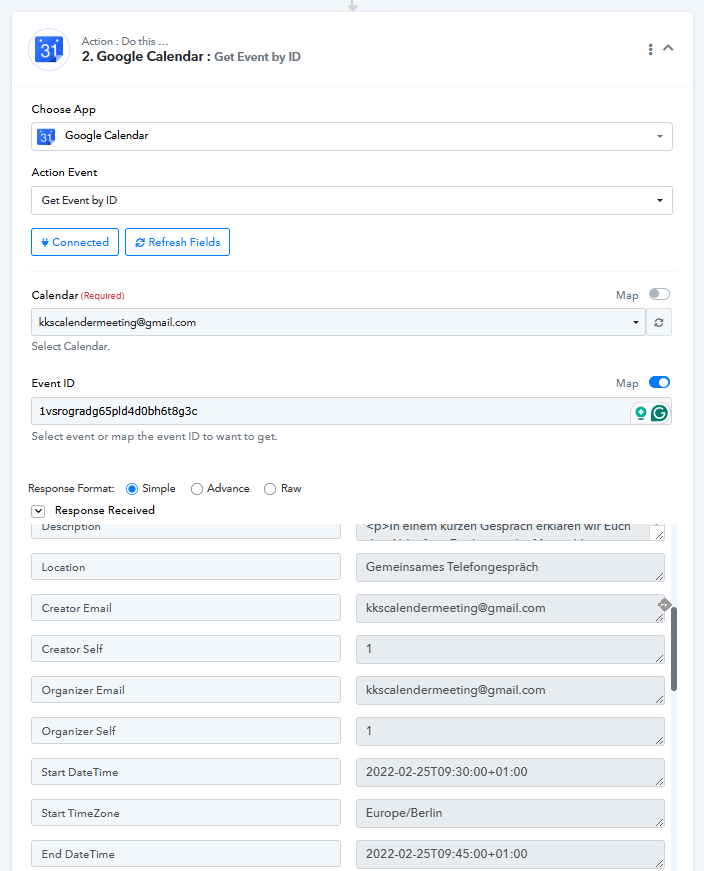
But it’s not showing the same event data that I modified in Google Calendar. I’m using Pabbly to create the event i hope you under stand
I need the workflow to run whenever a Google Calendar event is created, or whenever the date or time of an existing event is modified. It should trigger only for the specific event that was changed, using that event’s ID. Is that possible
https://connect.pabbly.com/workflow/mapping/IjU3NjcwNTZmMDYzMTA0MzQ1MjZlNTUzNzUxMzYi_pc
this showing deferent data but i did not create a google calendar with this email its a wrong data showing here
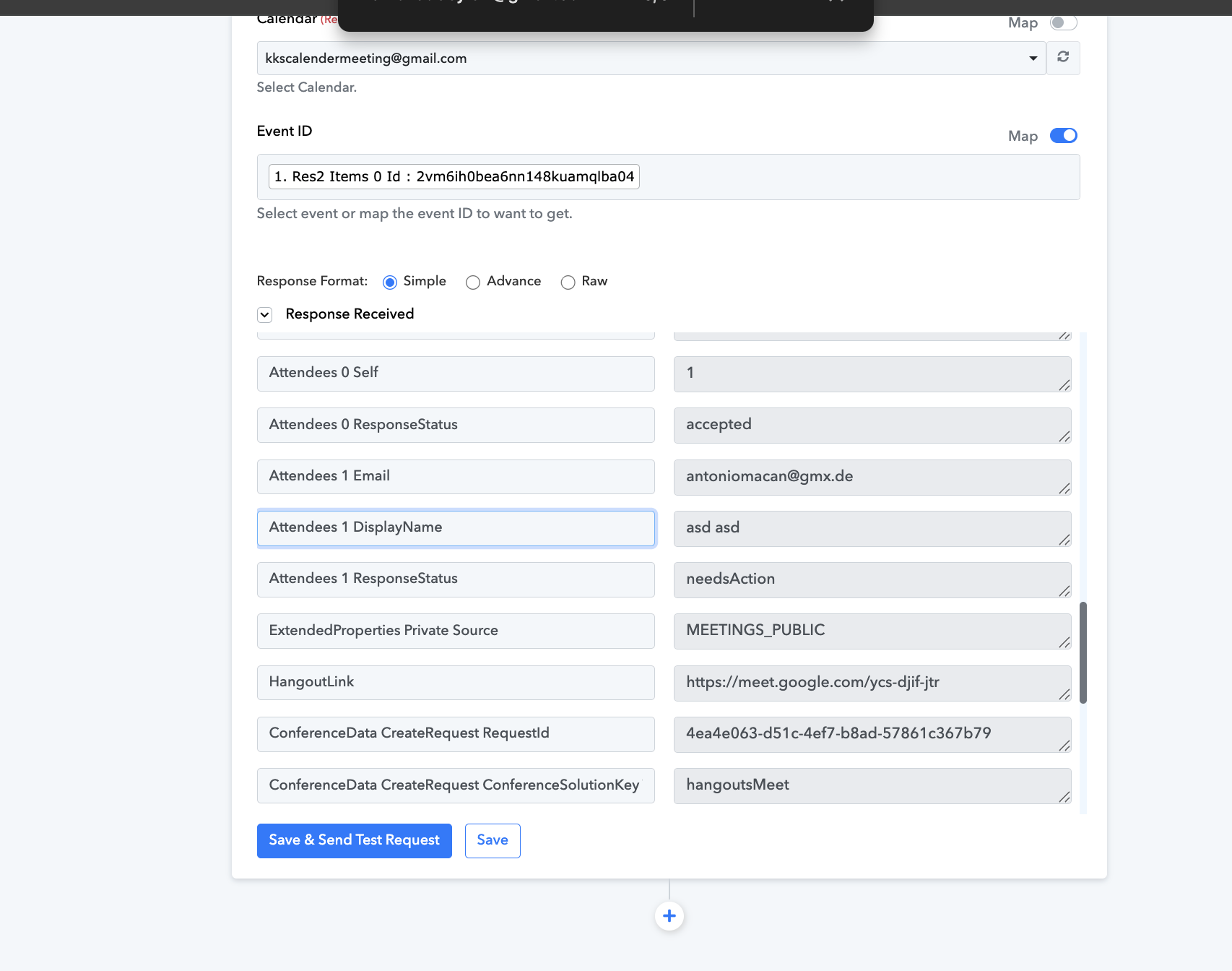
I need the workflow to run whenever a Google Calendar event is created, or whenever the date or time of an existing event is modified. It should trigger only for the specific event that was changed, using that event’s ID. Is that possiblehttps://connect.pabbly.com/workflow/mapping/IjU3NjcwNTZmMDYzMTA0MzQ1MjZlNTUzNzUxMzYi_pc
this showing deferent data but i did not create a google calendar with this email its a wrong data showing here
The workflow will trigger for any update made to the event, not just changes in date or time. Could you please share the email address of the original event associated with this event ID?
Thanks & Regards,
Arshil Ahmad
Customer Support Associate
? Pabbly.com
?Rate your support
[email][email hidden][/email]
Hi @kumarbobbyldh,
To assist you more effectively and better understand the exact issue you're facing, it would be helpful to connect over a Google Meet.
Could you please book a convenient time slot using the link below? We’ll be happy to assist you in detail:
https://calendly.com/d/cvn2-brb-7x5
Based on our current understanding, the “Get Event by ID” action is retrieving details corresponding to the mapped Event ID. However, a quick call will help us review the setup together and clarify any discrepancies.
Looking forward to assisting you.
sorry for late reply im busy with other things lets meet tomorrow
Hey @kumarbobbyldh,
No worries.
We will connect tomorrow at 12 as per the scheduled meeting. Looking forward to assisting you.