google sheet
Status: Open · Asked by Lara Großmann on · 0 views
Wie kann ich im Workflow von Google Sheets eine zufällige Zeile auswählen, in der die Daten aus dem Meta-Instant-Formular eingereicht werden können und dann fortlaufend in der nächsten freien Zeile die Daten sich eintragen ? also beispiel A7 soll der Trigger name rein, B7 soll der trigger email rein und dannfortlaufen weiter , A8,B8, und so weiter ohne es manuell einzutragen.
Hi Lara,
Thank you for reaching out.
Could you please elaborate a bit more on your requirement regarding selecting a random row?
As of now, you can use the Google Sheets: Add New Row action, which will help you add the data from your Facebook Lead Ad Form to the next available (empty) row in your sheet (e.g., A7, A8, A9, and so on). It does not support inserting data into a random row.
Also, upon checking your workflow, it appears that you have already configured the Add New Row action.
Once we have a clearer understanding of your exact use case, we will be able to assist you further.
Hi Preeti,
ja das ist richtig, vorher habe ich mit Add new row eigenständig oben in die erste zeit (name, email, telefonnummer,...) eingegeben und es wurde aus dem instant formular untereinander eingetragen.
Jetzt habe ich aus canva ein template erstellt wo Zeile 1-7 mit einem eigenen erstellten bild und text eingefügt ist (siehe Bild was ich mit angeheftet habe) und ich möchte ab zeile 8 starten A-D mit den informationen aus dem instant formular.
Der jetzige trigger Update Cell Value verlangt, dass ich es immer manuell eingebe, was nicht möglich ist. es sill fortlaufend dann immer eingetragen werden.
Liebe Grüße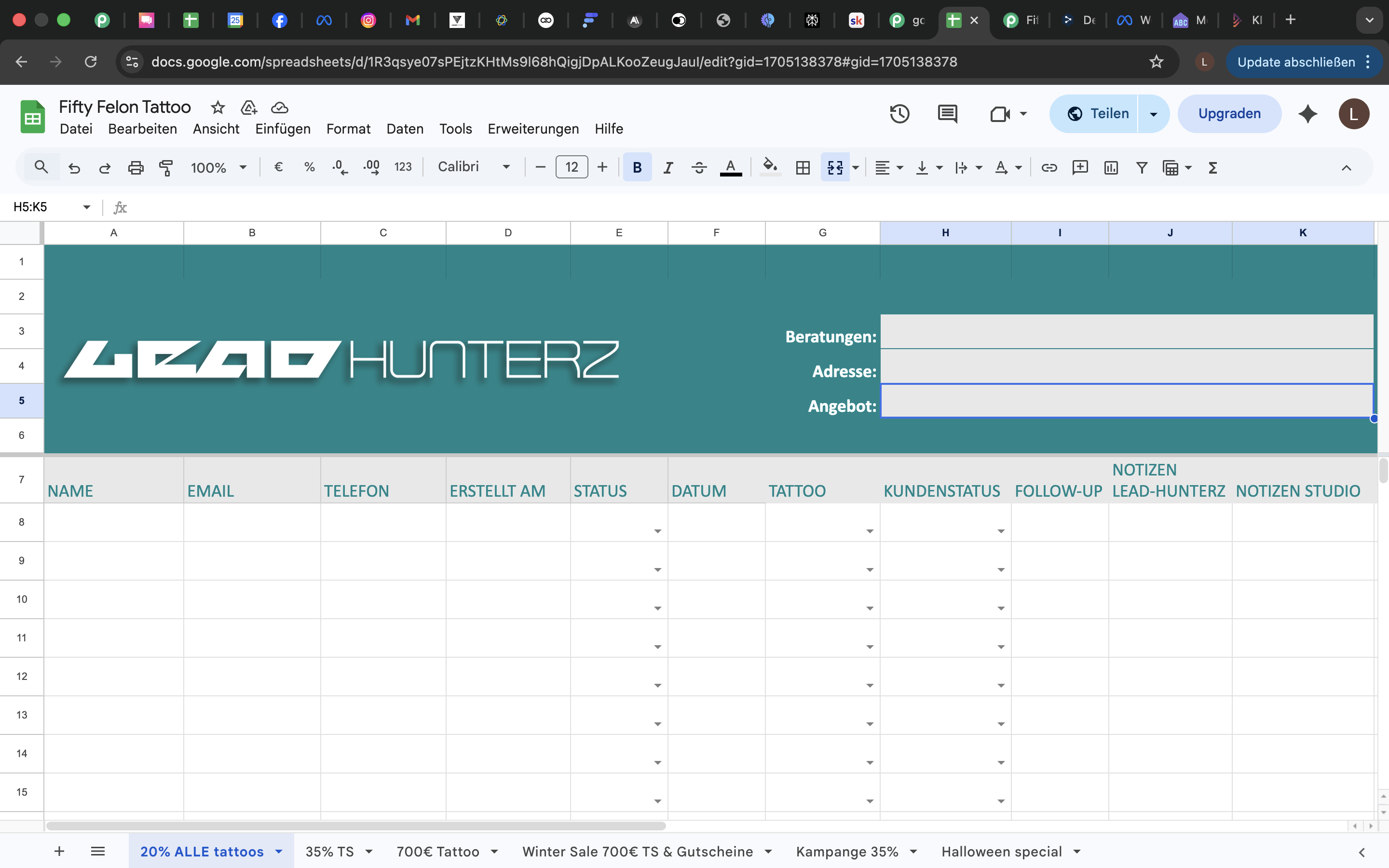
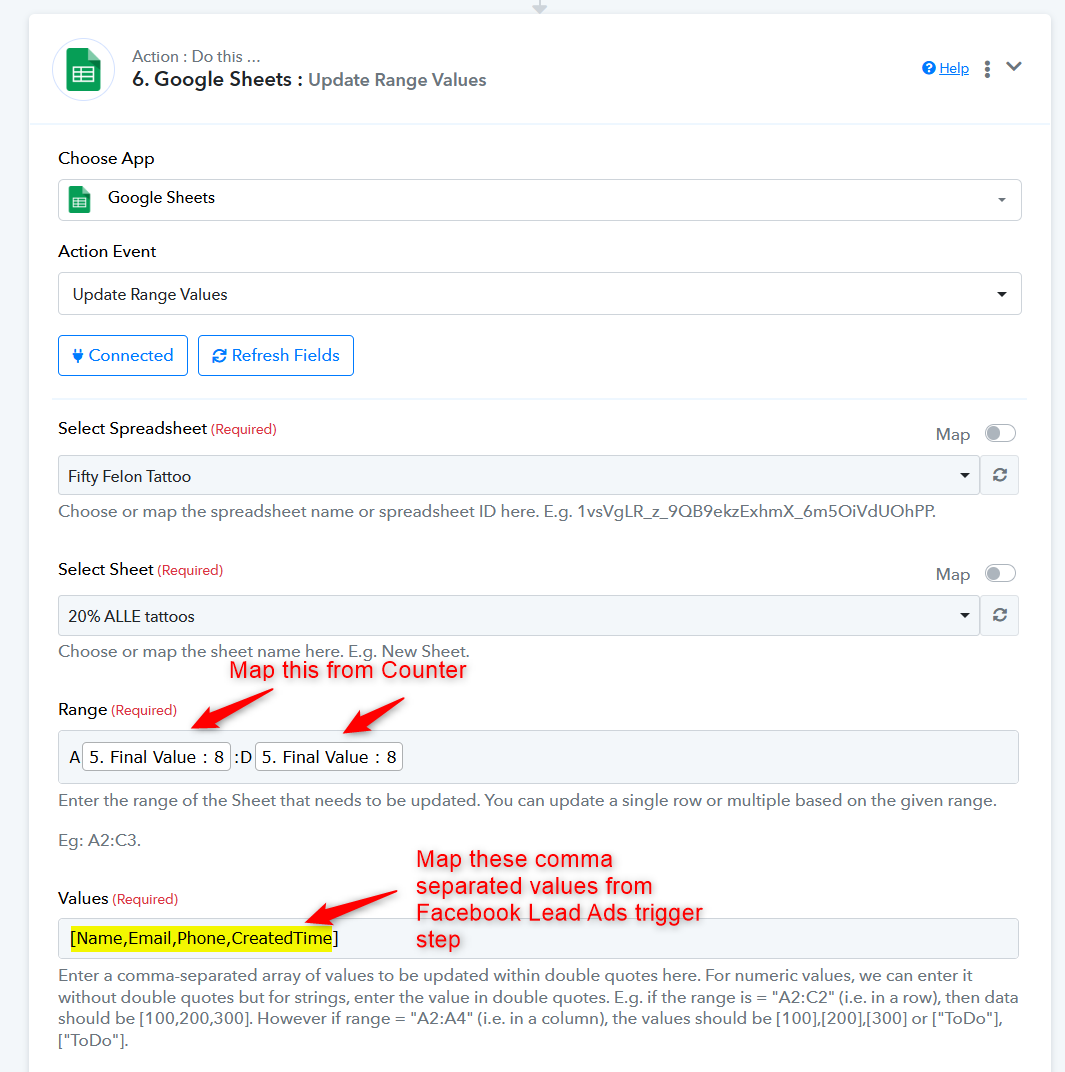
Thank you for the elaboration. For this use case, you would need to add a Counter to your workflow along with the “Google Sheets: Update Row Value” action step.
The counter will provide the next count each time the workflow is executed and then data will be added though 'Update Row Value' action step. So, on the first execution, the data will be added to row 8; on the next execution, it will be added to row 9, and so on.
We have cloned your original workflow and set up these two steps. You can similarly add them to your original workflow.
https://connect.pabbly.com/workflow/mapping/IjU3NjcwNTZmMDYzMzA0M2M1MjZlNTUzMjUxMzIi_pc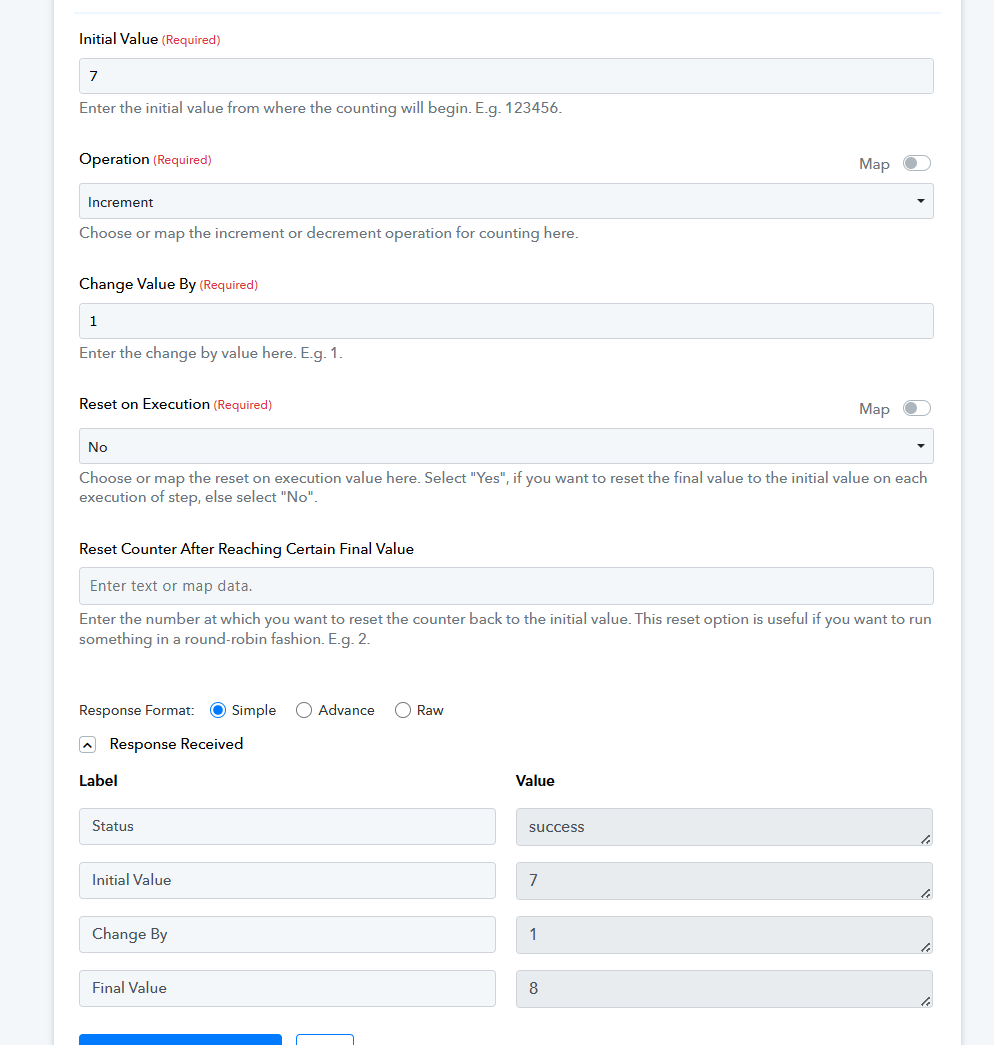
Thanks & Regards,
Arshil Ahmad
Customer Support Associate
? Pabbly.com
?Rate your support
Okay, das habe ich gesehen. aber der zeigt mir immer noch error an..
Ich habe mal ein screenshot rein geschickt, den letzten lead packt der immer in die letzte zeile, aber immer überschrieben. das ist aber noch von meinen erstellten Workflow.
Was übersehe ich in dem von euch erstellten workflow? Ich habe es unbenannt in Template Workflow FFT.
Hi Lara,
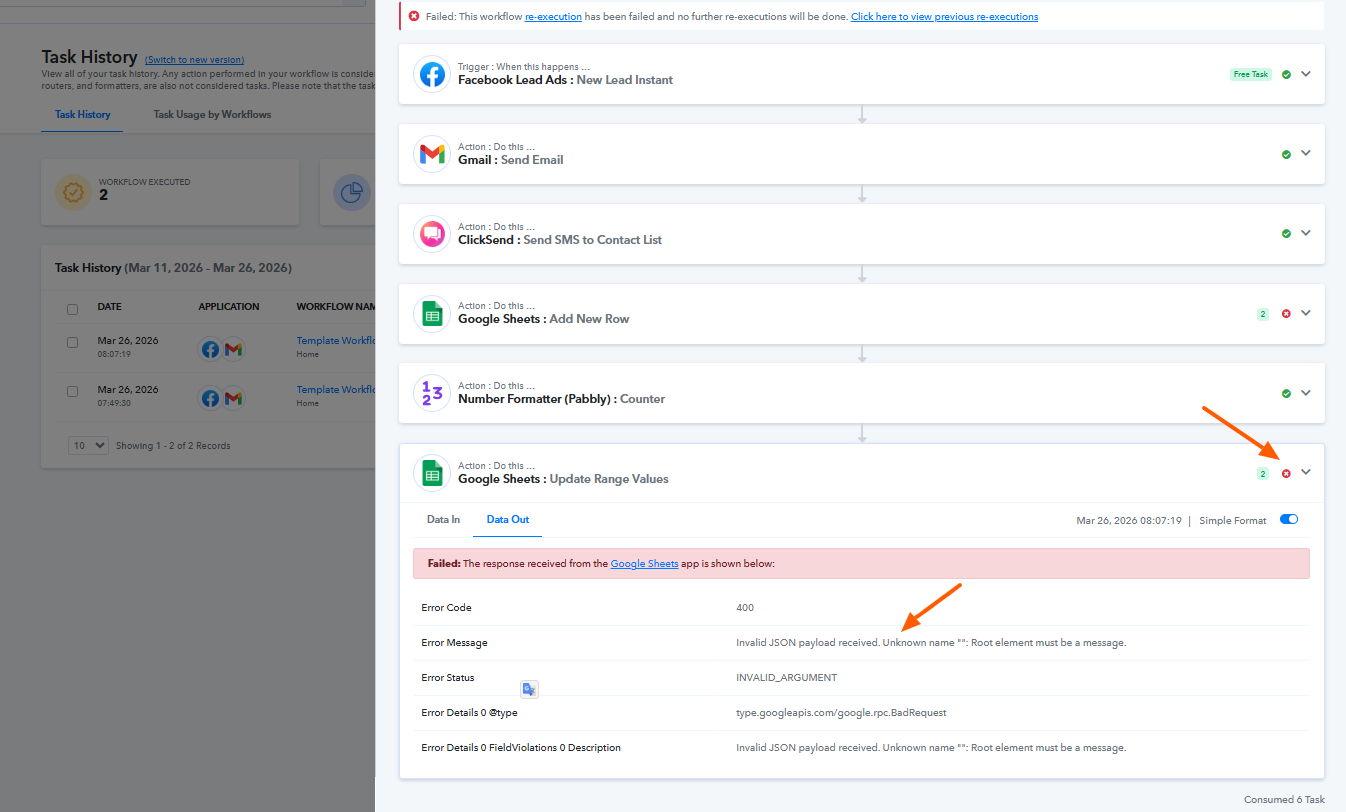
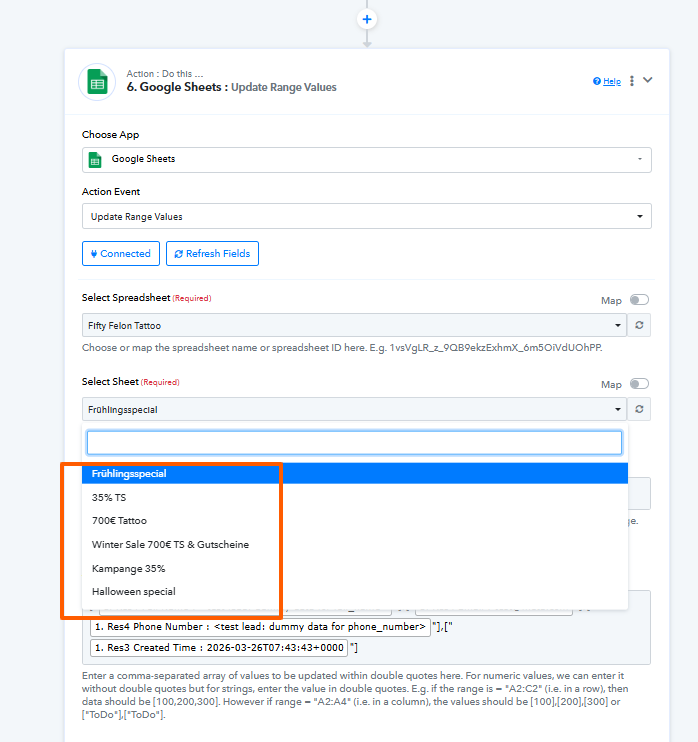
We have checked your workflow, and it appears the failure is coming from the Google Sheets: Update Range Values step.
Observations:
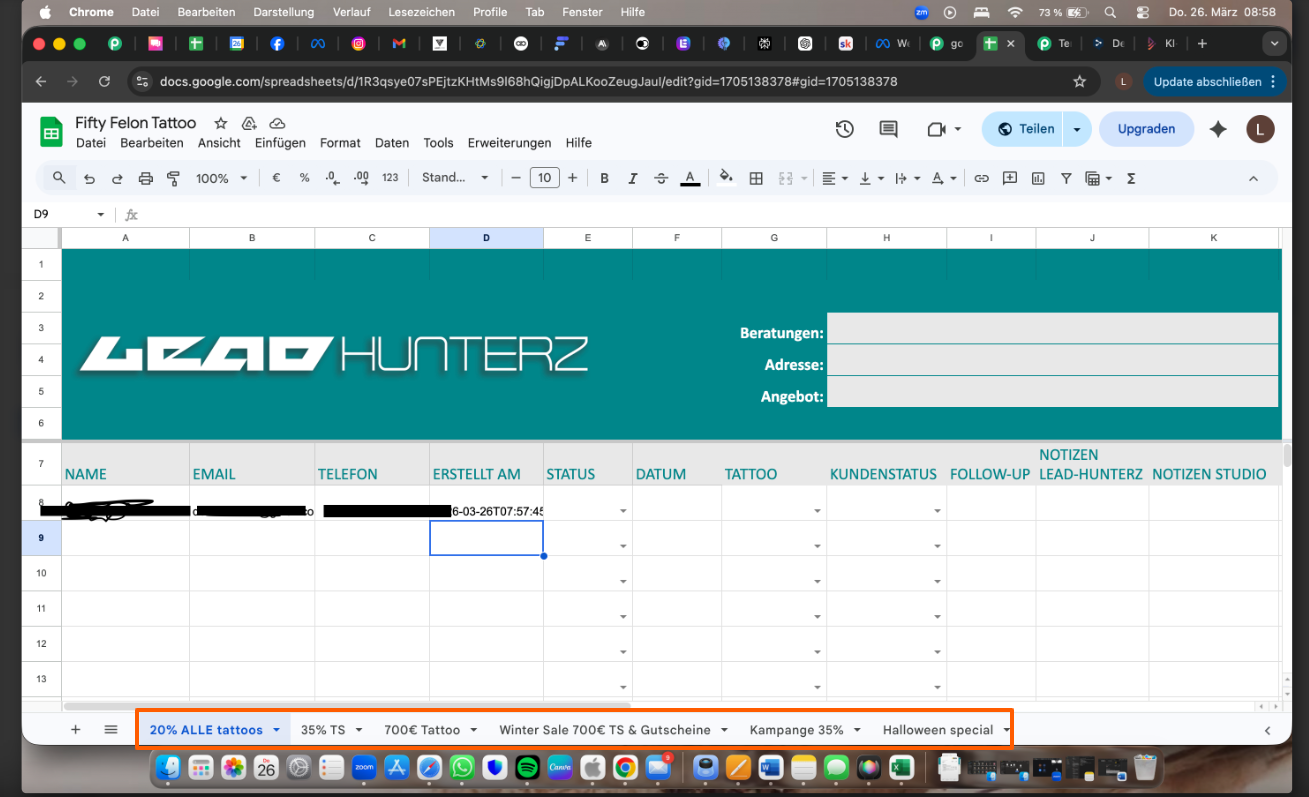
The sheet name in your workflow does not match the one shown in your screenshot. This mismatch can cause the action to fail.
Recommended steps:
- Reconnect Google Sheets by creating a fresh connection and clicking on Refresh Fields.
- Re-select the correct spreadsheet and sheet, ensuring the exact sheet name is selected from the dropdown.
- Check the formatting in your Google Sheet. Since rows 1–7 contain design/template content, the headers may not be properly detected. Ensure your actual headers (Name, Email, etc.) are clearly defined in the correct row.
If the issue still persists, we recommend removing the formatting from the Google Sheet and keeping the headers in row 1. Then try adding data using the workflow to check if it gets added correctly.