How to add scrapped data from Browse.ai to Google Sheets
Status: Closed · Asked by limitcracker on · 0 views
Hi,
I have a simple page that made possible to scrap using Browse.ai.
I want to add the scrapped data from Browse.ai to Google Sheets.
So I used those steps:
1. Browse.ai
2. Iterator
3. Google Sheets
but Iterator does not find an array.
Then I tried
1. Browse.ai
2. Array Function (Pabbly)
3. Iterator
4. Google Sheets
but I don't understand the template that referring to.
Hello @limitcracker,
Please try capturing the response from the trigger in advanced format by turning off the Simple Response toggle under your trigger step. After that, click on "Recapture Webhook Response."
If the response is received in an array format, you'll then be able to use that data with the Iterator to process it further and send it to Google Sheets.
It's been showing as list
Hello @limitcracker,Please try capturing the response from the trigger in advanced format by turning off the Simple Response toggle under your trigger step. After that, click on "Recapture Webhook Response."
If the response is received in an array format, you'll then be able to use that data with the Iterator to process it further and send it to Google Sheets.
Hi thanks a lot switching Simple Response off did the job.
Then I send them to Add Row or Multiple Rows? Cause I used the Iterator Array on Google Sheets Add Row but only one got into GSheet.
see attached: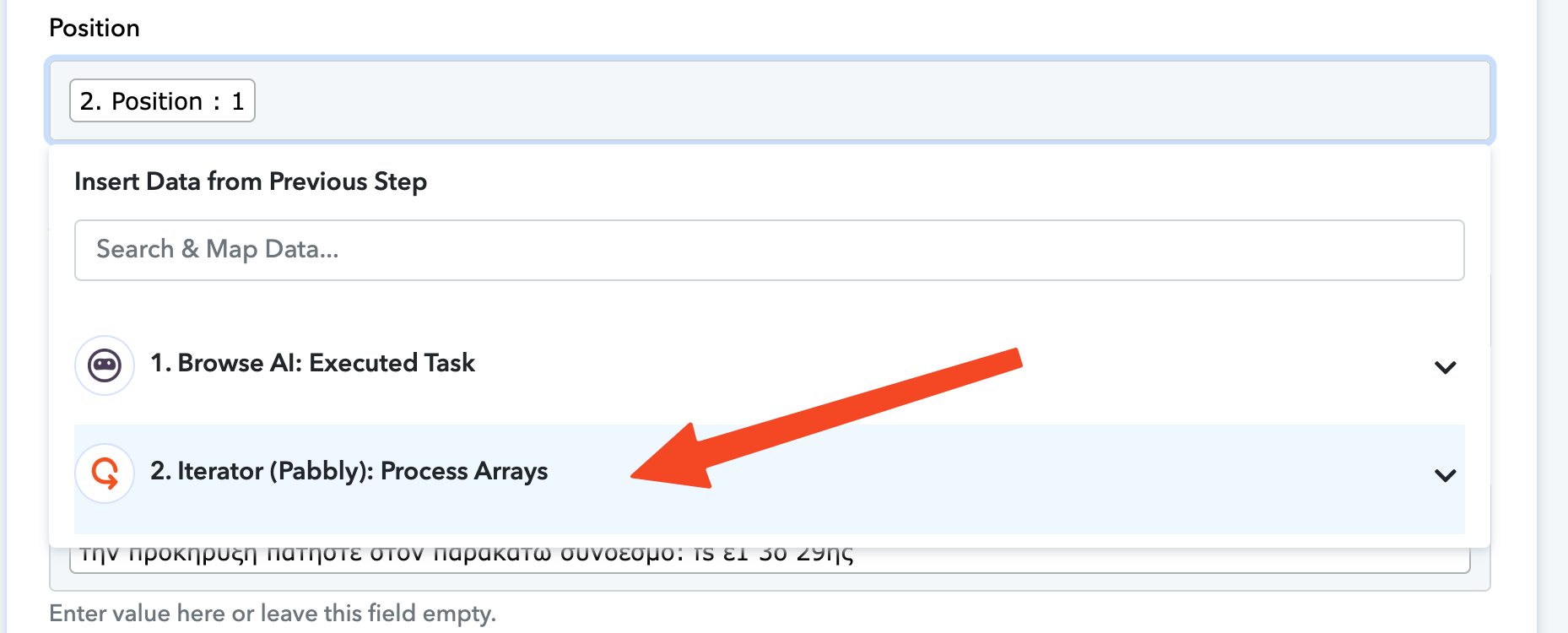
Hello @limitcracker,
In the workflow builder, when using the Iterator, it returns only the first object as a sample response, which you might have mapped further and added to Google Sheets. However, when the workflow runs in automation, the Iterator processes each object in the array individually—meaning it will execute all subsequent actions for every object in the array, as intended.
Let us know if you need further clarification.
Hello @limitcracker,In the workflow builder, when using the Iterator, it returns only the first object as a sample response, which you might have mapped further and added to Google Sheets. However, when the workflow runs in automation, the Iterator processes each object in the array individually—meaning it will execute all subsequent actions for every object in the array, as intended.
Let us know if you need further clarification.
Hi I did that but still adds one row. See attached screen recording.
https://vento.so/view/a7a91a03-4da5-4298-bdbf-40e70fa76d96?utm_medium=share
Hi I did that but still adds one row. See attached screen recording.
https://vento.so/view/a7a91a03-4da5-4298-bdbf-40e70fa76d96?utm_medium=share
While setting up the workflow the Iterator only works with 1st items of the array, you need to actually trigger the worlflow from Browse.ai to see all rows in ghseet.
While setting up the workflow the Iterator only works with 1st items of the array, you need to actually trigger the worlflow from Browse.ai to see all rows in ghseet.
Hi, yeah it worked.
One last thing is that I get 3 times the same results although Browse.ai gives 10 unique results (see attached):
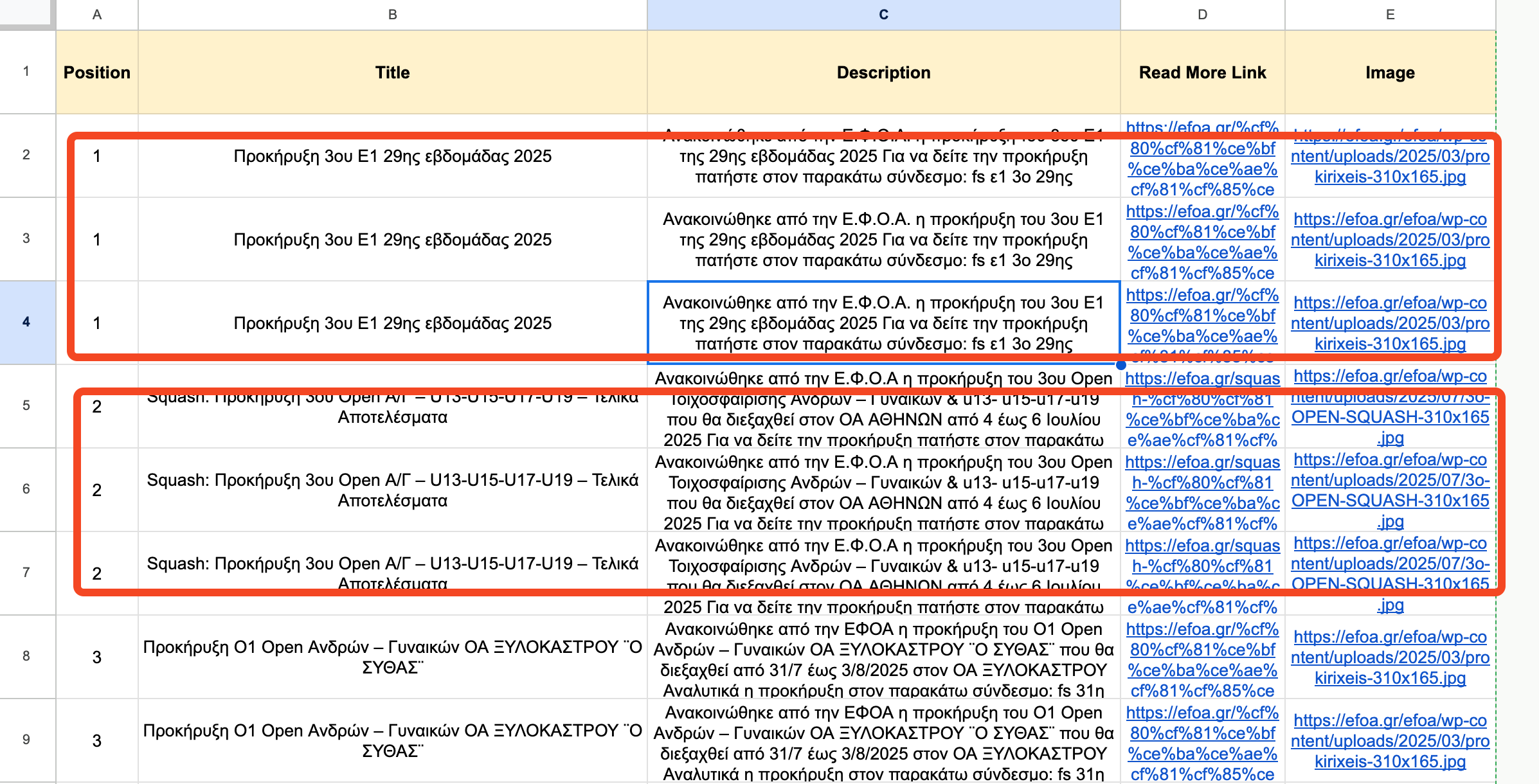
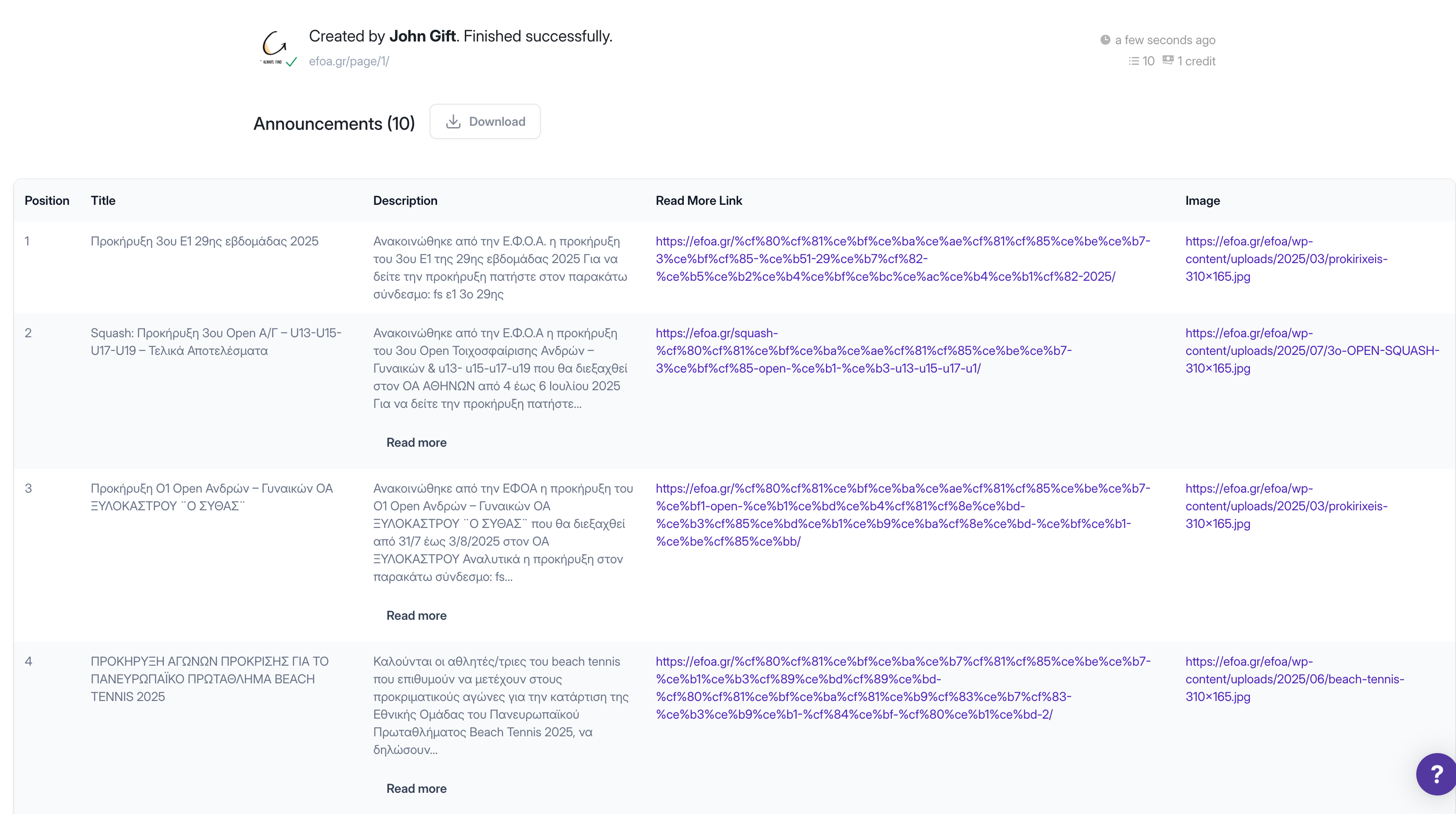
Hello,
Thanks for bringing this to our attention.
It appears that the workflow is being triggered multiple times by Browse.ai, which is likely causing the duplicate entries. This usually happens when the "Save & Send Test Request" button is clicked multiple times during setup.
We recommend the following steps:
- Create a new workflow and capture the trigger response afresh.
- Disable the current workflow to avoid duplicate executions.
- After confirming that the new workflow triggers only once, you can simply copy and paste the remaining steps from the previous workflow into the new one.
Please monitor the execution to ensure everything runs as expected, and let us know if you need further assistance.
Hello,Thanks for bringing this to our attention.
It appears that the workflow is being triggered multiple times by Browse.ai, which is likely causing the duplicate entries. This usually happens when the "Save & Send Test Request" button is clicked multiple times during setup.
We recommend the following steps:
- Create a new workflow and capture the trigger response afresh.
- Disable the current workflow to avoid duplicate executions.
- After confirming that the new workflow triggers only once, you can simply copy and paste the remaining steps from the previous workflow into the new one.
Please monitor the execution to ensure everything runs as expected, and let us know if you need further assistance.
Thanks this helped.
If I want to update 2nd to 11th rows with the same fetched results what I put into the Row Index? (see attached).
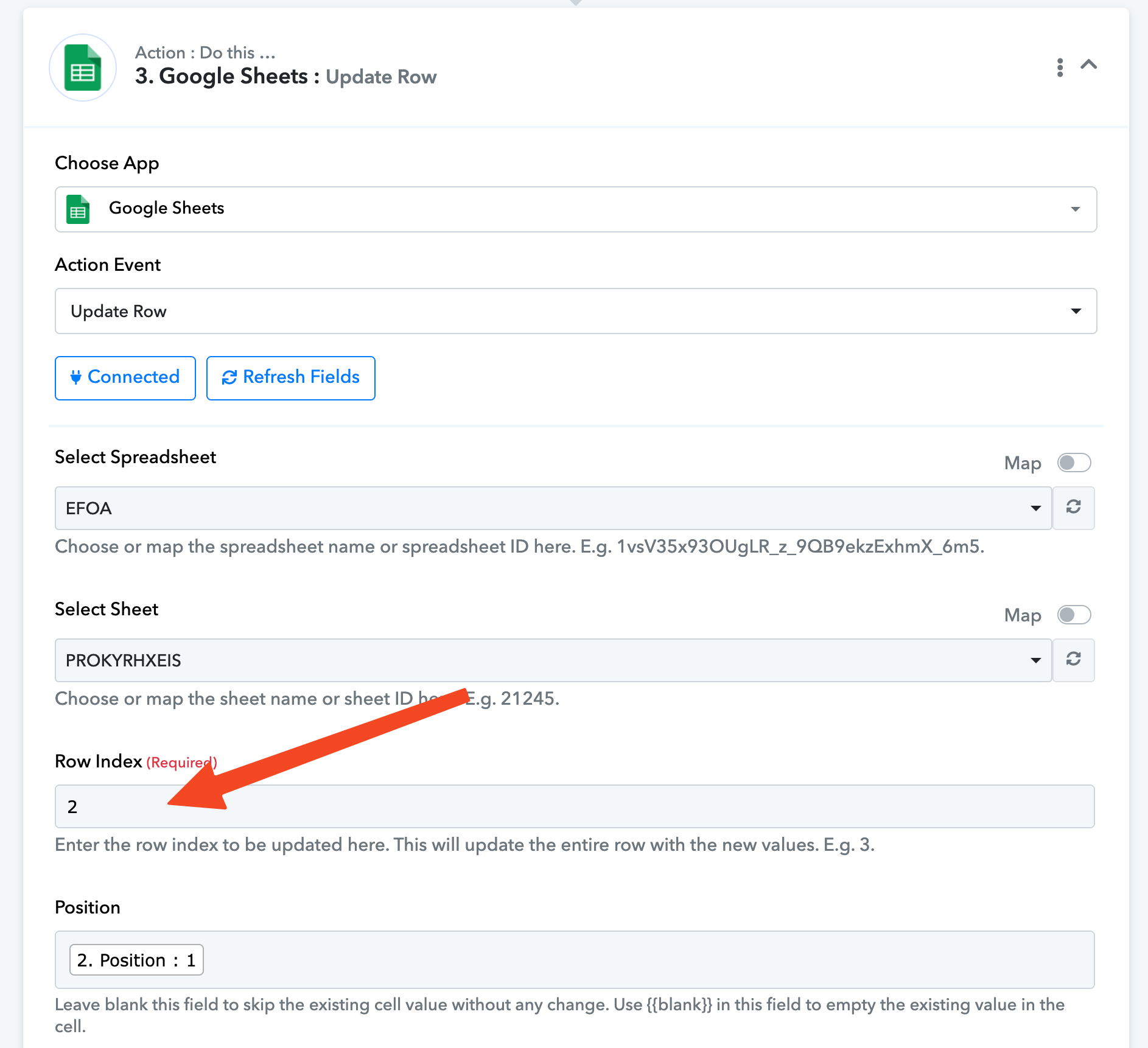
Could you please share the workflow URL so we can better suggest?
Could you please share the workflow URL so we can better suggest?
Yes ofc. Here it is:
https://connect.pabbly.com/v2/app/workflow/share/AUkENl4JVDcHTQJoB1gFIgoeVVEGXwdnV04HFVxTAXkBW1M4VBUKYFoWV3VXNlMyUxoBa1MMUTEAFFVRA1VWJVVPAgBUVwF7BktWZQNGX2wBXwQsXj8#
So you're saying that Browse AI generates 10 objects each time a workflow is executed, and you want to iterate through all these objects one by one and add them to rows 2 to 11 of your spreadsheet each time the workflow runs — meaning rows 2 to 11 should be updated with the 10 objects fetched in the Browse AI trigger step. Is that correct?
The use case you're describing is possible, but you need to ensure that each time the workflow is executed, Browse AI retrieves exactly 10 objects — no less and no more. Only then will this use case work as expected.
Please confirm this, and we will add the necessary steps to your workflow to achieve this use case.
So you're saying that Browse AI generates 10 objects each time a workflow is executed, and you want to iterate through all these objects one by one and add them to rows 2 to 11 of your spreadsheet each time the workflow runs — meaning rows 2 to 11 should be updated with the 10 objects fetched in the Browse AI trigger step. Is that correct?The use case you're describing is possible, but you need to ensure that each time the workflow is executed, Browse AI retrieves exactly 10 objects — no less and no more. Only then will this use case work as expected.
Please confirm this, and we will add the necessary steps to your workflow to achieve this use case.
yes. It retrieves exactly 10 objects. Yes, I want to clear old rows 2-to-11 and update with 10 newly fetched results.
yes. It retrieves exactly 10 objects. Yes, I want to clear old rows 2-to-11 and update with 10 newly fetched results.
https://connect.pabbly.com/workflow/mapping/IjU3NjYwNTZiMDYzZjA0Mzc1MjY0NTUzNTUxM2Ei_pc
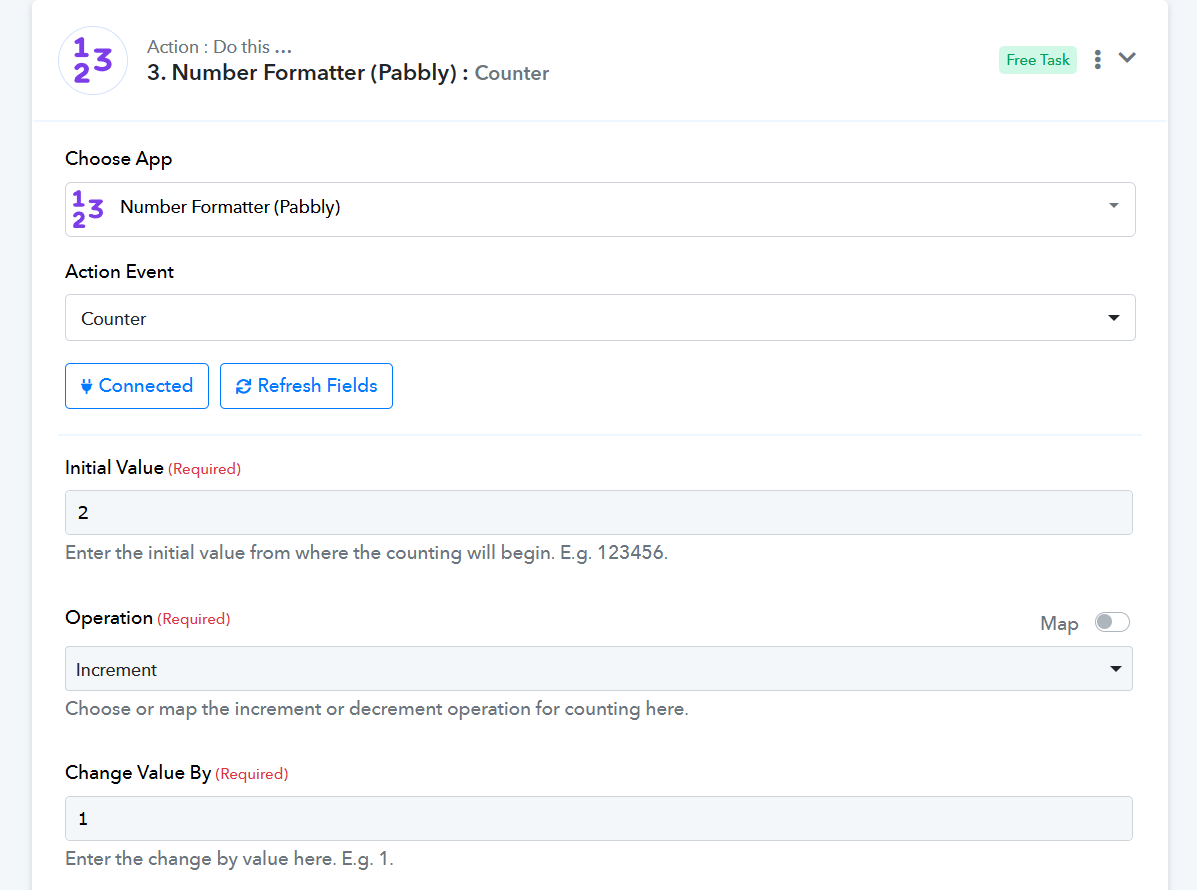
We have added a Counter step to your workflow, which should help with this use case. Please test your workflow now, and kindly avoid making any changes to the 'Counter' step.
https://connect.pabbly.com/workflow/mapping/IjU3NjYwNTZiMDYzZjA0Mzc1MjY0NTUzNTUxM2Ei_pc
We have added a Counter step to your workflow, which should help with this use case. Please test your workflow now, and kindly avoid making any changes to the 'Counter' step.
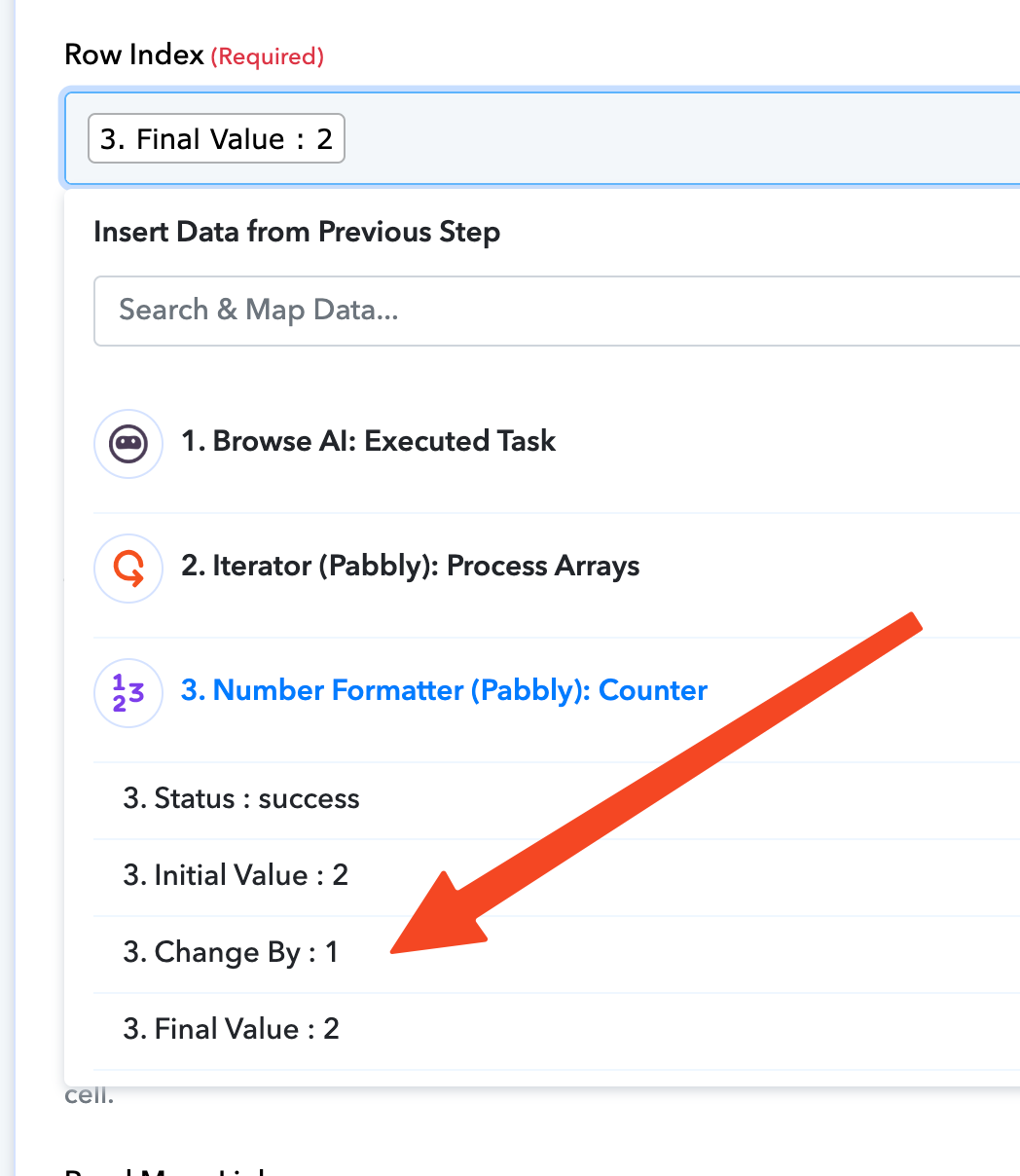
Hi, it does not work. Update row changes 10 times the same row (2nd row). Why?
I then used Change by but had same result:
It does not hop rows.
Hello @limitcracker,
We wanted to inform you that the issue was occurring because the “Reset on Execution” option under the Counter action was set to YES, which caused the value to reset to the initial value on every execution.
We have now updated this setting to NO, so it should work as expected going forward.
Please run a test and let us know how it goes.
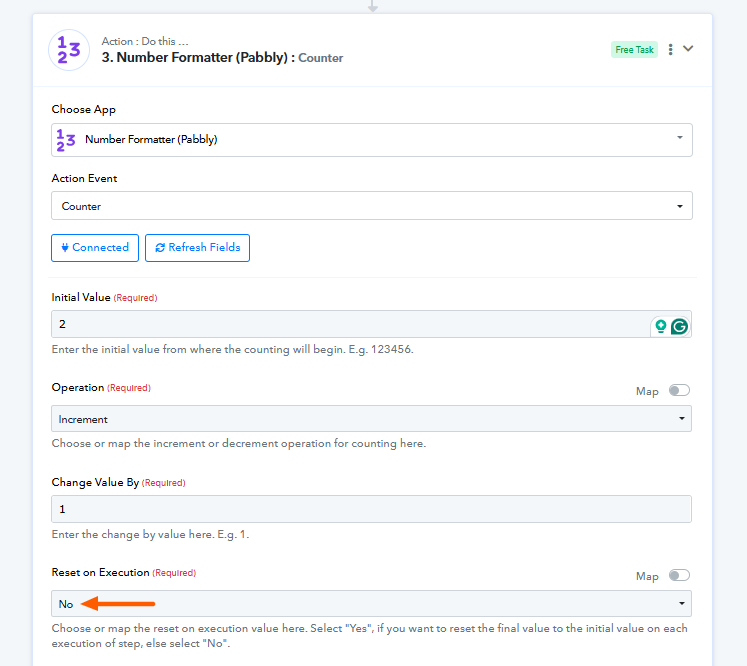
Hello @limitcracker,We wanted to inform you that the issue was occurring because the “Reset on Execution” option under the Counter action was set to YES, which caused the value to reset to the initial value on every execution.
We have now updated this setting to NO, so it should work as expected going forward.
Please run a test and let us know how it goes.
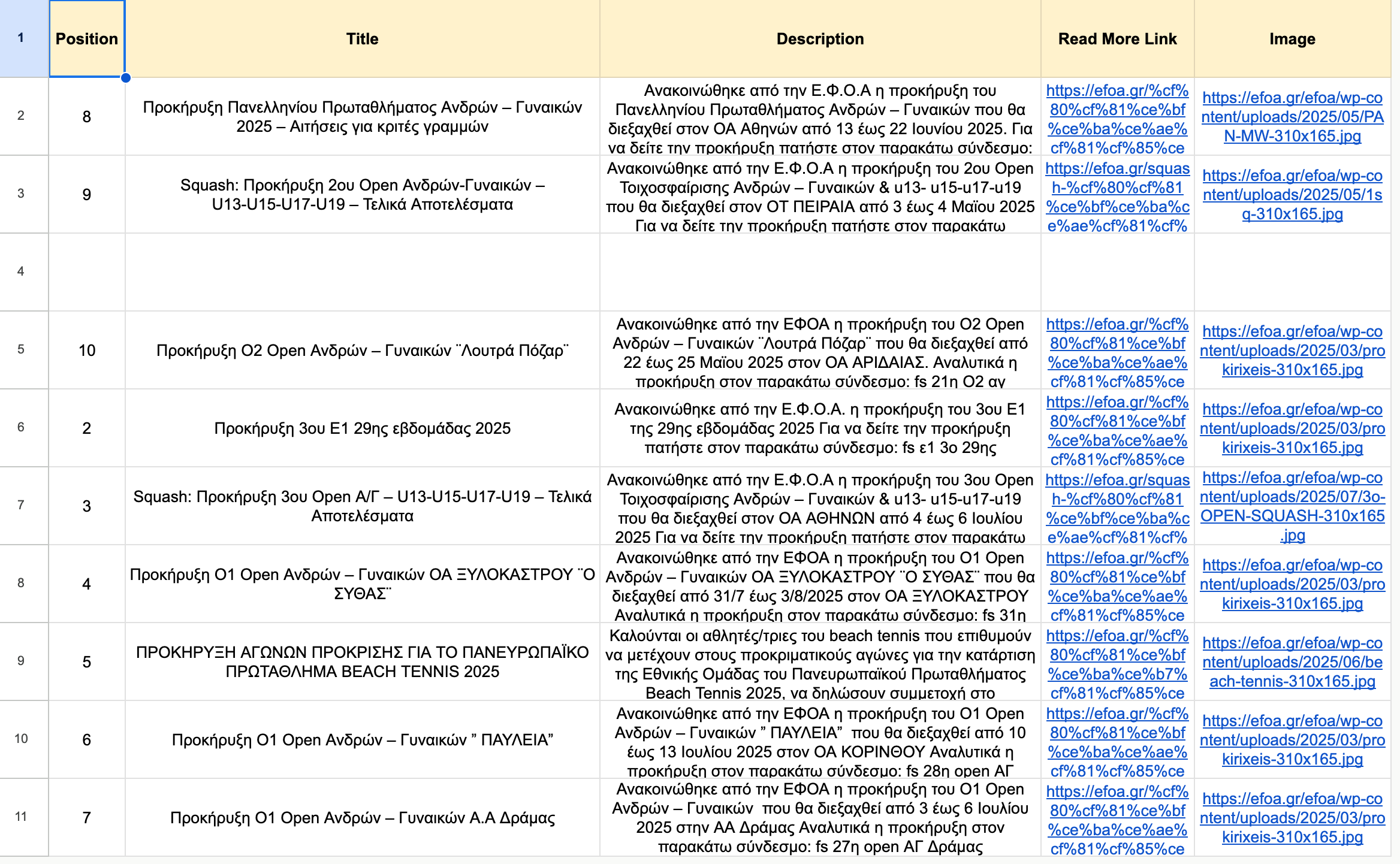
Great, it worked almost perfect.
One last issue. Is shows the results in shuffled order.
Does this has to do with Browse.ai (maybe async threads) or with Pabbly?
Please test it now and see if it works as expected.
https://connect.pabbly.com/workflow/mapping/IjU3NjYwNTZiMDYzZjA0Mzc1MjY0NTUzNTUxM2Ei_pc
Please test it now and see if it works as expected.
https://connect.pabbly.com/workflow/mapping/IjU3NjYwNTZiMDYzZjA0Mzc1MjY0NTUzNTUxM2Ei_pc
Yes now it worked perfect! Thanks! Solved!
What was the fix?
Yes now it worked perfect! Thanks! Solved!What was the fix?
The use case you are trying to achieve is very sensitive to the Counter step — even minor changes can disrupt it. When we click on 'Save & Send Test Request', the Final Value changes, and during automation, it starts updating from that row. For example, if it shows as 4 in the workflow setup, the first row that will be updated during automation will be 5, then 6, and so on. So, you need to make sure that the Final Value is set to 1, so it starts updating from row 2 during automation. We just made that minor change, and it worked.
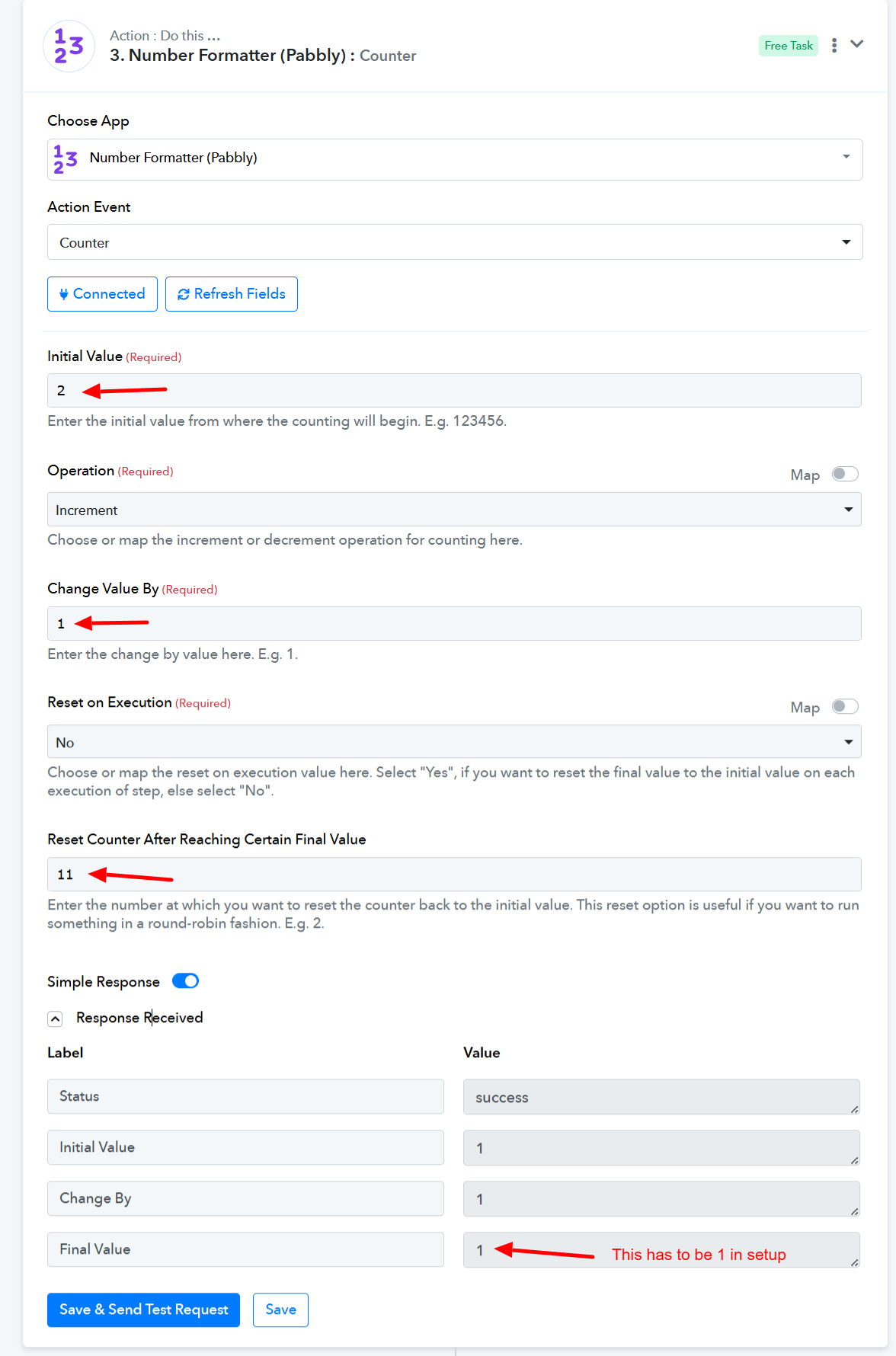
The use case you are trying to achieve is very sensitive to the Counter step — even minor changes can disrupt it. When we click on 'Save & Send Test Request', the Final Value changes, and during automation, it starts updating from that row. For example, if it shows as 4 in the workflow setup, the first row that will be updated during automation will be 5, then 6, and so on. So, you need to make sure that the Final Value is set to 1, so it starts updating from row 2 during automation. We just made that minor change, and it worked.
Great thanks! How can I mark it as SOLVED?
Hello @limitcracker,
Great, thanks for confirming!
We'll go ahead and lock the thread from our end. If you have a moment, we’d really appreciate it if you could rate us on Google. Your feedback helps us improve and serve you better.