Issue in Sending Facebook Leads to Telegram Group.
Status: Open · Asked by hypethatup on · 0 views
In Pabbly Connect, I'm using 'Facebook Lead Ad' under trigger to fetch Facebook Leads and in Action, I'm using Telegram Bot to send the leads to Telegram Group. (Facebook Leads --> Telegram Group)
Since few days, Facebook has stopped/disabled its 'Preview Form' option in Lead Ads Testing Tool (https://developers.facebook.com/tools/lead-ads-testing), the only way to create a test lead is by using their default button of 'Create Lead', which sends dummy lead that has attribute. (See the attached screenshot)
This dummy lead has dummy data like , which is creating an Error Code 400 and says 'Bad Request: can't parse entities: Unsupported start tag "test" at byte offset 17' (See the attached screenshot)
How to solve this error? (Also, this issue is because Telegram doesn't support attribute, I tried same forwarding leads to Google Sheets and that works. This is only because Telegram API doesn't support as a valid HTML tag. Also, I don't want to implement any text formatter as the real leads will not have tag, it is only for our testing that the workflow is working properly, and leads are received on Telegram.)
Hi @hypethatup,
No worries — you can test this using actual form data instead of the dummy lead from the Lead Ads Testing Tool.
Here’s how you can do it:
- Log in to your Facebook Business account using:
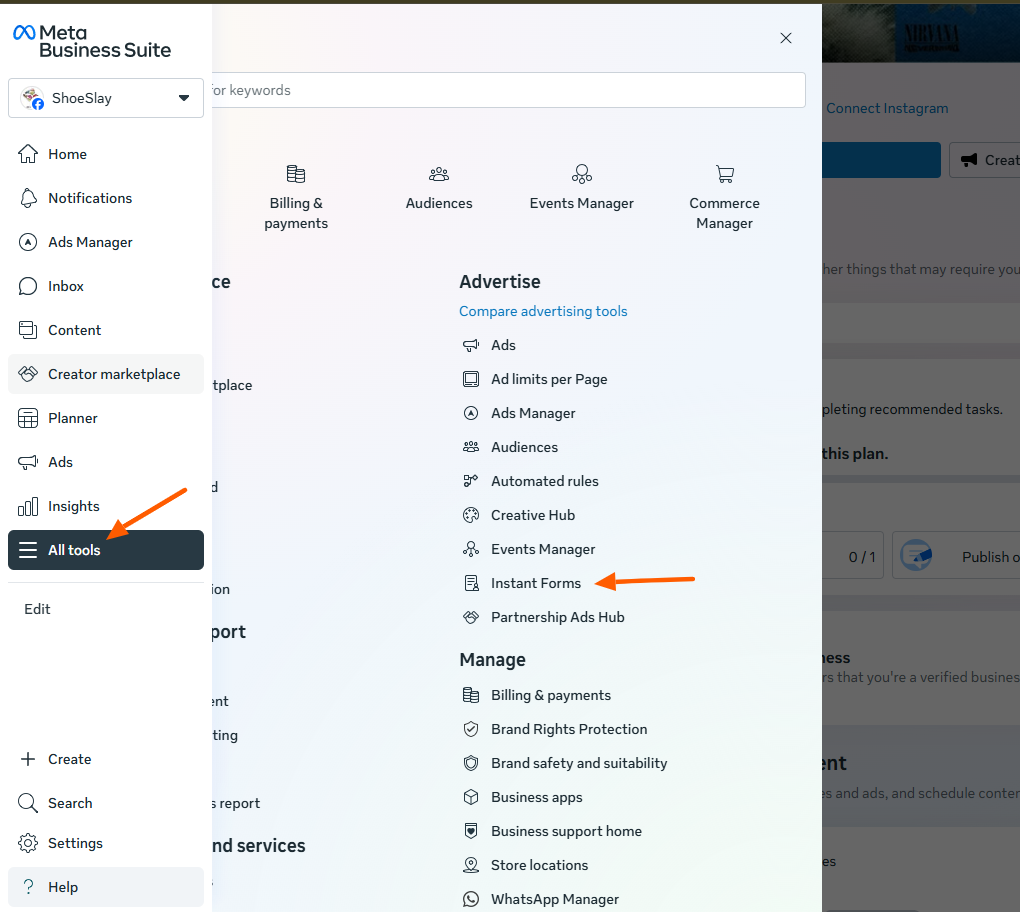
https://business.facebook.com/ (or facebook.com). - Go to All Tools → Instant Forms.
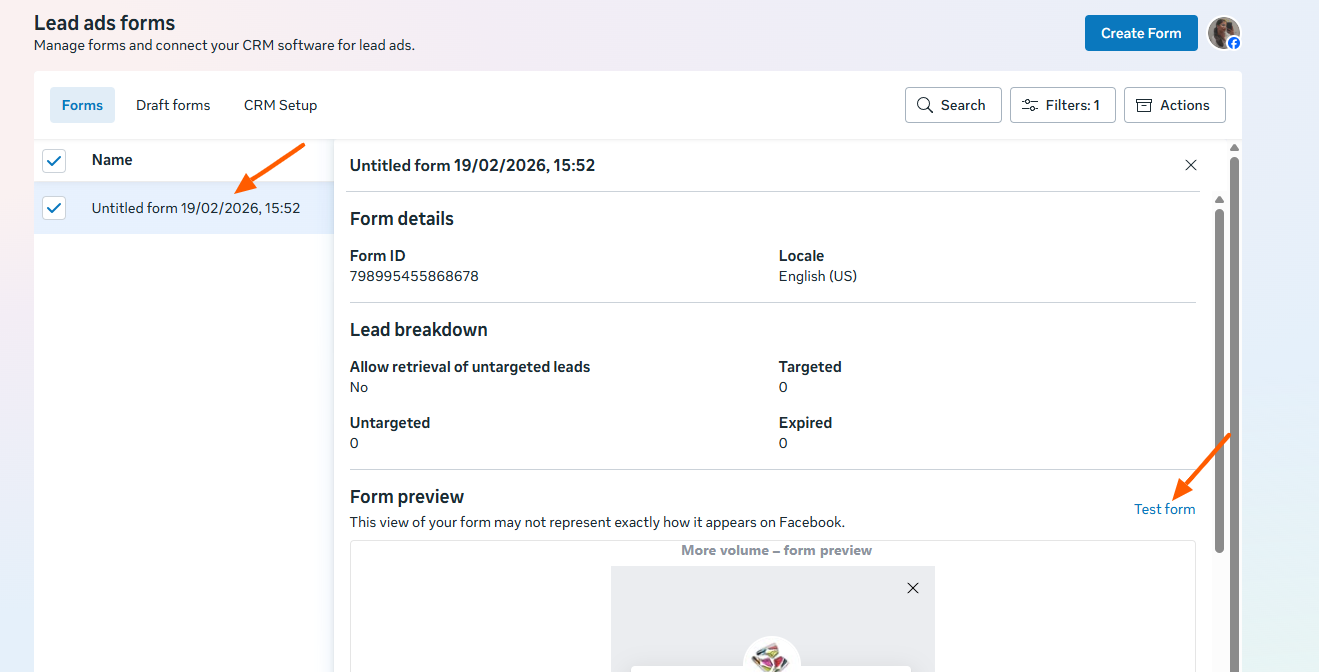
- Open the specific form for which you want to generate the lead.
- Inside the form settings, you will find a Test Form Link option.
Use this link to manually fill out the form with proper details (real text instead of dummy values). - Submit the form, and it will generate a proper test lead without the HTML tag.
Before trying this process, make sure you delete any previously generated test leads from the testing tool to avoid confusion during testing.
This way, the data sent to Telegram will not contain unsupported tags, and the Error 400 issue should be resolved.
Please try this and let us know how it goes.