Issue with Google Calendar Event Times Using Pabbly Connect
Status: Open · Asked by William Mory on · 0 views
Hello,
I’m encountering an issue with creating events in Google Calendar via Pabbly Connect. Here’s the situation:
I want to generate an event in Google Calendar based on a date received from an email.
Steps I’ve Followed:
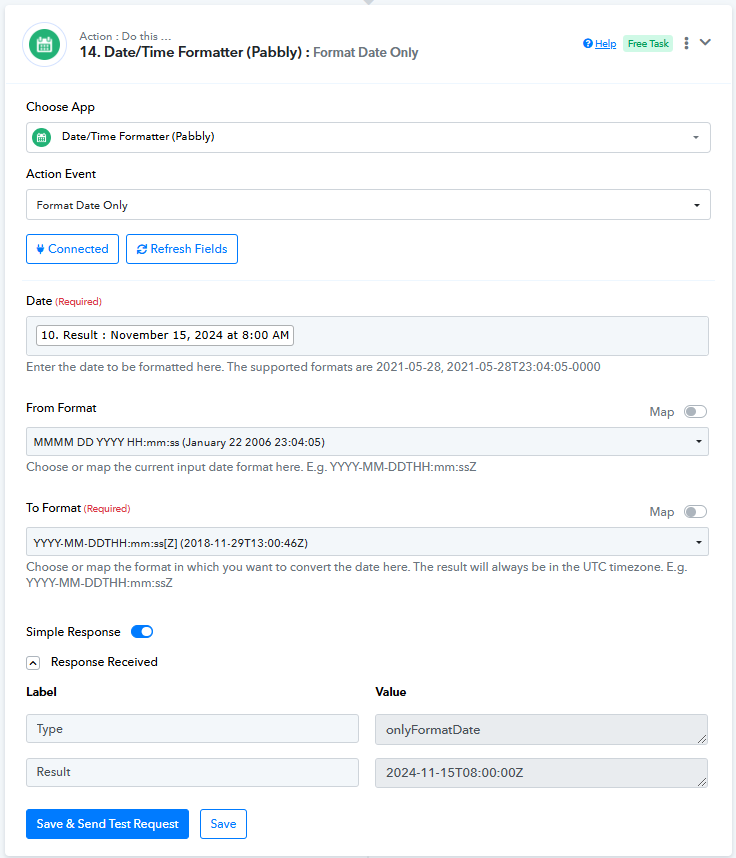
1. Format Conversion:
The email provides the date in the format MMMM DD YYYY HH:mm:ss (e.g., January 22 2006 23:04:05). I convert this to the format required by Google Calendar: YYYY-MM-DDTHH:mm:ss[Z] (e.g., 2018-11-29T13:00:46Z), which works and gives a positive result.
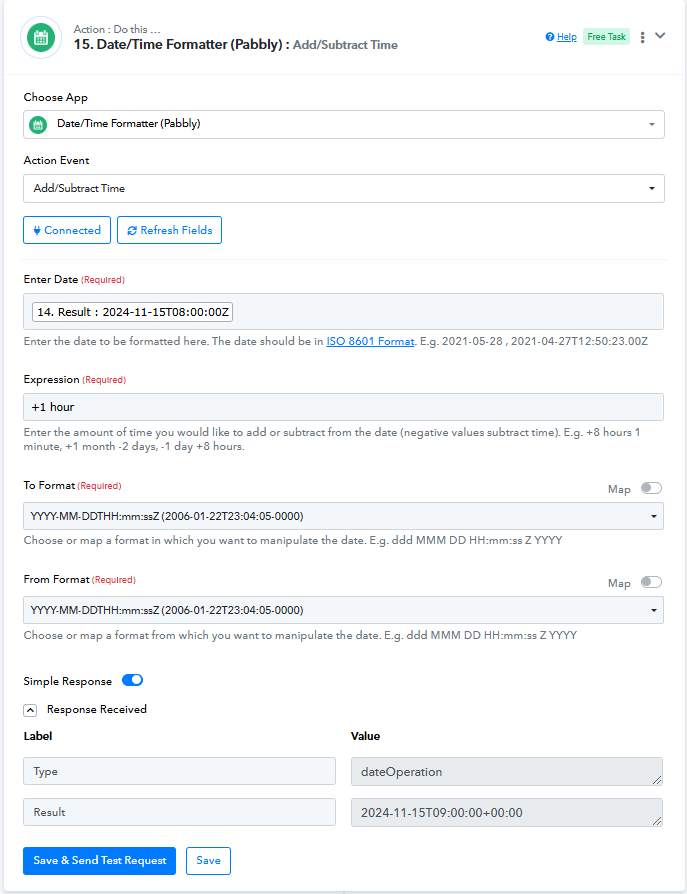
2. Adjusting End Time:
I add 1 hour to the Start Date Time to generate the End Date Time in the same format: YYYY-MM-DDTHH:mm:ss[Z] (e.g., 2018-11-29T14:00:46Z). This also works and provides a positive result.
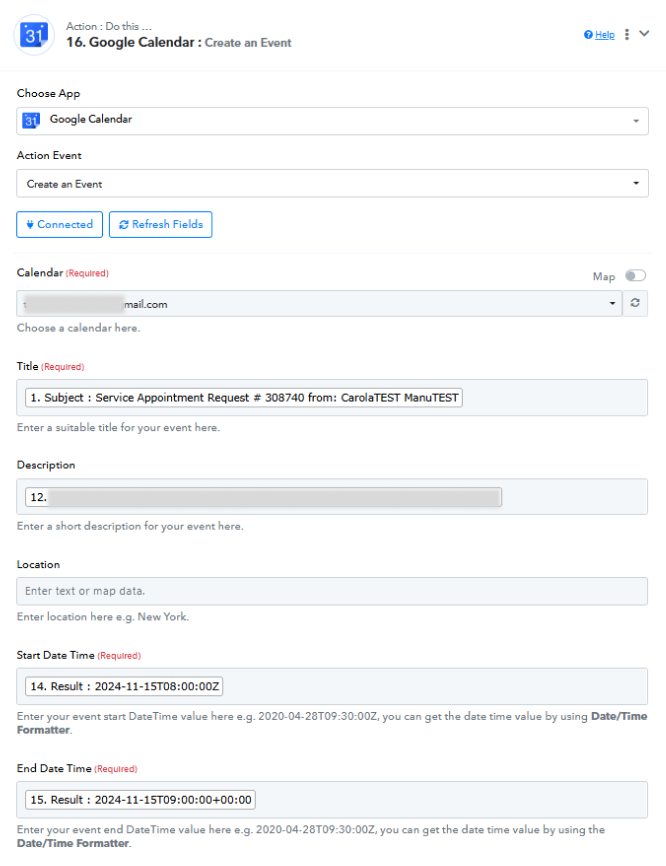
3. Adding Data to Google Calendar Action:
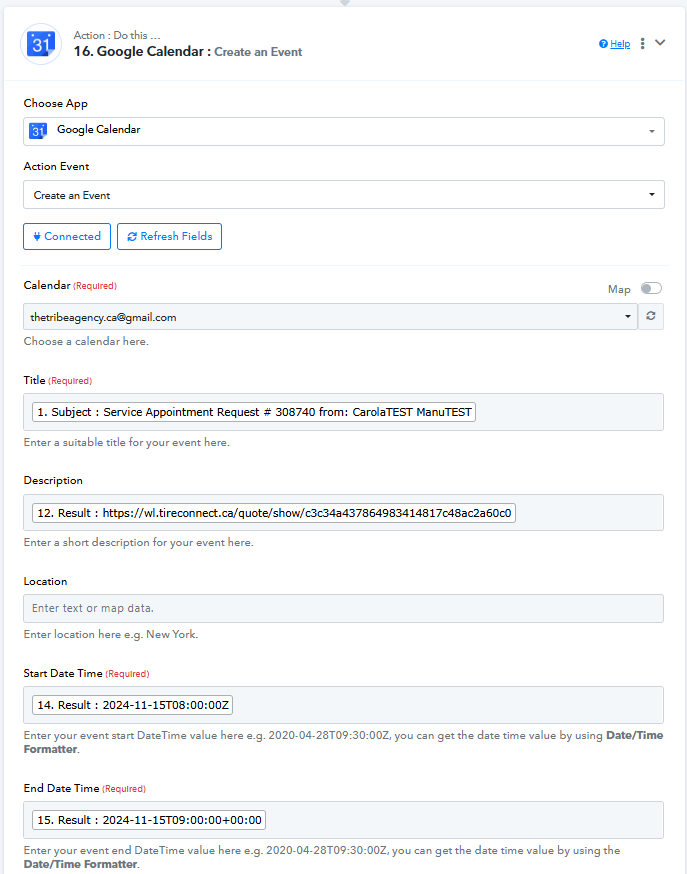
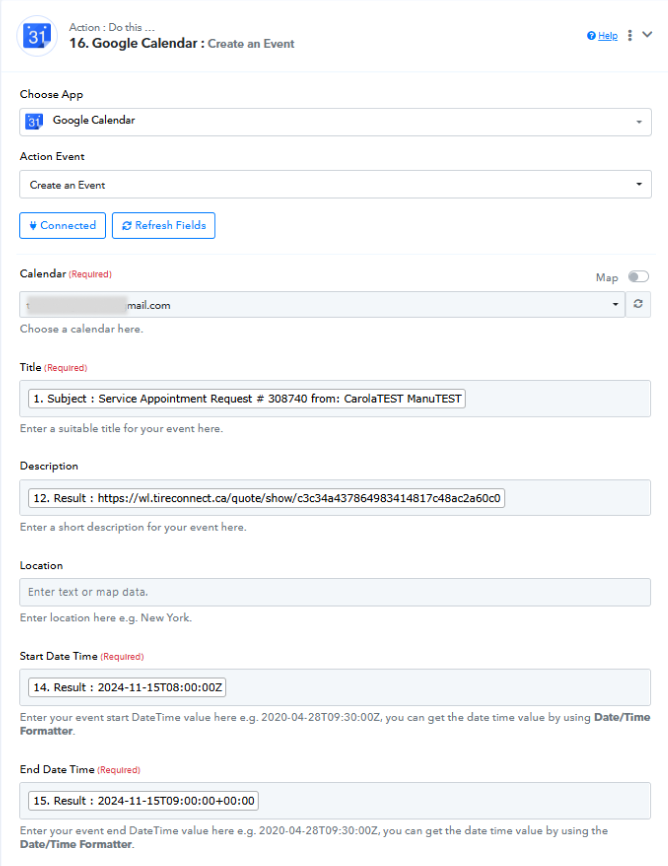
I input the formatted Start Date Time and End Date Time into the respective fields for the Google Calendar action in Pabbly Connect.
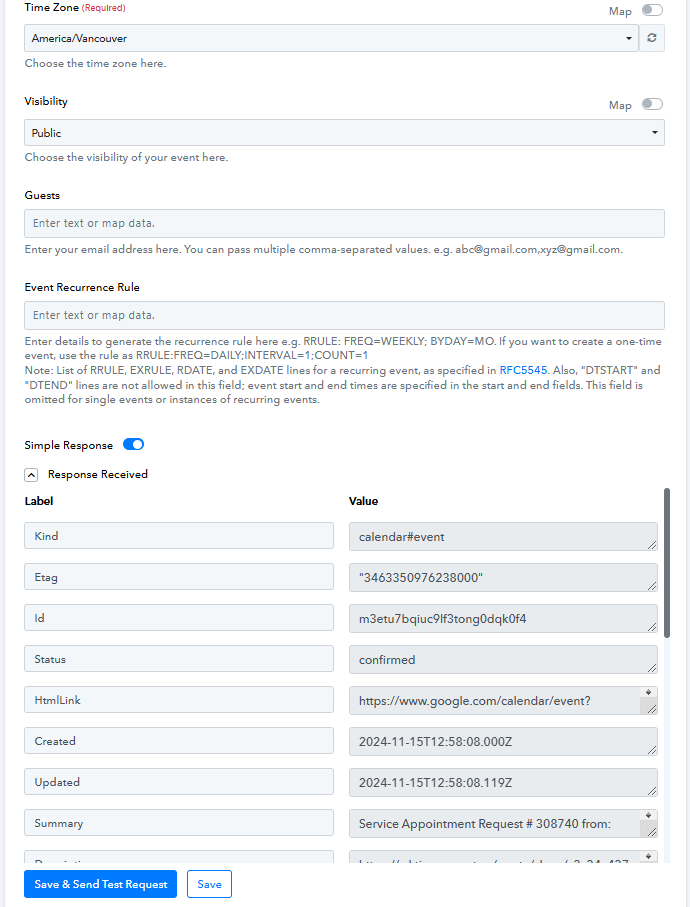
The Issue:
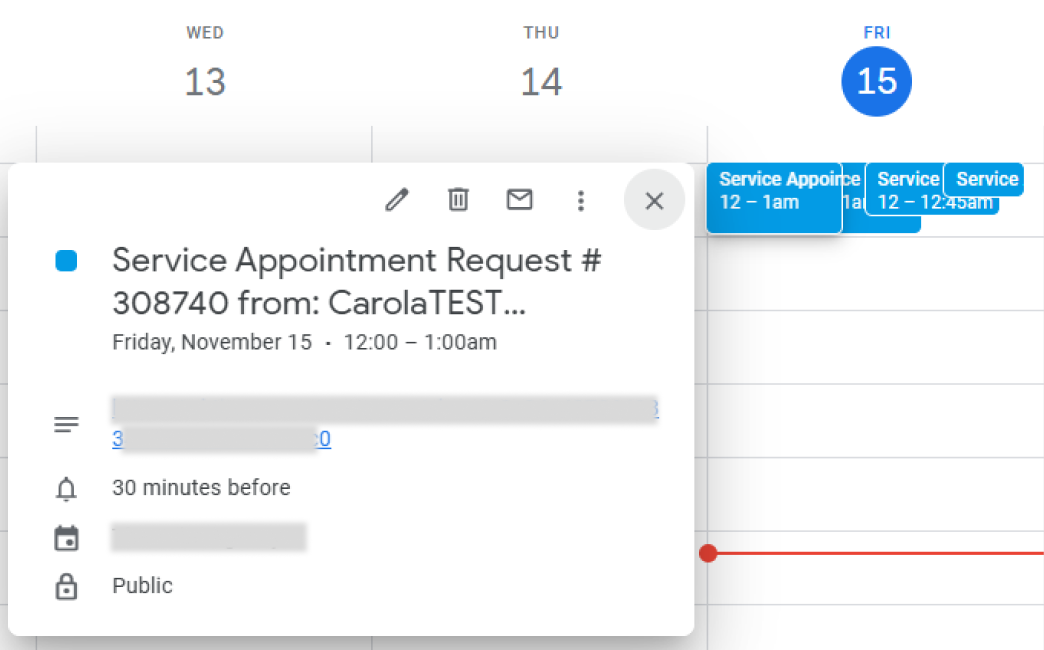
Instead of scheduling the event for the correct time (e.g., 8:00 AM - 9:00 AM), Google Calendar sets all events to 12:00 AM - 1:00 AM.
Additional Testing:
- I’ve tried using other Date-Time formats, but they all result in errors (negative values or invalid format messages). The only format that works without an error is YYYY-MM-DDTHH:mm:ss[Z], but it doesn’t correctly read the time.
Request:
Could you please help me resolve this issue? How can I ensure that the correct time is reflected when creating events in Google Calendar via Pabbly Connect?
Thank you in advance for your support!
Attachments
Hi @Wmorkan,
Could you please share the Workflow URL where you have this concern? Also, specify the time zone of the time you are inputting into the Date/Time formatters.
Hi @ArshilAhmad ,
The workflow URL:
https://connect.pabbly.com/workflow/mapping/IjU3NjYwNTZjMDYzMTA0MzY1MjZhNTUzYzUxMzQi_pc
The Time Zone:
America / Vancouver
Google Calendar API expects the time to be provided in UTC format. So, when you input 2024-11-15T08:00:00Z, it is interpreted as UTC time. Since, 8:00 AM UTC corresponds to 12:00 AM Vancouver time, it appears as such in your Google Calendar.
We suggest using a Date/Time Formatter to add 8 hours to your time (2024-11-15T08:00:00Z), which will give you 2024-11-15T16:00:00Z. You can then feed this updated time to Google Calendar, and it will display as 8:00 AM in your calendar.
Hi @ArshilAhmad! Thank you so much! The solution you provided is working perfectly now.
I have another question regarding the workflow:
https://connect.pabbly.com/workflow/mapping/IjU3NjYwNTZjMDYzMTA0Mzc1MjZhNTUzYzUxMzci_pc
Unlike the previous case where the date was provided in the format MMMM DD YYYY HH:mm:ss (e.g., January 22 2006 23:04:05), this time the date is given in the format MM/DD/YYYY hh:mm:ss A (e.g., 12/13/2020 05:30:41 PM).
This is the result I’m currently getting. Is there anything I should adjust to ensure the output is in a positive format?
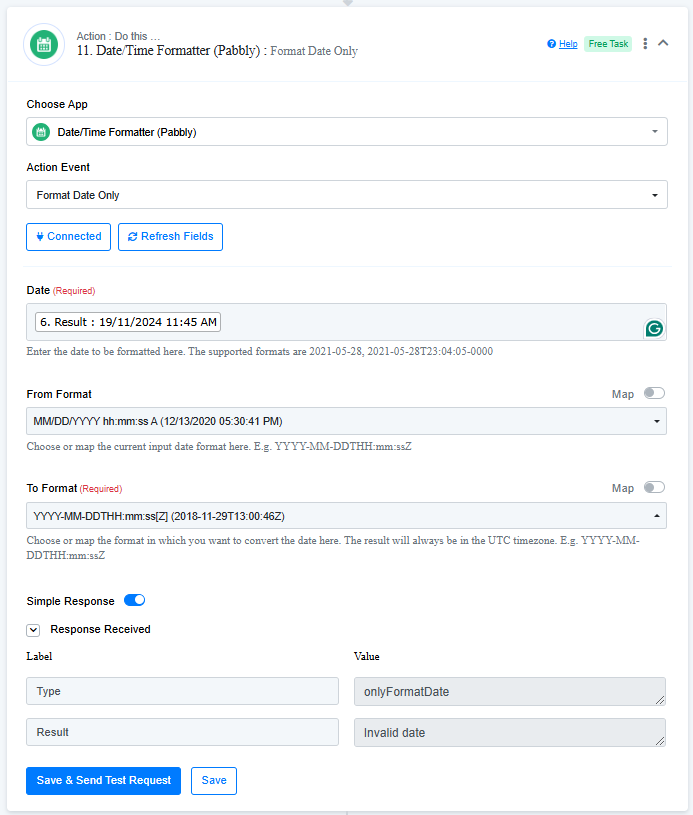
Please try setting up the Date/Time Formatter in this manner: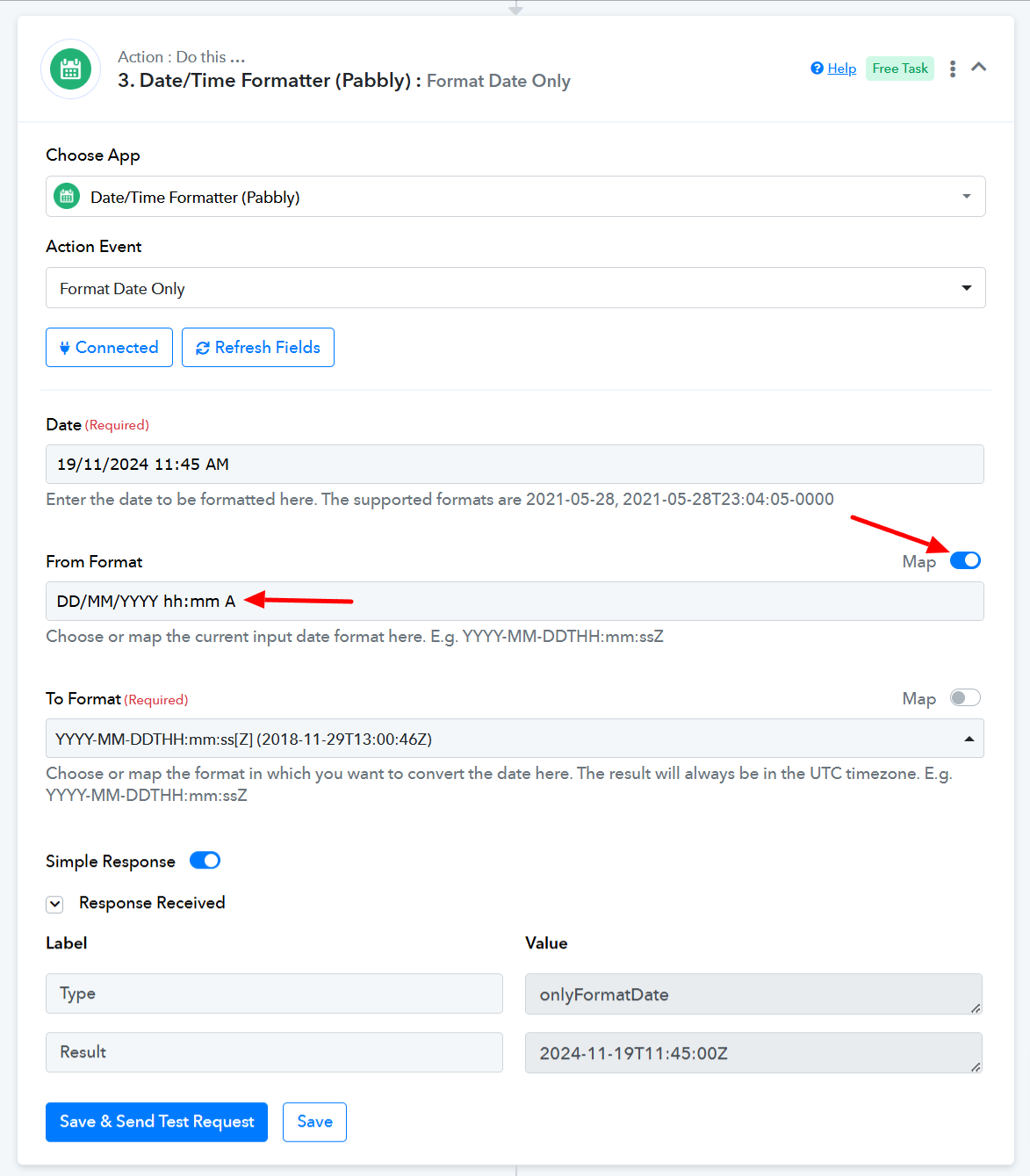
Thank you so much, @ArshilAhmad ! It worked perfectly. I’ll continue monitoring to ensure people keep booking appointments and that everything runs smoothly.
On another note, I’d like to implement the option for appointments to be added directly from Pabbly Connect to Go High Level, as connecting through Google Calendar has many limitations for Go High Level.
I’m using the "Create Appointment" option:
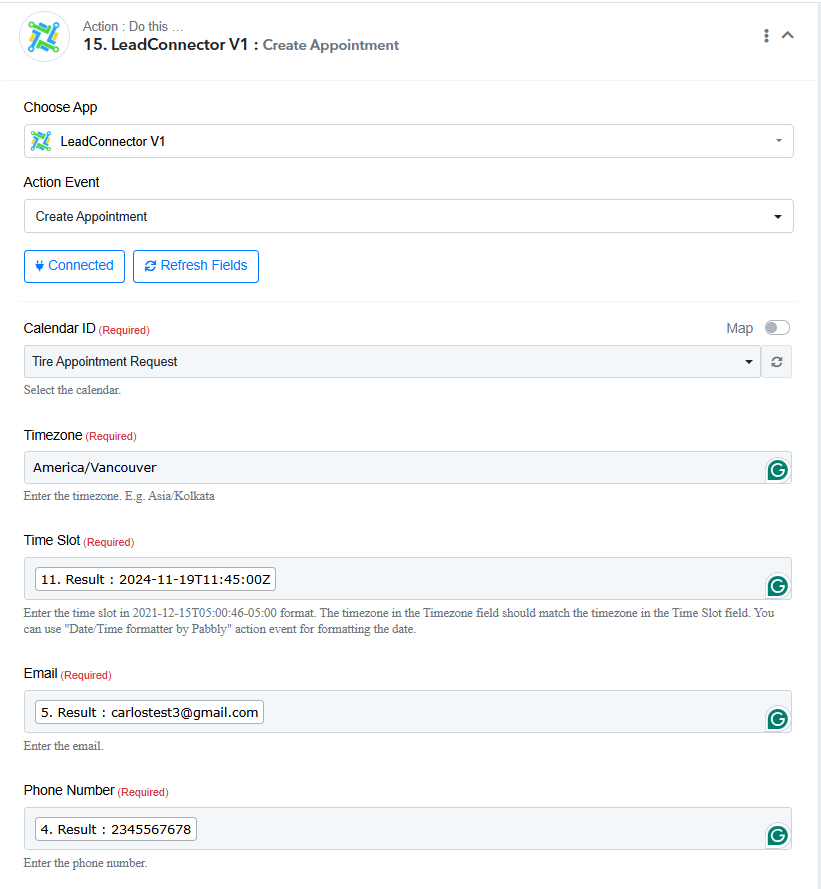
For "Timezone," I’ve set it to "America/Vancouver." I also tried the timezone displayed in Go High Level, but I keep getting the same error message.
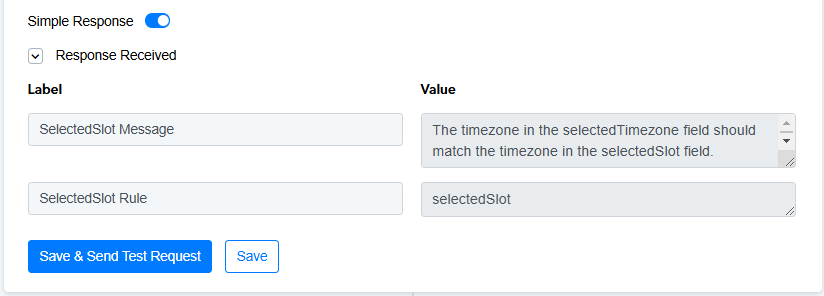
This is the Go High Level account Timezone:

The workflow link:
https://connect.pabbly.com/workflow/mapping/IjU3NjYwNTZjMDYzMTA0Mzc1MjZhNTUzYzUxMzci_pc
How do you think I could resolve this?
Thank you, Arshin, for your help!
Please try using the Date/Time Formatter to convert the time zone of your date from UTC to Vancouver time. Then, pass it to the 'Create Appointment' action step and check if that resolves your issue.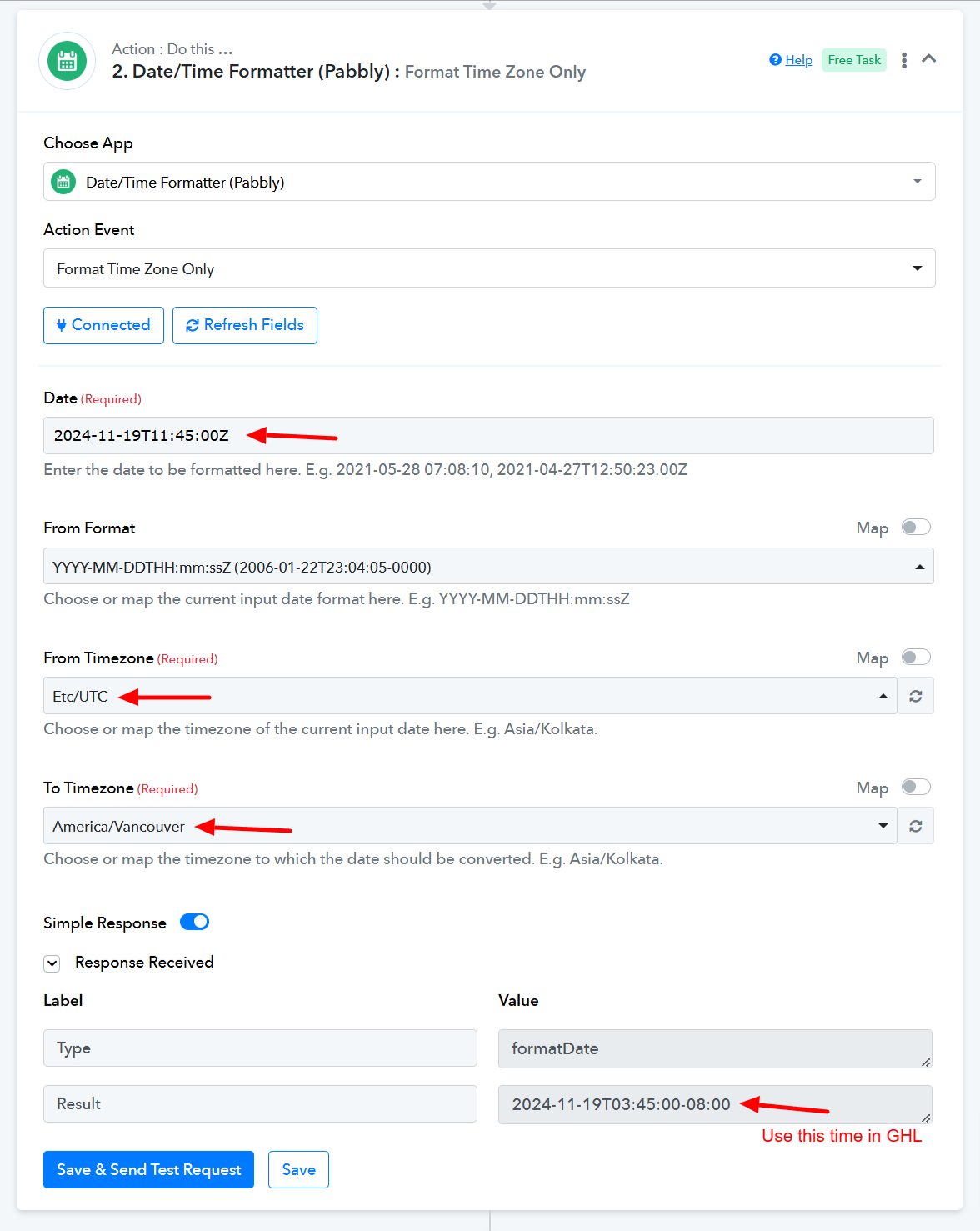
Thanks @ArshilAhmad ! I already completed this step, and I got the same result:
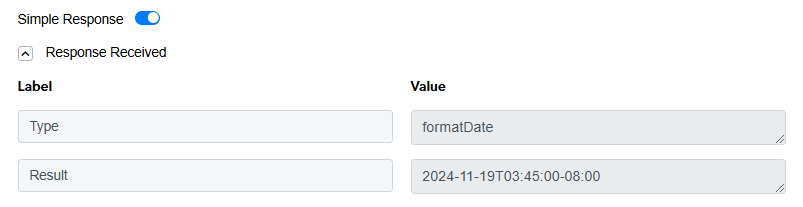
When I add that data to the action in Go High Level, this result appears:
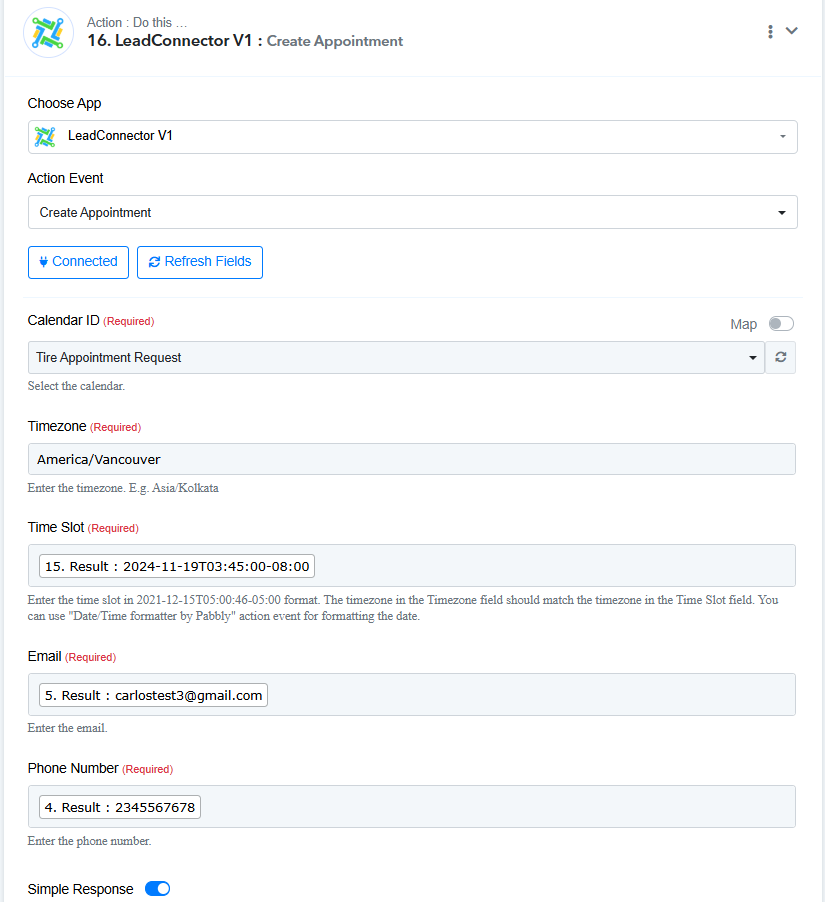
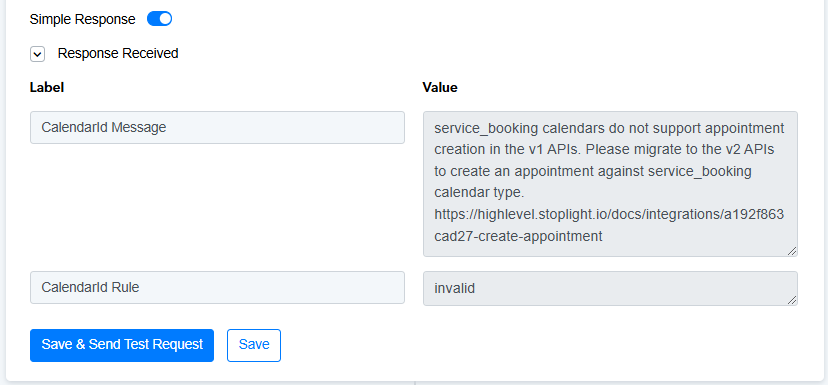
I tested it with the personal form, and I still get the same error message.
Is there anything I need to change to keep using the same action, or should I switch to LeadConnector V2?
Please try using 'LeadConnector V2: Create Appointment' action step.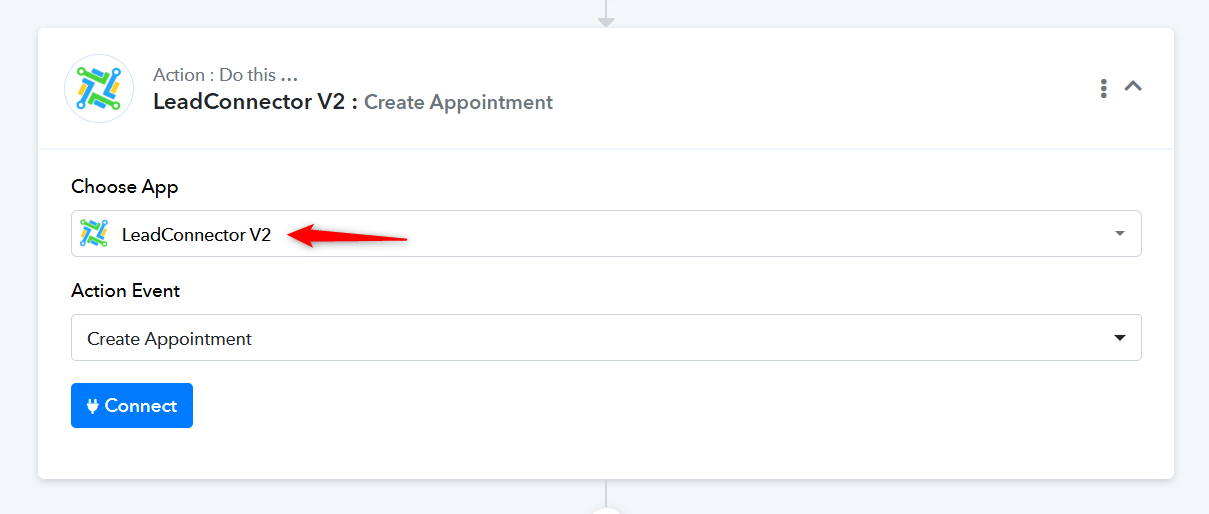
Hi @ArshilAhmad ! I went ahead and made the modification, and it worked correctly in this workflow:
https://connect.pabbly.com/workflow/mapping/IjU3NjYwNTZjMDYzMTA0Mzc1MjZhNTUzYzUxMzci_pc
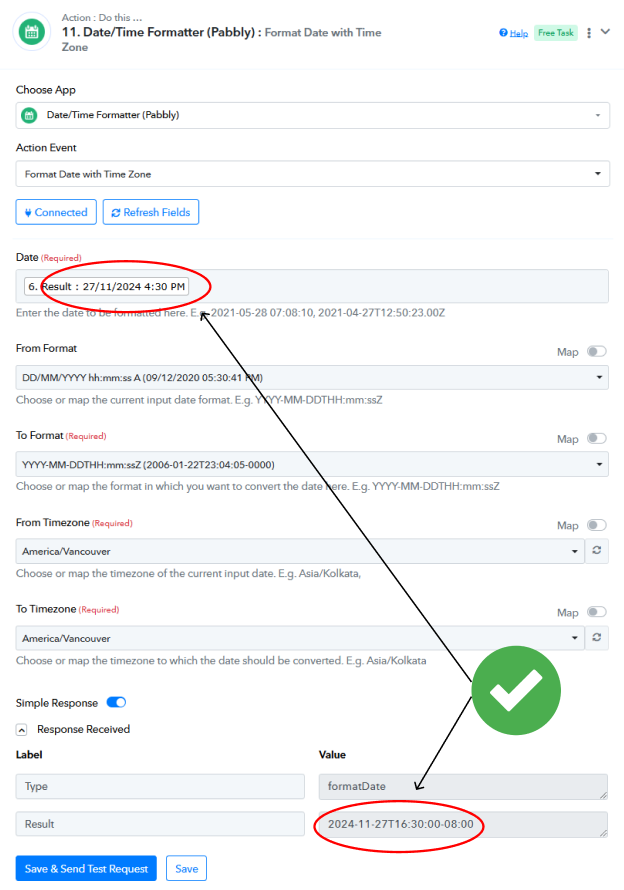
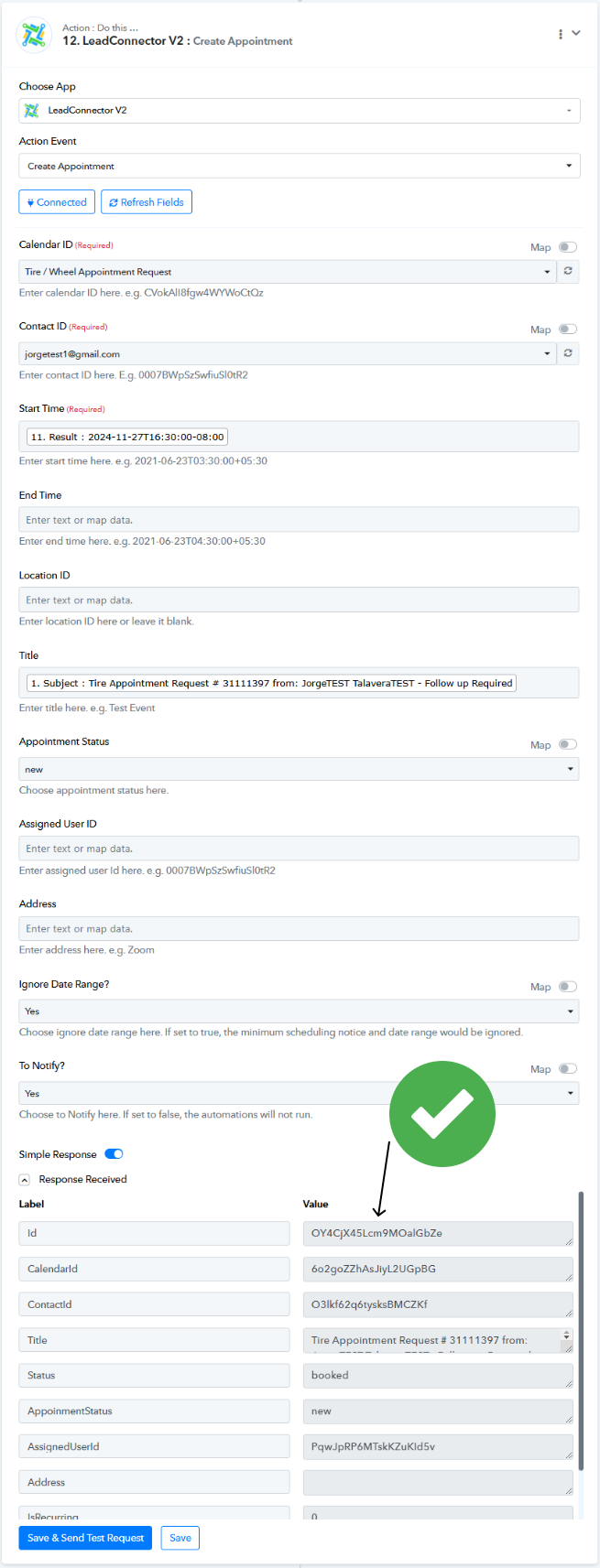
However, when I tried to implement it for the services workflow (https://connect.pabbly.com/workflow/mapping/IjU3NjYwNTZjMDYzMTA0MzY1MjZhNTUzYzUxMzQi_pc), the result was different.
From what I can see, the time hasn’t been adjusted correctly.
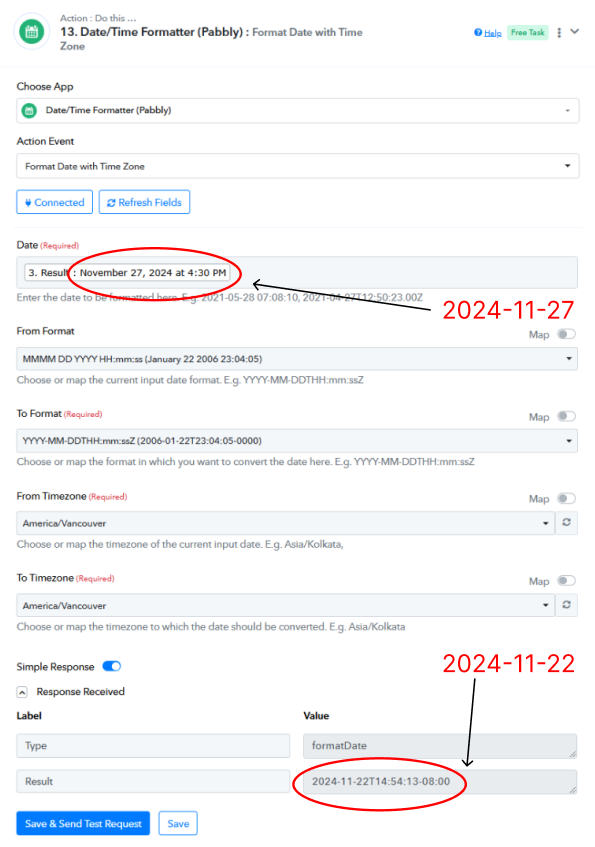
How could I fix this?
We have added a Text Formatter to your workflow to remove 'at' and changed the From Format. This appears to have resolved your issue.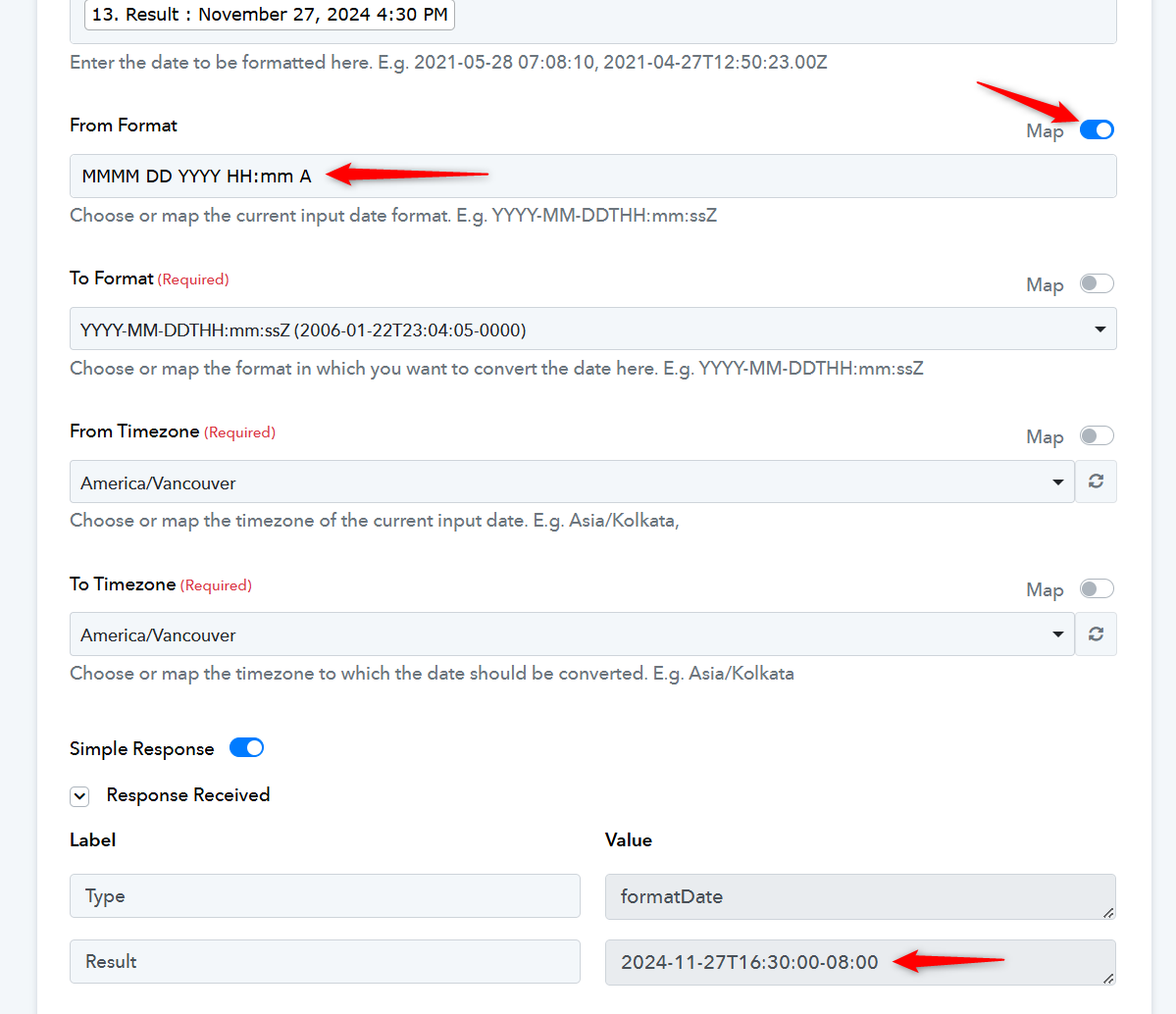
@ArshilAhmad , you’re the best! It’s working perfectly now!
One additional question—what does this "Contact ID" refer to, and where would that information appear in the Appointment section in Go High Level? The Contact ID I’ve placed there shouldn’t be the same for all, or should it?
It also seems to only allow me to add contacts already in my Go High Level contact list, not administrators.
When a new contact is created in GHL, it is assigned an ID. You need to map this ID in the 'Create Appointment' action step from above. This ensures that each time a new contact is created, an appointment with the same contact is also created in your GHL account. We have made the necessary changes on your behalf and have mapped the Contact ID accordingly.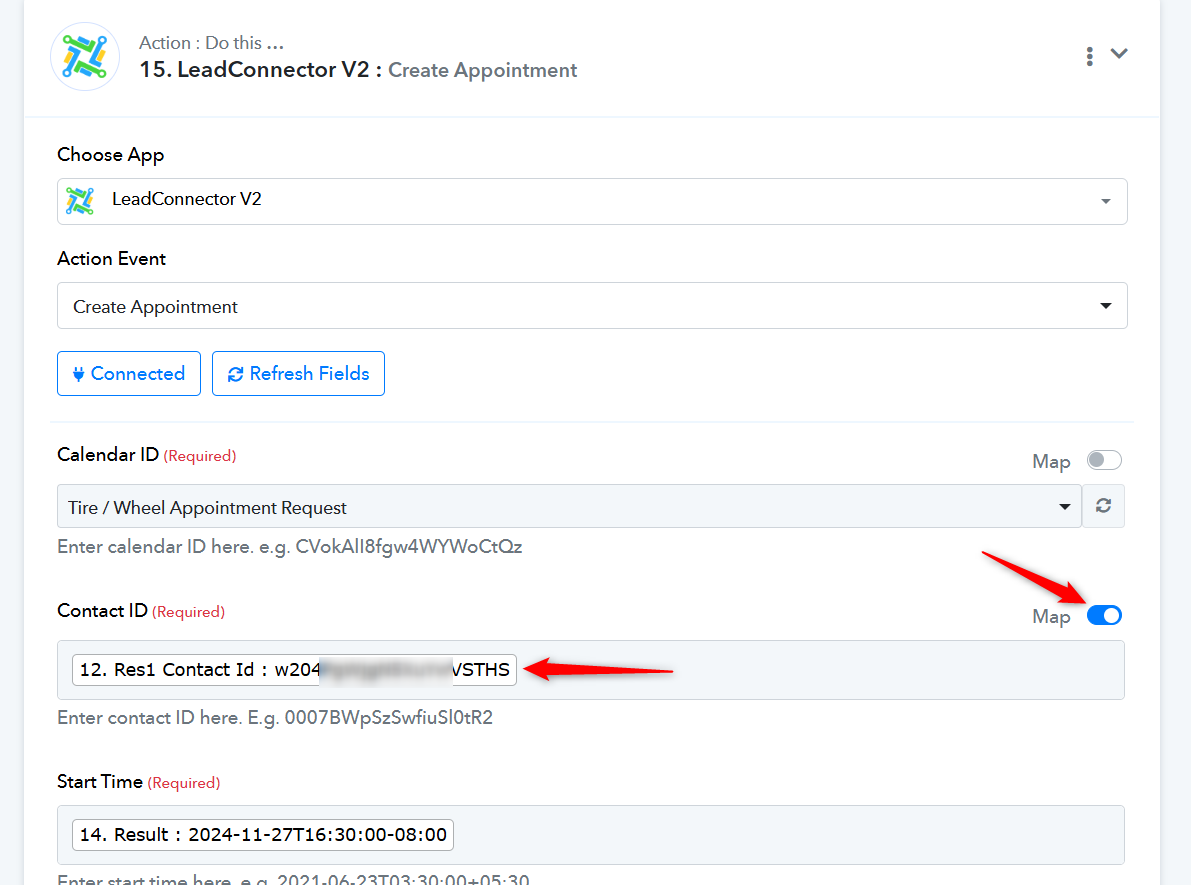
Thank you so much, @ArshilAhmad ! I’ve got it set up as you indicated.
Now I’m encountering an issue in the following workflows:
Some actions complete successfully, while others fail:
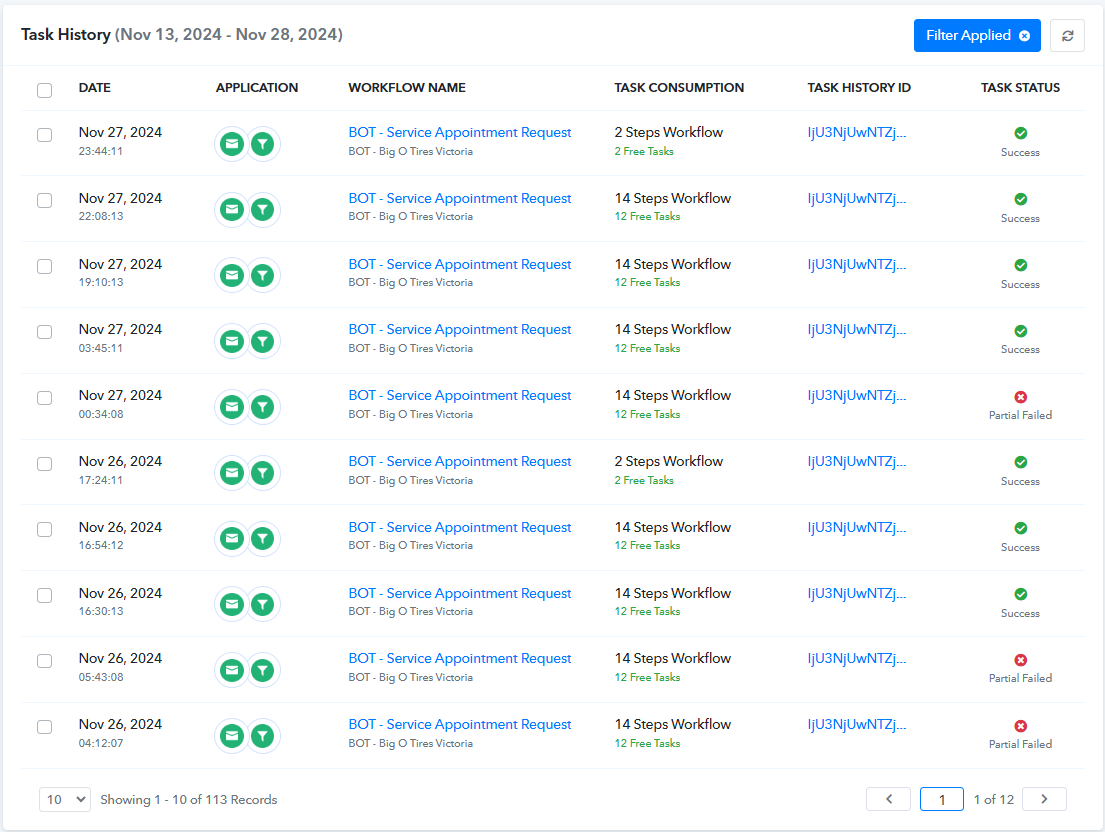
The error always happens at this last step:
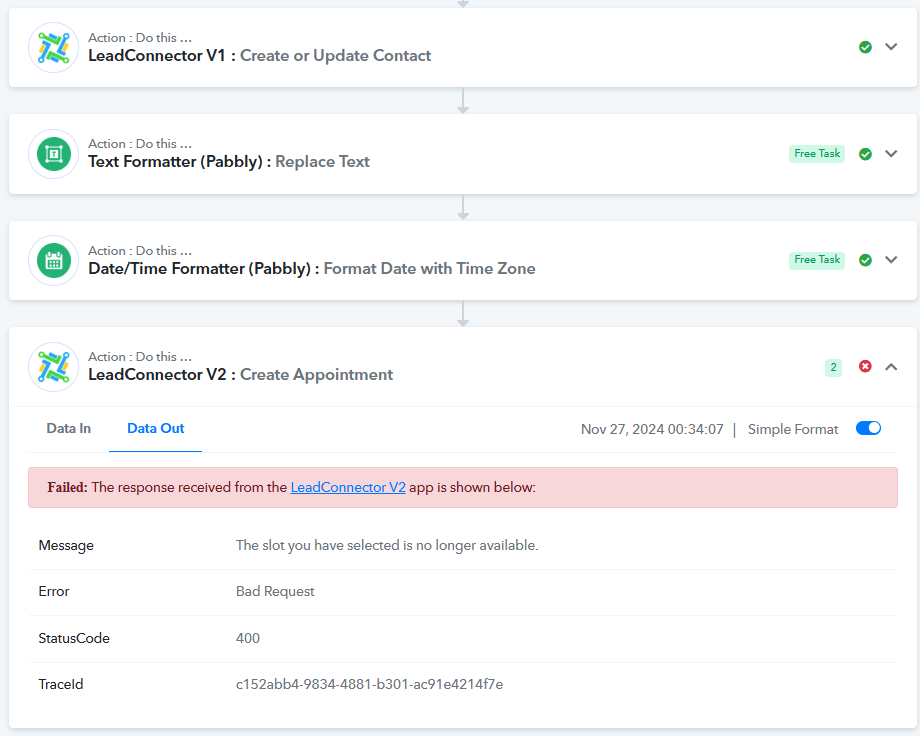
I spoke with the team at Go High Level, and I have the Round Robin Calendar enabled with a maximum of 20 appointments per slot. The calendar is set to be available from 1:00 AM to 11:55 PM.
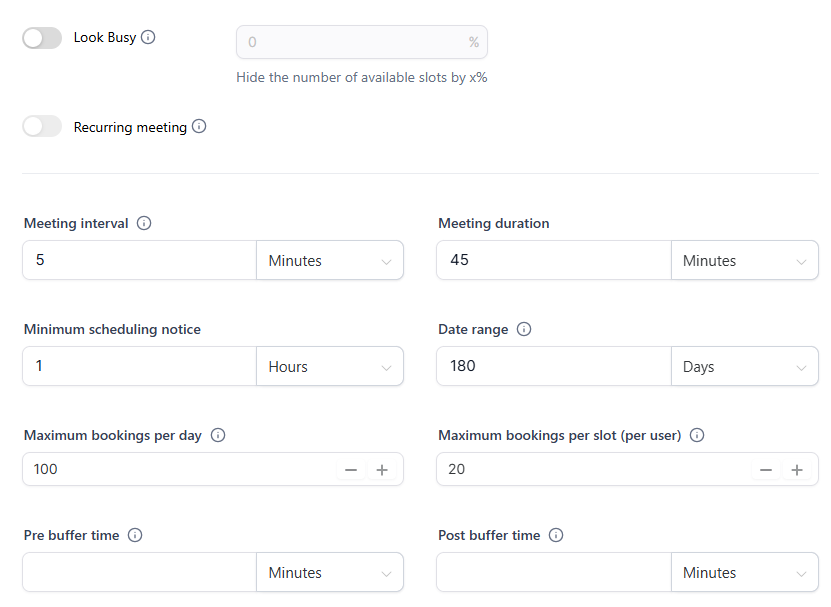
Would you know how I can resolve this issue?
The issue appears to be related to the slot where you are trying to create an appointment, as it is already booked. You can try adding a 'Get Calendar Free Slots' action step along with a Filter step to your workflow before the 'Create Appointment' action step. The 'Get Calendar Free Slots' step will check whether the slot you are trying to create the appointment in is free. If it is not, the Filter step will ensure that the 'Create Appointment' action step is not executed.
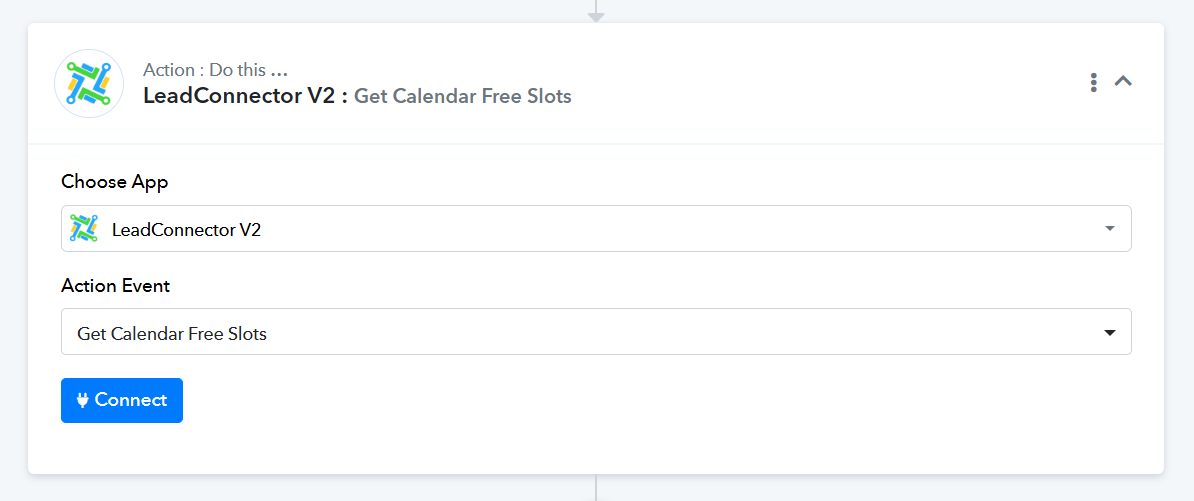
Thank you, @ArshilAhmad ! Could you help me set up this part?
I’ve entered the information, but I don’t understand what "TraceId" refers to or if the value I entered is the one I need.
Also, how should I configure the filter?
Do I need to complete the "User ID"?
Workflow:
https://connect.pabbly.com/workflow/mapping/IjU3NjYwNTZjMDYzZTA0MzM1MjY1NTUzZDUxM2Ii_pc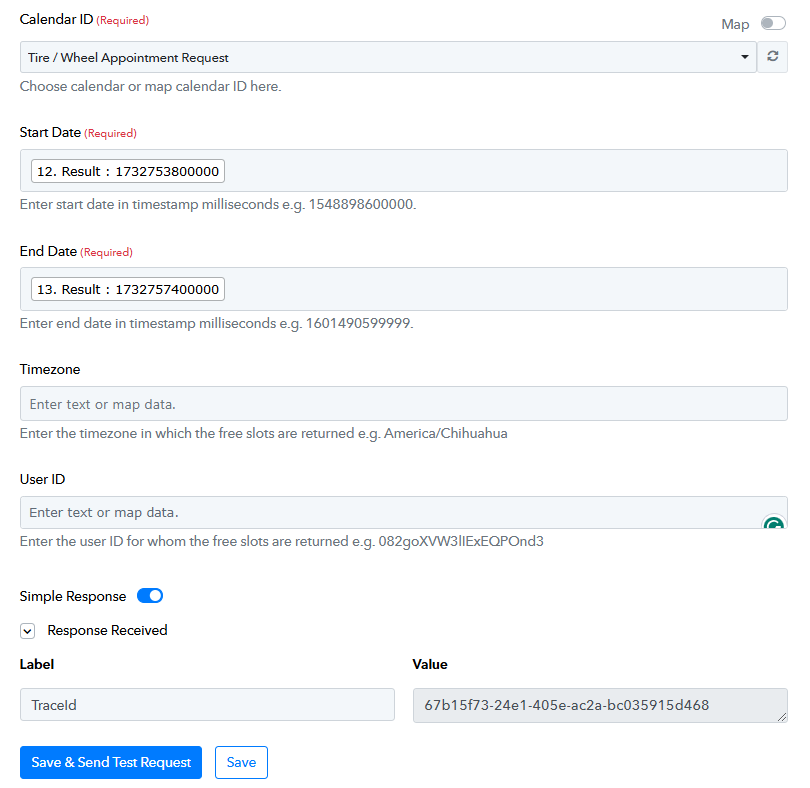
Additionally, to better understand this action, does this mean it will act as a filter to check if a slot is available, and if it is, it will move to the next action?
Do I need to perform any additional steps?
The date you are mapping to the 'Get Calendar Free Slots' action has already passed. You need to input an upcoming date for the 'Get Calendar Free Slots' action step.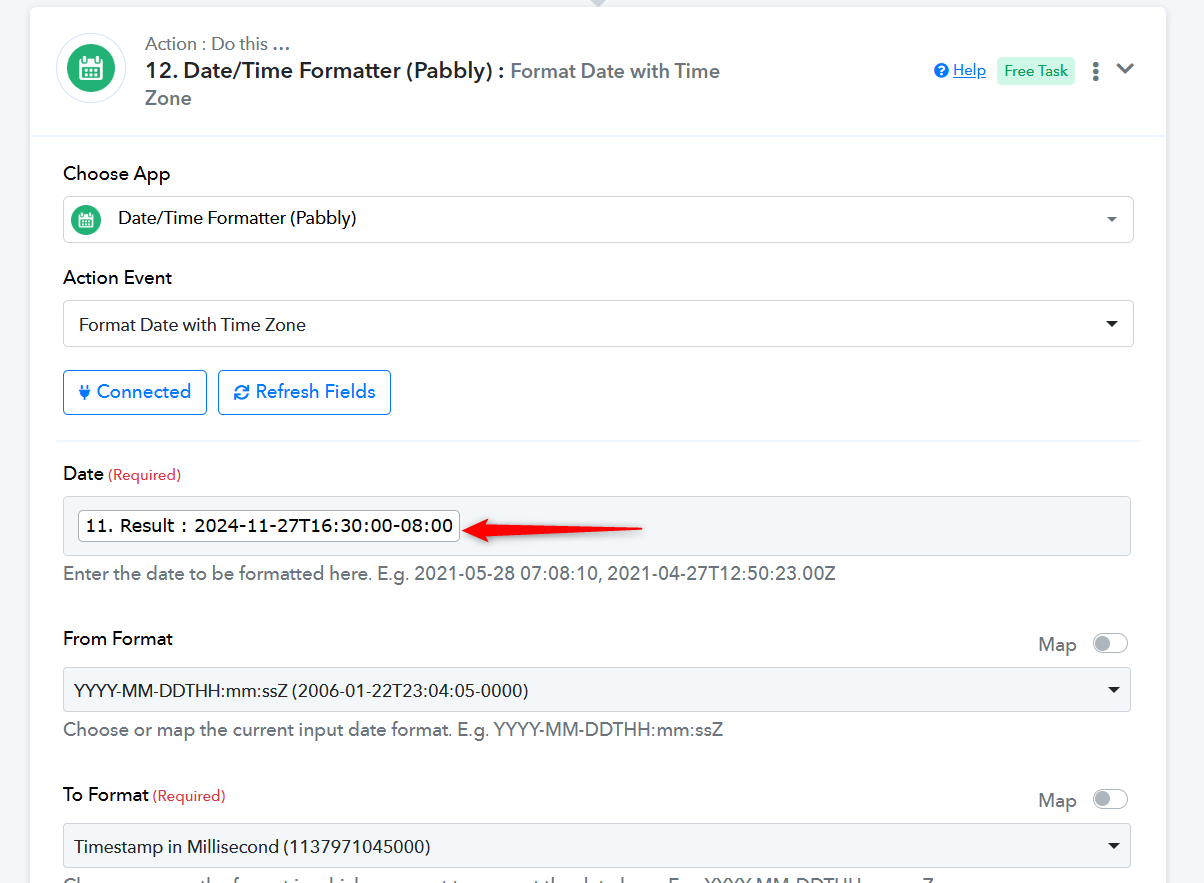
Additionally, to better understand this action, does this mean it will act as a filter to check if a slot is available, and if it is, it will move to the next action?
Do I need to perform any additional steps?
No, it won't act as a filter on its own. You need to add a filter after the 'Get Calendar Free Slot' action step and check whether the time you are trying to create the appointment matches an available free slot. If no free slot is available, the workflow execution will stop at the filter step, and the final step of creating the appointment will not be executed.