java script not working in my workflow
Status: Open · Asked by Parth Nayak on · 0 views
i want to send whatsapp when pabbly workflow failure mail received, but unable to apply java script on email body to get which workflow failed. so want to solve that.
Hey @Parth,
Could you please share the workflow URL where you're facing this issue, so we can better assist you?
Hey @Parth,
Upon checking the workflow, we noticed that the email content is currently being captured in plain format. When captured in plain format, the workflow URL is not included in the response.
Kindly update the configuration to capture the email content in HTML format instead. Once done, please test it again and let us know the outcome.
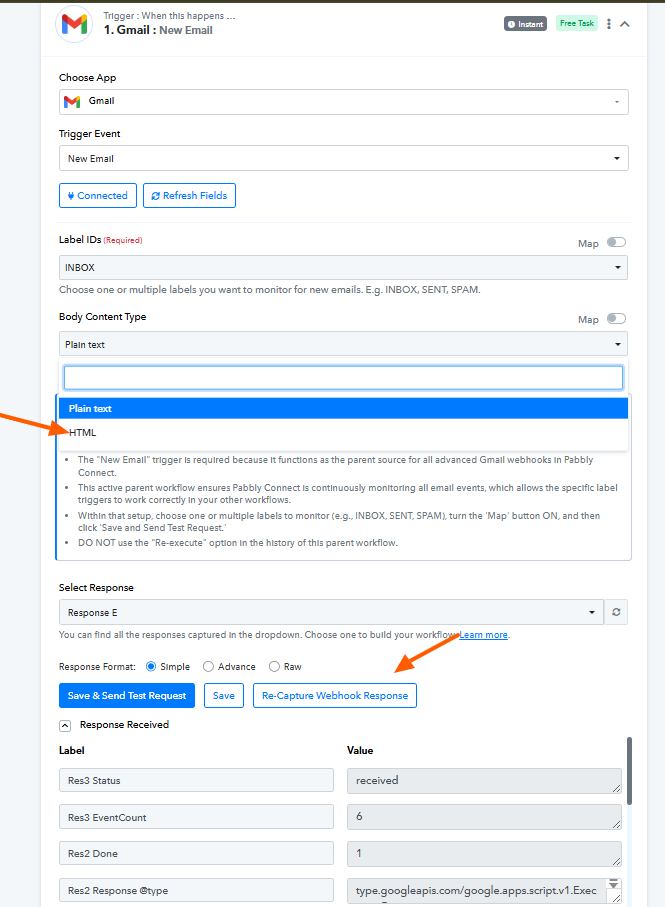
not able to do it generates lot of errors, main problem is am unable to get pabbly HTML mail in trigger when i wanted to automate in action. someone to send mail onspot to process automation. forward mail does not work in code by pabbly.
Hey @Parth,
Thanks for reaching back to us.
It appears that the trigger is already capturing the email response in HTML format. However, in the Code by Pabbly action, we couldn’t find any specific code added for processing the HTML content.
Could you please let us know:
- What specific code you are trying to add, and
- Which exact details you want to extract from the error email (for example: workflow name, workflow URL, error message, etc.) to send on WhatsApp?
Once we have this information, we’ll be able to review it and assist you accordingly.
i have generated almost 10-15 java and python codes with mail variables and tried but as mail is forwarded mail in webhook it creates syntax or other errors, and unable to solve so was asking for google meet. i want to capture workflow name with error message to send to whatsapp
Hey @Parth,
Thanks for confirming the details you want to extract from the email.
We have added a few Text Formatter steps in your workflow that take the HTML email content and extract the required details using regex patterns. As shown in the attached image, it is currently extracting the workflow name, workflow URL, step name, and the error message.
If you need to extract any additional information from the email, you can add more Text Formatter steps and use appropriate regex patterns to capture those details from the HTML content. You may also use AI tools to generate the required regex pattern for extracting specific fields.
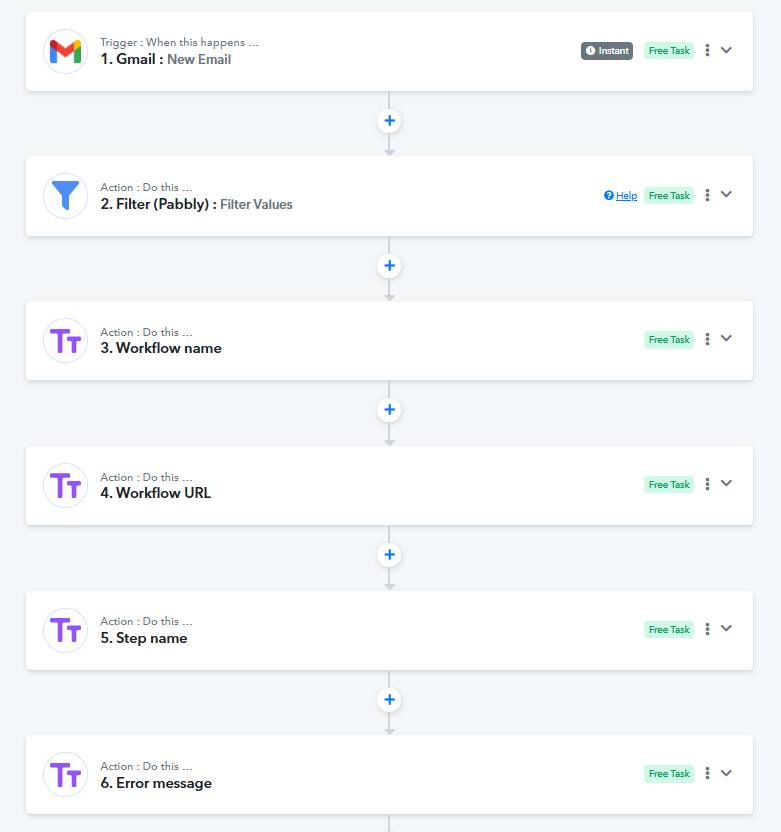
as i see regex not working properly for remaining 2 steps results, should we convert html format to other format and get details from that?
Hi @Parth,
Thank you for getting back.
Could you please specify which exact steps are not working correctly with the regex so we can review them more precisely?
As mentioned earlier, capturing the email in HTML format is important if you want to extract details like the workflow URL, since this information is not available in plain text format.
However, if extracting the workflow URL is not required, you may switch to plain text format, which can sometimes make data extraction simpler.
Please share the specific steps where the issue persists, and we’ll assist you further.