Microsoft Excel Connector - New & Existing Connections Failing with invalid_client (AADSTS7000222)
Status: Closed · Asked by Freedom PCOS on · 0 views
Hi Team,
We are facing an issue with the Microsoft Excel connector in Pabbly Connect.
Issue:
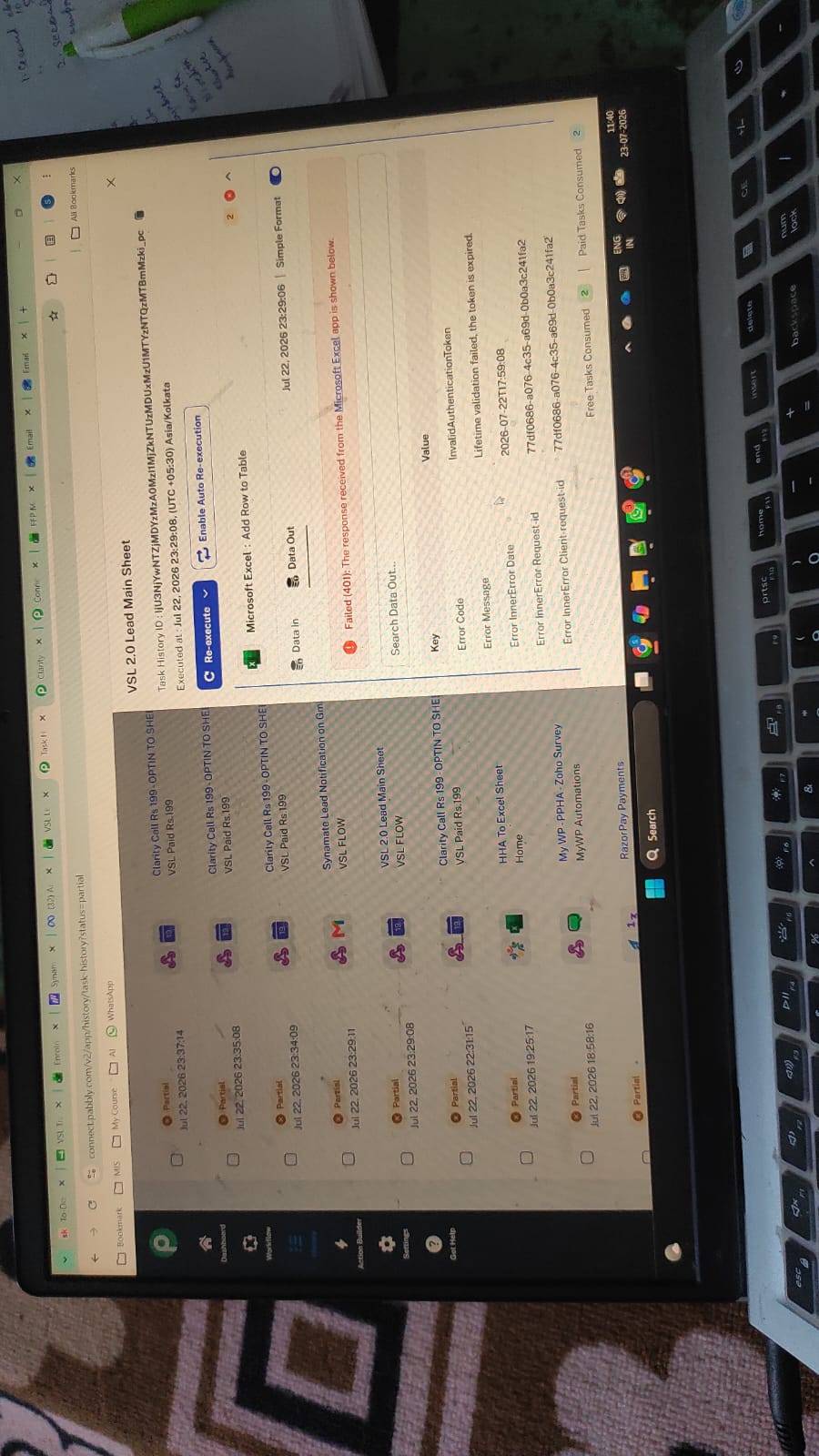
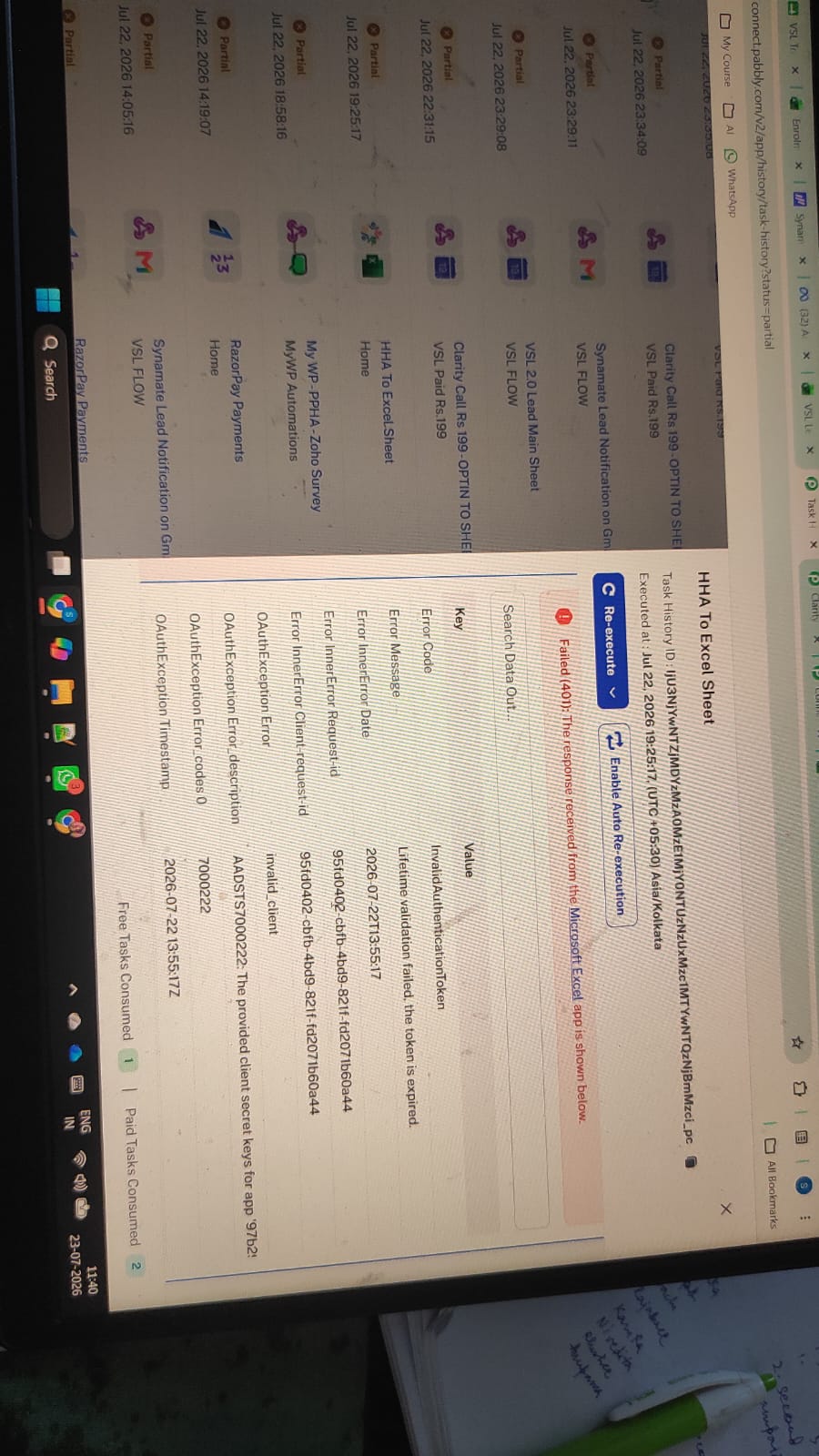
- All existing Microsoft Excel workflows have stopped working.
- No new rows are being added to Excel tables.
- Creating a brand-new Microsoft Excel connection also fails.
Environment:
- Using Pabbly's default Microsoft Excel connector (no custom Azure App).
-
Microsoft 365 Business account (
@freedomfrompcos.com). - Excel workbook is stored in OneDrive.
Troubleshooting already performed:
- Reconnected the Microsoft Excel account.
- Created a new Microsoft Excel connection.
- Tested in Incognito mode.
- Created a new workflow for testing.
- Successfully logged into Microsoft 365.
- Able to access OneDrive and Excel Online without any issues.
- Microsoft permission (consent) screen appears and Accept is clicked successfully.
Errors received:
-
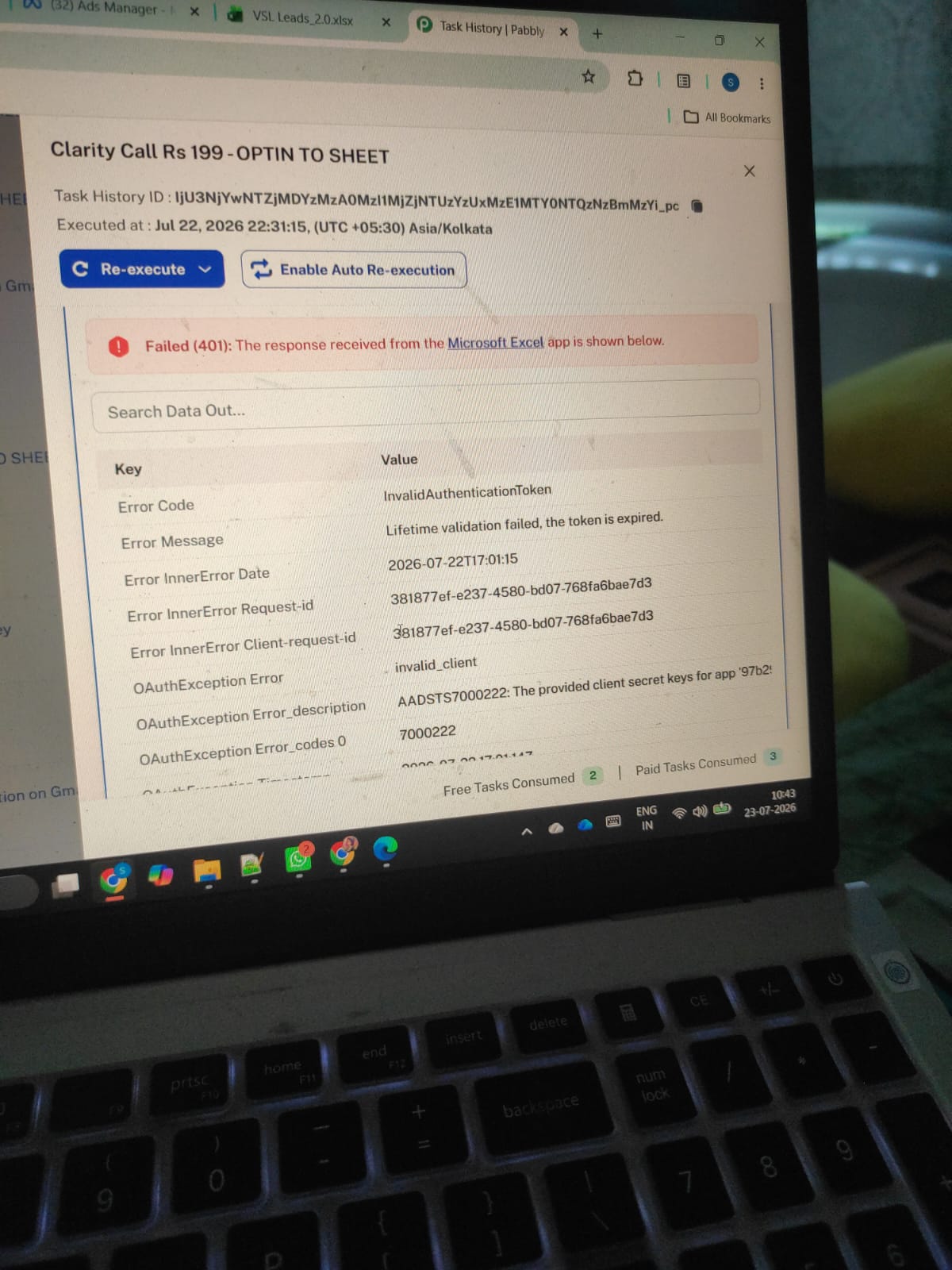
Workflow execution error:
-
InvalidAuthenticationToken -
AADSTS7000222: The provided client secret keys are expired.
-
-
While creating a new connection:
-
After Microsoft authentication and consent, Pabbly redirects to:
https://connect.pabbly.com/callback-url -
The page displays only:
invalid_client
-
After Microsoft authentication and consent, Pabbly redirects to:
Since this issue affects both existing and new Microsoft Excel connections, it appears to be related to the Microsoft OAuth authentication rather than a specific workflow.
Could you please check and advise on the resolution?
Thank you.
Hello,
Thank you for reporting this issue and for providing the detailed troubleshooting information.
We checked with our team and found that there was an issue with the Microsoft integration on our end. The issue has now been fixed.
To resolve this on your end, please create a new Microsoft Excel connection in Pabbly Connect and update your workflow to use the newly created connection. Once the new connection is established, the workflows should start working normally.
Kindly test this by creating a fresh Microsoft Excel connection and let us know the outcome. If you continue to face any issues after reconnecting, please share the updated screenshots or workflow details and we'll be happy to investigate further.
Thanks and Regards,Preeti Paryani
Customer Success Associate,
Pabbly.com