Microsoft Office is asking for repeated admin approvals even after granting access
Status: Open · Asked by mark young on · 0 views
Hello Mark,
Thanks for contacting us.
To grant a Microsoft Office 365 user or application admin consent to use an API connection, you must configure an App Registration within the Microsoft Entra admin center (formerly Azure Active Directory). This process registers your application, applies the necessary API permissions (like Microsoft Graph or Exchange Online), and authorizes them tenant-wide.
Prerequisites
You must sign in with a Global Administrator, Privileged Role Administrator, or Cloud Application Administrator account.
Note: Cloud Application Administrators cannot grant admin consent for Microsoft Graph application permissions; you will need a Global Administrator for those specific scopes.
Step 1: Create an App Registration
If you haven't registered the application yet, you need to establish its identity within your tenant.
Go to the Microsoft Entra admin center.
Expand the Identity menu on the left, then navigate to Applications > App registrations.
Click New registration.
Enter a Name for your application.
Choose the Supported account types (usually "Accounts in this organizational directory only").
Click Register at the bottom.
Step 2: Assign API Permissions
Define what data and actions the application or user is allowed to access through the API connection.
From your newly created App Registration page, click API permissions under the Manage section in the left sidebar.
Click Add a permission.
Select the API you need to connect to:
Select Microsoft Graph for general Office 365 data (SharePoint, Teams, User Profiles).
Select the APIs my organization uses tab and search for Office 365 Exchange Online if you specifically need direct email/mailbox API management.
Choose the type of permission required for your workflow:
Delegated permissions: The application runs on behalf of the signed-in user. The user's own Office 365 roles will restrict what the API can touch.
Application permissions: The application runs as a background service/daemon without a signed-in user.
Check the specific scopes your app needs (e.g.,
User.Read.All,Mail.Read) and click Add permissions.
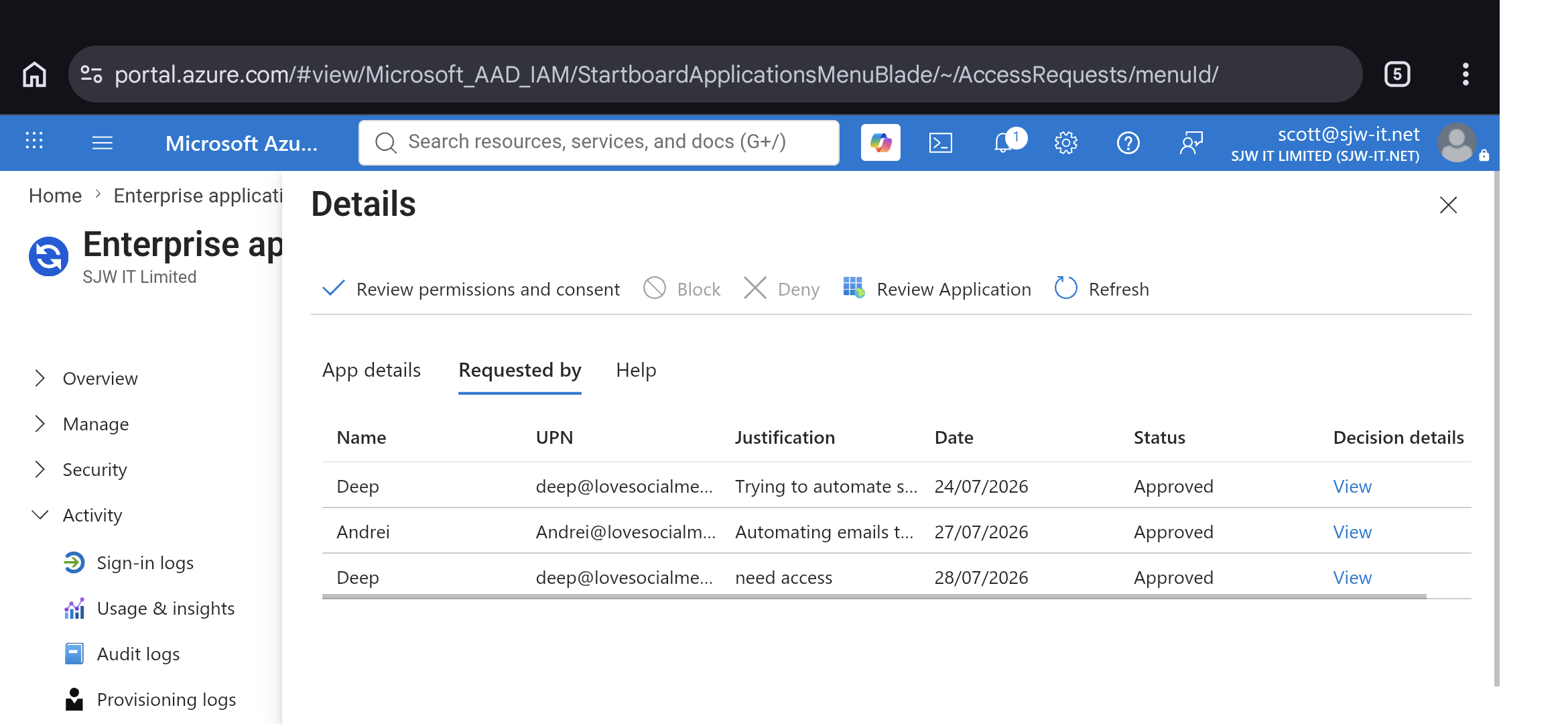
Step 3: Grant Admin Consent
Permissions will remain in a "Not granted" status until an administrator approves them for the tenant.
While still on the API permissions screen, look for the status table.
Click the button labeled Grant admin consent for [Your Tenant Name].
Click Yes when prompted to confirm the consent.
Verify that the status column changes to a green checkmark indicating Granted.
Thanks & Regards,
Adeel Akhtar
🌐 Pabbly.com