Not able to send data to LSQ
Status: Closed · Asked by Bhaskar Gupta on · 0 views
Hi Team,
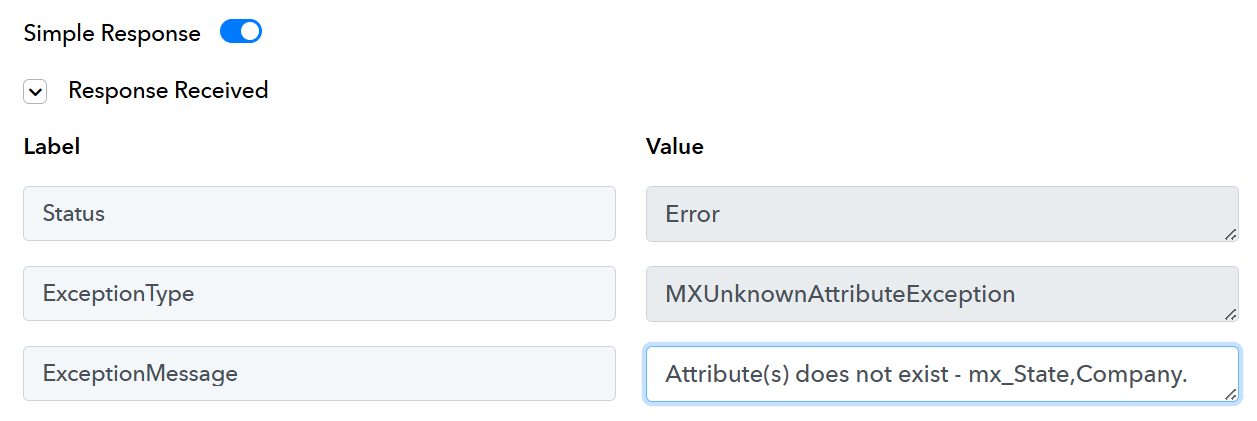
I am passing on data from Google Sheets to LSQ and it is giving me this error. I have the admin access of LSQ account! Please help!
Hi @Bhaskar,
Could you please share the Workflow URL where you have this concern?
Hi @ArshilAhmad, here is the URL:
https://connect.pabbly.com/workflow/mapping/IjU3NjIwNTZmMDYzNjA0MzI1MjZiNTUzYyI_3D_pc
Hello @Bhaskar,
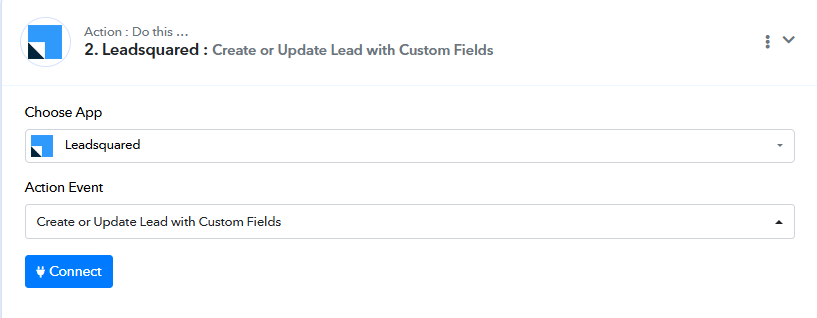
Could you please share a screenshot of your LeadSquared dashboard showing the lead fields while you are trying to create the lead? In the meantime, we recommend trying the Create or Update Lead with Custom Fields action and let us know if that works for you.
Hello @Bhaskar,Could you please share a screenshot of your LeadSquared dashboard showing the lead fields while you are trying to create the lead? In the meantime, we recommend trying the Create or Update Lead with Custom Fields action and let us know if that works for you.
Here you go: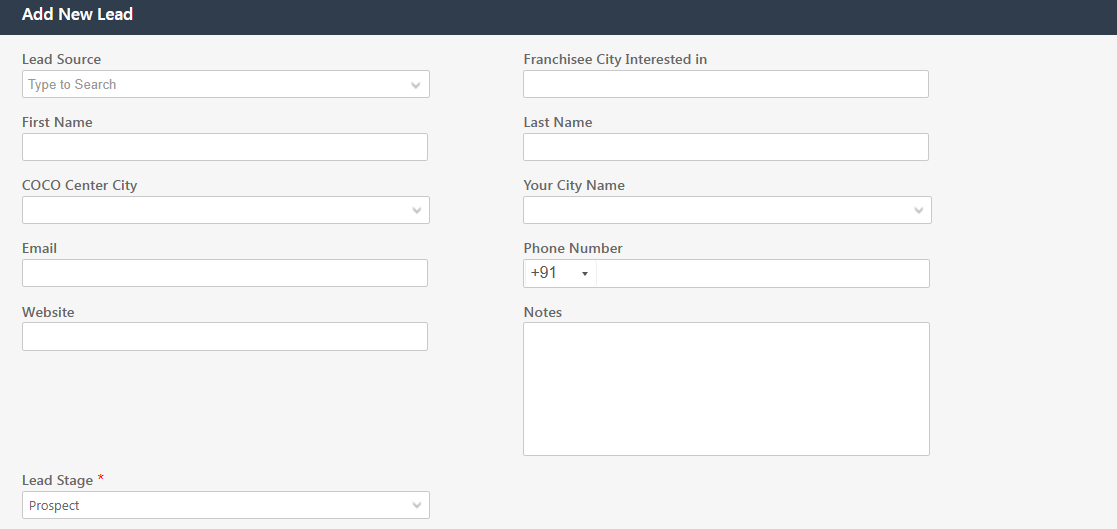
Moreover can we connect on a call to get this done quickly!
As mentioned previously, please try using 'Create or Update Lead with Custom Fields' action step instead.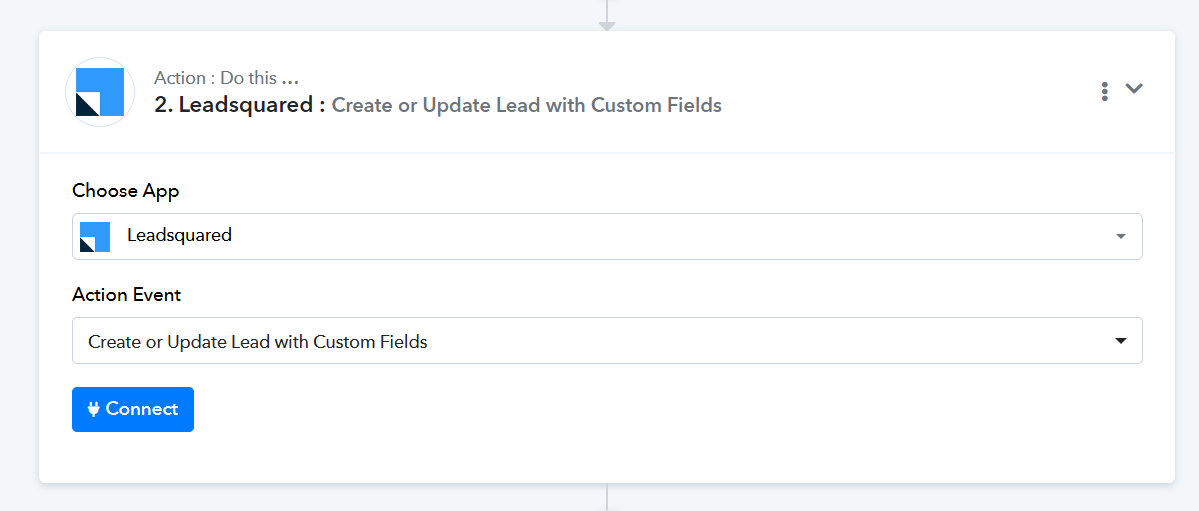
As mentioned previously, please try using 'Create or Update Lead with Custom Fields' action step instead.
Hi Arshil, we have tried this and we were successful but whenever we are adding new value in Google Sheet, it is not fetching the data, what could be the reason?
Hello @Bhaskar,
Could you please confirm how the data is getting added to your Google sheets?
When entering the data into your Google Sheets, make sure to add the data to your trigger column as well in order to trigger the workflow.
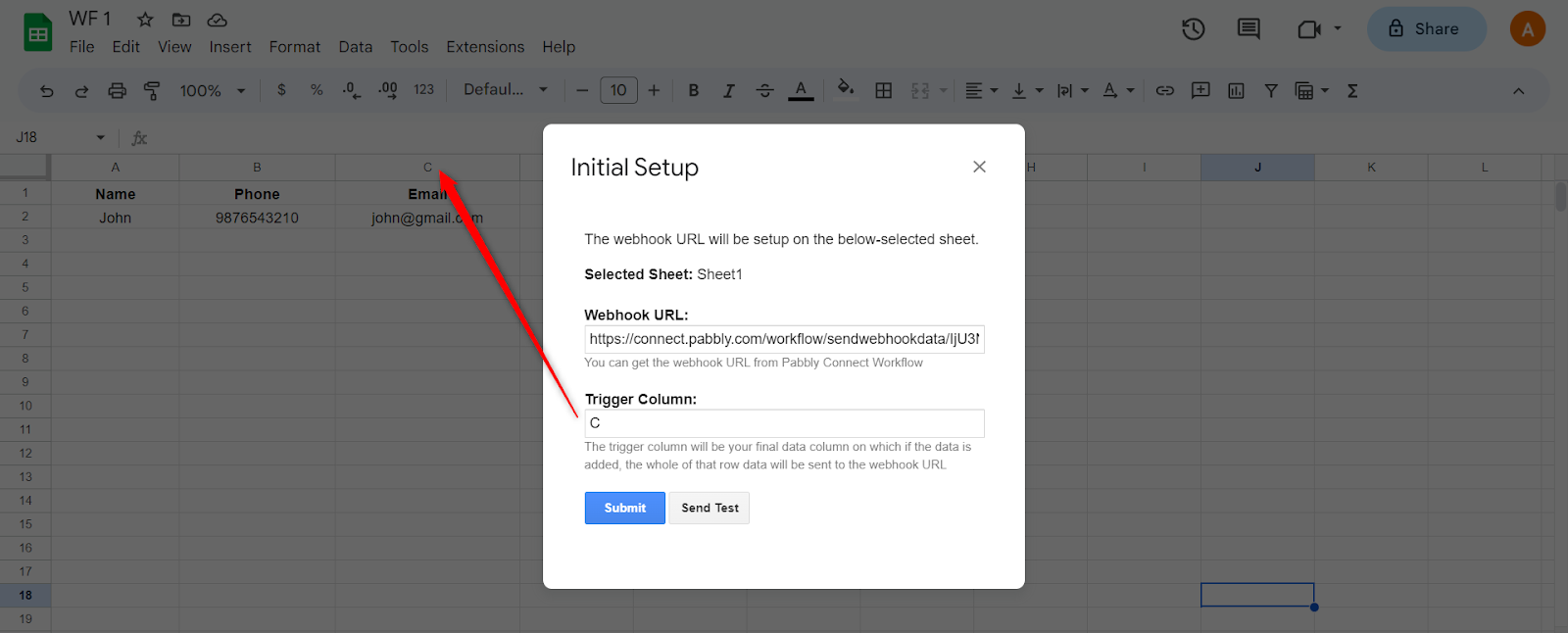
To make your automation work, you need to enable 'Send On Event' if you're manually entering data into your Google Sheets. If the data added to your Google Sheets comes from another API or third-party application. Follow the steps below to set the webhook:
- Log into a single Google Sheets account.
- Open the spreadsheet from where you wish to send data. Make sure your sheet has a header column and at least one row of data in it.
- Navigate to "Extensions" in the Sheets menu and click on "Apps Script" to open the Apps Script editor.
- Remove any existing Apps Script code visible in the Code.gs file. Paste the entire App Script code from this link: Webhook Custom App Script. Save the project and close the Apps Script page.
- Reload the spreadsheet. A new menu called "Pabbly Webhooks" will appear in the menu bar. Click on "Pabbly Webhooks" and select "Send rows every minute".
- Authorize the script when prompted by Google. Once authorization is complete, navigate again to "Pabbly Webhooks" and click "Send rows every minute".
- Enter your Pabbly Connect webhook URL in the dialog box that appears. You can also add the webhook URL and trigger column name separated by a comma. Click "Yes" to confirm the setup.
Hello @Bhaskar,Could you please confirm how the data is getting added to your Google sheets?
When entering the data into your Google Sheets, make sure to add the data to your trigger column as well in order to trigger the workflow.
To make your automation work, you need to enable 'Send On Event' if you're manually entering data into your Google Sheets. If the data added to your Google Sheets comes from another API or third-party application. Follow the steps below to set the webhook:
- Log into a single Google Sheets account.
- Open the spreadsheet from where you wish to send data. Make sure your sheet has a header column and at least one row of data in it.
- Navigate to "Extensions" in the Sheets menu and click on "Apps Script" to open the Apps Script editor.
- Remove any existing Apps Script code visible in the Code.gs file. Paste the entire App Script code from this link: Webhook Custom App Script. Save the project and close the Apps Script page.
- Reload the spreadsheet. A new menu called "Pabbly Webhooks" will appear in the menu bar. Click on "Pabbly Webhooks" and select "Send rows every minute".
- Authorize the script when prompted by Google. Once authorization is complete, navigate again to "Pabbly Webhooks" and click "Send rows every minute".
- Enter your Pabbly Connect webhook URL in the dialog box that appears. You can also add the webhook URL and trigger column name separated by a comma. Click "Yes" to confirm the setup.
Hi Team,
We were sending data manually, so enabling 'Send On Event' worked!
Just one More Thing, If we add data in bulk in this sheet (like 100 or 200 leads at once), will this flow work?
Your workflow should work even if you add 100 rows in bulk. However, sometimes the action application has a rate limit, which could cause an error. To prevent this, you can add a 'Delay After Queue' as step 2 of your workflow with a delay of 1 minute. This way, even if the workflow is triggered 100 times, the data will not be added to LeadSquared all at once; instead, each row will be added with a 1-minute delay between them.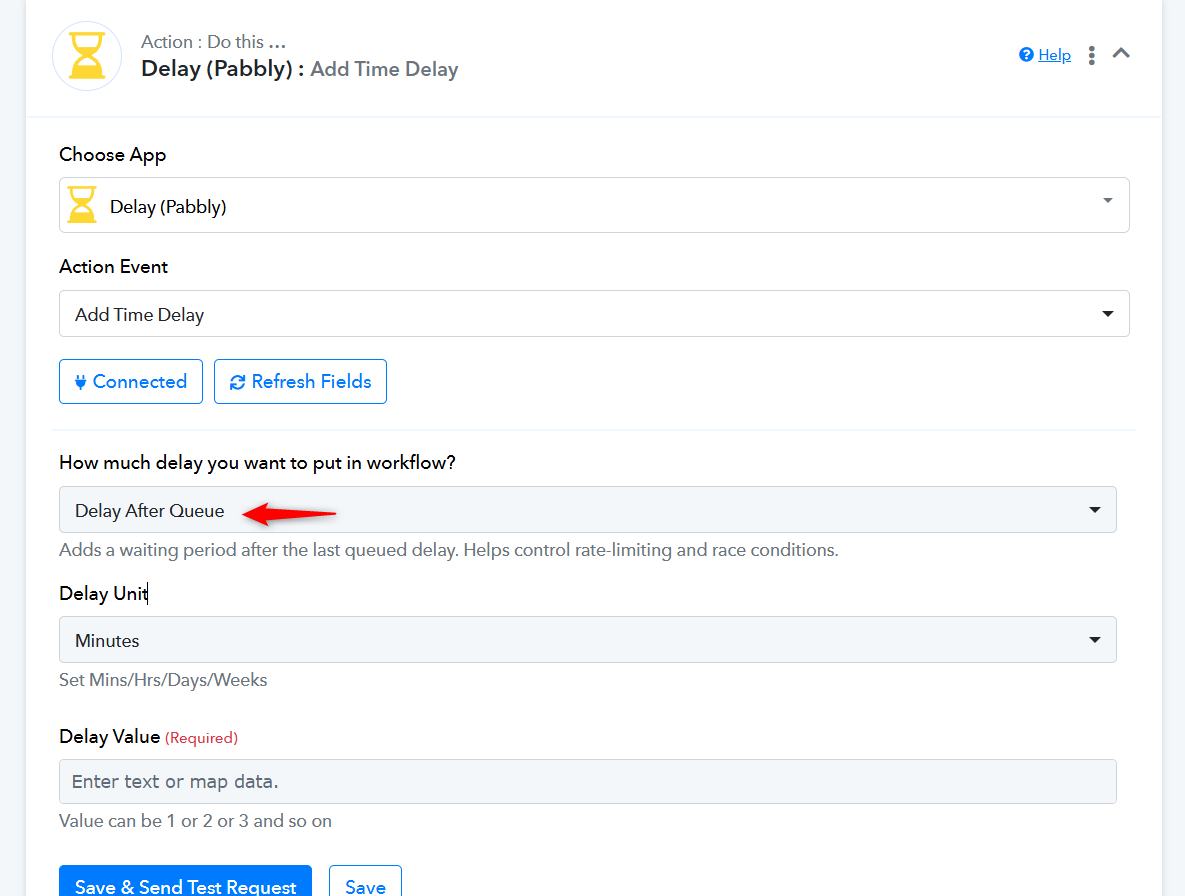
Also, since you are on a free plan, only 100 tasks are allotted to your Pabbly Connect account. If you want to add more than 100 rows of data, you may need to purchase a paid plan.
https://www.pabbly.com/connect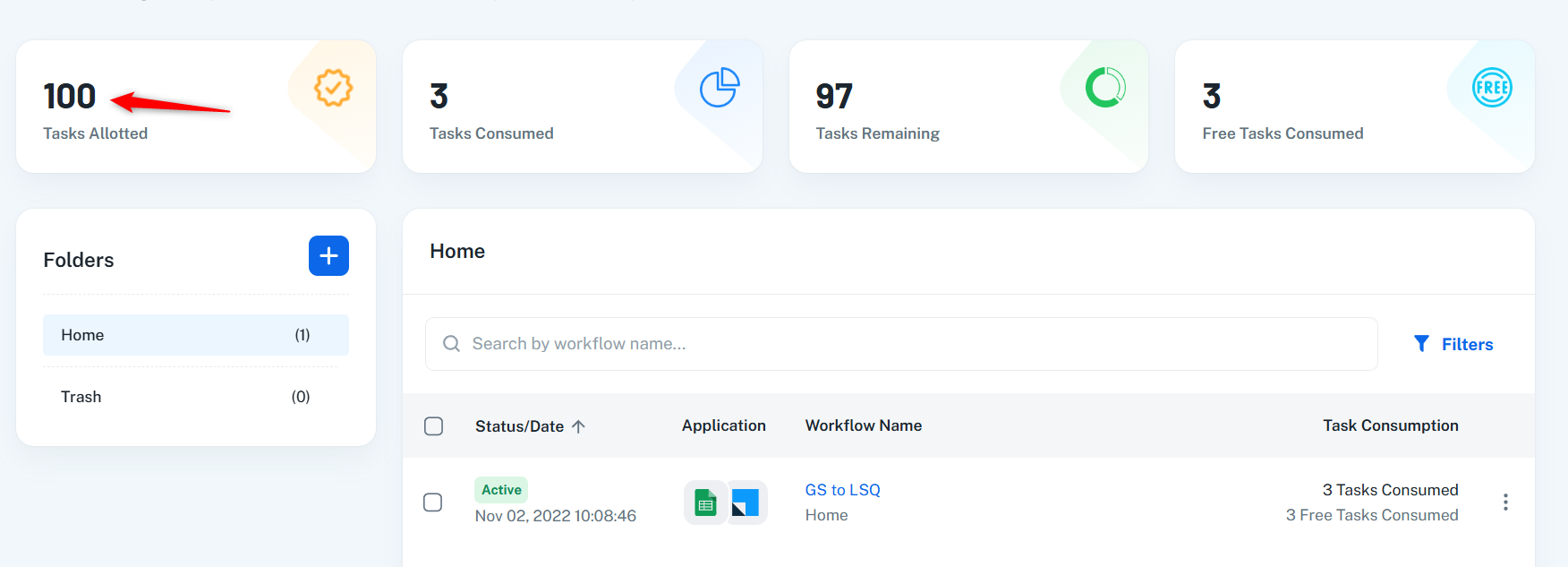
Hi Team,
We have purchased the plan as well and the flow is working fine but whenever it is sending data to LSQ, the parameter postUpdatedLead is being passed as false. Ideally, this value should be set to true in order to ensure that the lead updates are processed.
Since the parameter is being passed as false, one of the automation in LSQ is not getting triggered due to it(Trigger card is of lead field update).
So, please help us set this value as true, so that lead updates can be processed. PFB the SS of the data log:
Your workflow should work even if you add 100 rows in bulk. However, sometimes the action application has a rate limit, which could cause an error. To prevent this, you can add a 'Delay After Queue' as step 2 of your workflow with a delay of 1 minute. This way, even if the workflow is triggered 100 times, the data will not be added to LeadSquared all at once; instead, each row will be added with a 1-minute delay between them.Also, since you are on a free plan, only 100 tasks are allotted to your Pabbly Connect account. If you want to add more than 100 rows of data, you may need to purchase a paid plan.
https://www.pabbly.com/connect
r
Hello @Bhaskar,
Could you please confirm whether you are referring to a field passed from Pabbly or a default field automatically passed to LSQ? We are unable to locate any field named postUpdatedfield.
Additionally, it would be helpful if you could share some screenshots or a screen recording showcasing the exact error you are facing with Pabbly applications.
Hello @Bhaskar,Could you please confirm whether you are referring to a field passed from Pabbly or a default field automatically passed to LSQ? We are unable to locate any field named postUpdatedfield.
Additionally, it would be helpful if you could share some screenshots or a screen recording showcasing the exact error you are facing with Pabbly applications.
Hi Anushka,
Lead field is Book Purchased, so whenever this data is passed in LSQ, in API postUpdatefield is veing passed as false, it should be passed as true!
Since it is being passed as false, automation is not triggered. PFB the video for detailed explanation:
https://www.awesomescreenshot.com/video/44614182?key=ecbe2722dc98af559792592c14ab52d8
Kindly allow us some time to look into the issue. We'll update you soon.
Kindly allow us some time to look into the issue. We'll update you soon.
Hi Team,
What's the update here?
Hello @Bhaskar,
Our team is already reviewing your isue. We'll update you once we recieve any response.
Your patience is appreciated!
Hello @Bhaskar,
We have escalated this concern to the technical team and they are currently working on it. Please allow us some time, and we will update you soon.
Hello @Bhaskar,
We have added a dropdown list for the PostUpdate field. You can now select True as per your use case.
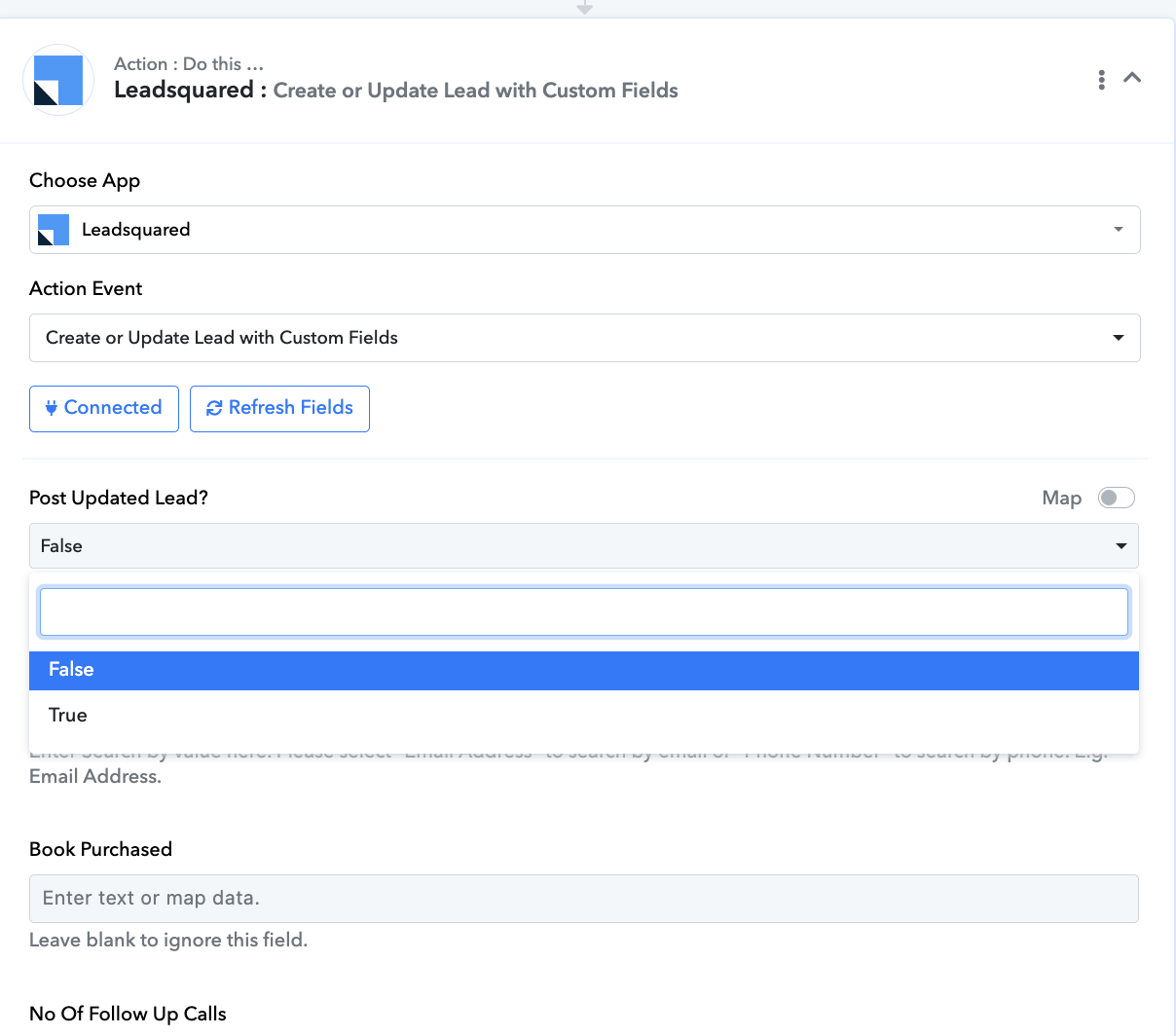
Thanks for your patience. Let us know if you need any other assistance.
Hello @Bhaskar,
We have added a dropdown list for the PostUpdate field. You can now select True as per your use case.
Thanks for your patience. Let us know if you need any other assistance.
Hi @anushkasahu
This field is not working properly. PFB the video for detailed explanation: https://www.awesomescreenshot.com/video/44659043?key=cd3a514f0a03c7efa9cf84152fb4c29c
Kindly check what is the issue
Click on 'Refresh Fields', select 'True' in the Post Update Lead field, and then click on 'Save & Send Test Request'. Without clicking on the 'Save & Send Test Request' button or the 'Save' button, the changes made in the action step will not be applied.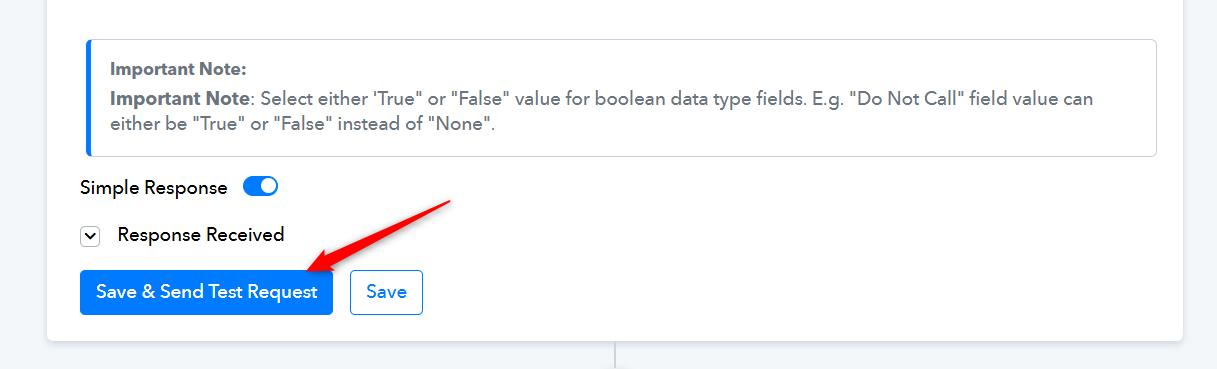
Thanks & Regards,
Arshil Ahmad
Customer Support Associate
? Pabbly.com
?Rate your support
Click on 'Refresh Fields', select 'True' in the Post Update Lead field, and then click on 'Save & Send Test Request'. Without clicking on the 'Save & Send Test Request' button or the 'Save' button, the changes made in the action step will not be applied.Thanks & Regards,
Arshil Ahmad
Customer Support Associate
? Pabbly.com
?Rate your support
Thanks it is working now!
Good to hear that!
It would be highly appreciated if you could write us a review for our support agent via this link: https://forms.gle/jzeCSwD2HtTWctvn9
Marking this thread as closed now. Please let us know if you need anything further.