Send email to owners of all overdue tasks in Google sheets - scheduler
Status: Open · Asked by Devang (Lewis Foundation) on · 0 views
Hello,
Scenario : I have a google sheet file which contains all tasks my team members assign to each other. I want to schedule a chron job at 2pm everyday that fires an email to all owners of tasks that are overdue. Ie. Task Delivery Date is > Today.
Please note as this chron job will run everyday, it has to parse all rows in the Task List google sheet and check where task delivery date is > today and then fire an email to the person responsible. New or Update row trigger cannot be used here.
I have reached as far as Schedule (pabbly) to run at 2pm --> Google sheet getRow() which returns all rows.
Based on your scenario, here's how you can set up the workflow in Pabbly Connect to email task owners about overdue tasks daily at 2 PM:
- Trigger: Use the Scheduler module to run the workflow daily at 2 PM.
- Get Data: Use Google Sheets → Get Rows to fetch all tasks.
- Iterate Rows: Use the Iterator/Loop module to go through each task.
- Filter: Use a Filter module to check if the Task Delivery Date > Today. You can use the Date/Time Formatter to ensure consistent formatting.
- Send Email: If the task is overdue, use the Gmail/SMTP module to send an email to the assigned task owner.
Ensure dates are formatted as yyyy-mm-dd in both the sheet and filter, and optionally, maintain a status column to avoid duplicate emails.
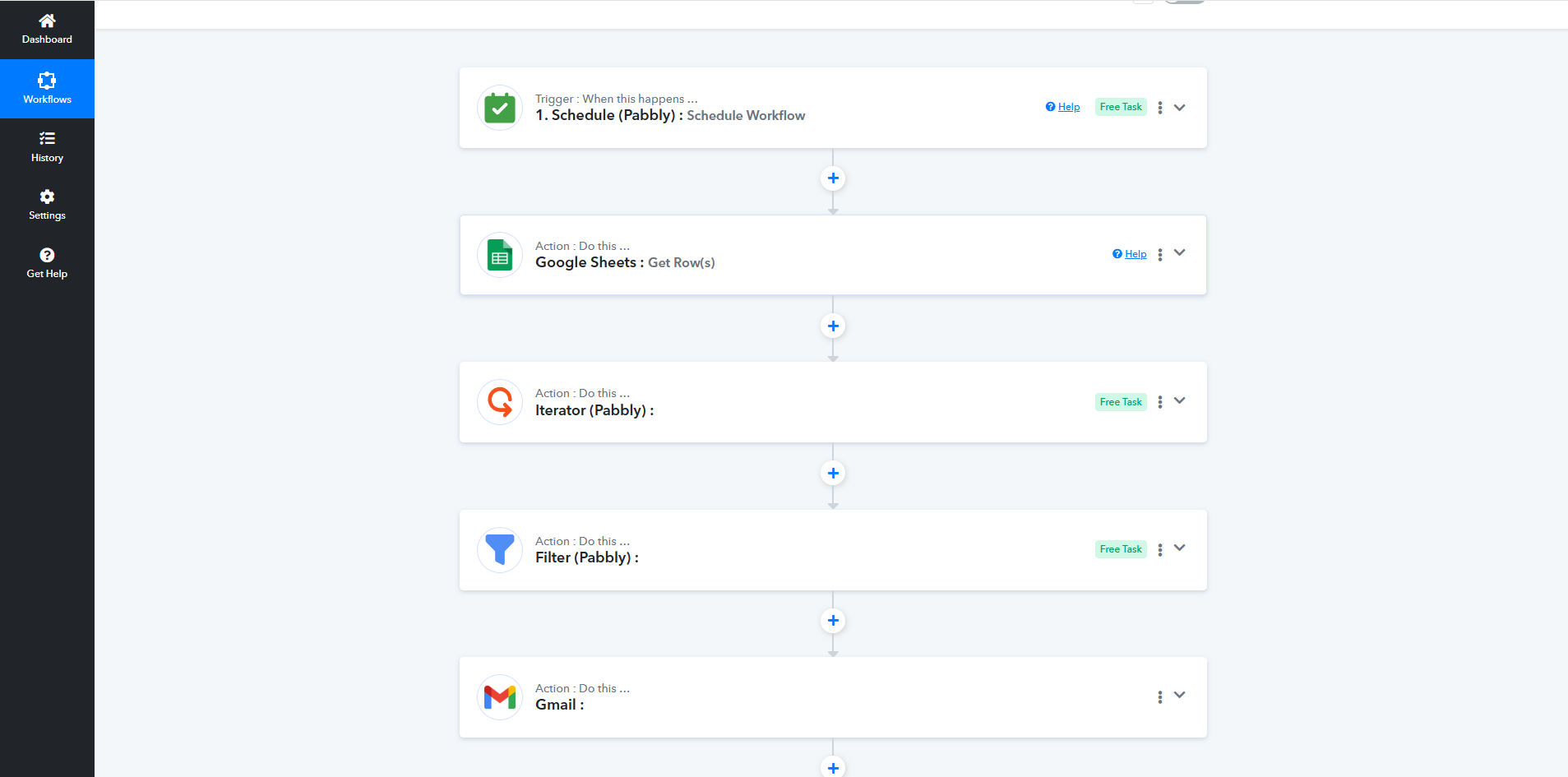
Thanks Anushka for your response.
My problem remains the same as before, that the iterator module does not show the values from the previous GetRow(s) step. Please see screenshot.
Could you please provide us with the Workflow URL where you are facing this issue? This will help us investigate the problem more effectively and assist you accordingly.
Please be aware that to assist you effectively, we may need to access your Pabbly Connect account. If you're comfortable with this, please grant us permission by stating in your next reply: "You have my permission to log into my Pabbly Connect account, and edit workflow {If required}. Here is the registered email address associated with it."
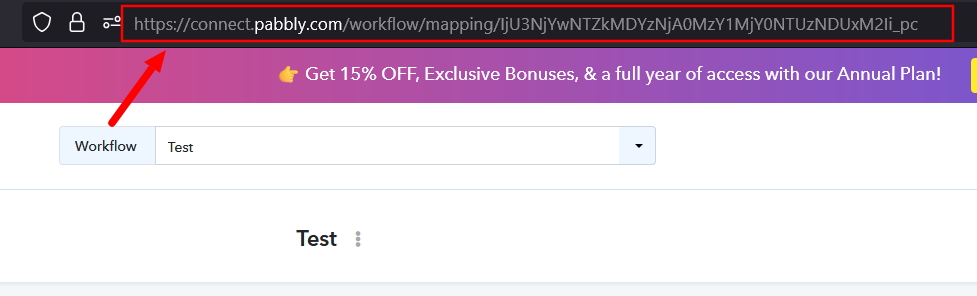
Looking forward to assisting you further.
You have my permission to log into my Pabbly Connect account, and edit workflow {If required}
Thank you.
You need to disable 'Simple Response' and then click the 'Save & Send Test Request' button. The data will start appearing in the Iterator module.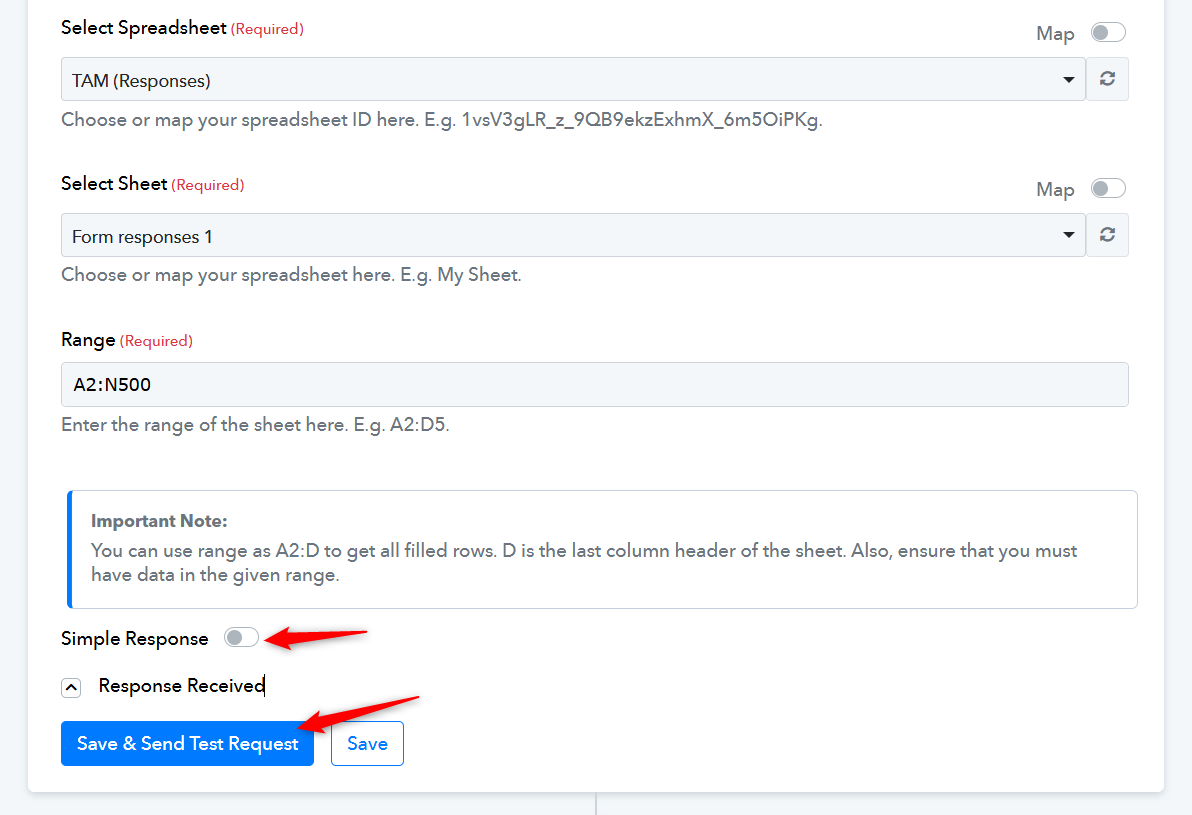
this worked. Thank you very much.
Hello @DevangTL,
Thanks for the update. If you have a moment, please rate us on Google. Your feedback helps us improve.