Time Delay sending through to chatflow
Status: Open · Asked by Robert White on · 0 views
Hi,
I need to delay the sending of our chatflow template until within the time of 08:00 - 20:00
I have tried a few options but cant seem to make it work.
Please could you help.
Thanks
Hi @robwhite3uk,
This use case is not entirely achievable, so a workaround would be required.
Workaround 1:
We can configure your workflow to automatically enable at 08:00 every day and disable at 20:00 every day. This will ensure that messages are sent only during the desired time frame. However, if you receive any updates in Capsule CRM during off-hours, for example at 04:00, the workflow will not get triggered for those updates and the messages will not be sent for those updates.
Workaround 2:
We can add a "Delay Until" step right before the Pabbly Chatflow action step and use Code (Pabbly) to feed a random time between 08:00 and 20:00. This will ensure that messages are sent only during those hours. However, in this case, the messages would be sent at random times and may not necessarily be delivered within 4 hours of the update in Capsule CRM.
Please let us know which workaround you would be comfortable with, and we will make the changes on your behalf.
Thanks & Regards,
Arshil Ahmad
Customer Support Associate
? Pabbly.com
Many thanks for your help.
Certainly option 1 would be better for us as the capsule milestones are updated manually by the office during these working hours and would not be outside. However could I ask please - if the workflow shuts down at 2000 and an update is triggered at 1900 would this still run as it would not allow for the 4 hours? Presume this still would as you have not mentioned it in option 1.
If this is the case yes option 1 for sure. Please let me know what I need to do to achieve option 1.
Thanks
Robert
Hey @robwhite3uk,
Just confirming once again — you wanted to check whether if a trigger comes at 7:00 PM and the workflow gets disabled at 8:00 PM, will the execution still continue?
Yes, it will continue to work. If the workflow gets triggered before 8:00 PM, that execution will complete successfully even if the workflow gets disabled afterward.
Also, we have created a workflow in your account for this purpose:
https://connect.pabbly.com/v2/app/workflow/mapping/IjU3NjcwNTZlMDYzMDA0MzA1MjZkNTUzNzUxM2Ei_pc
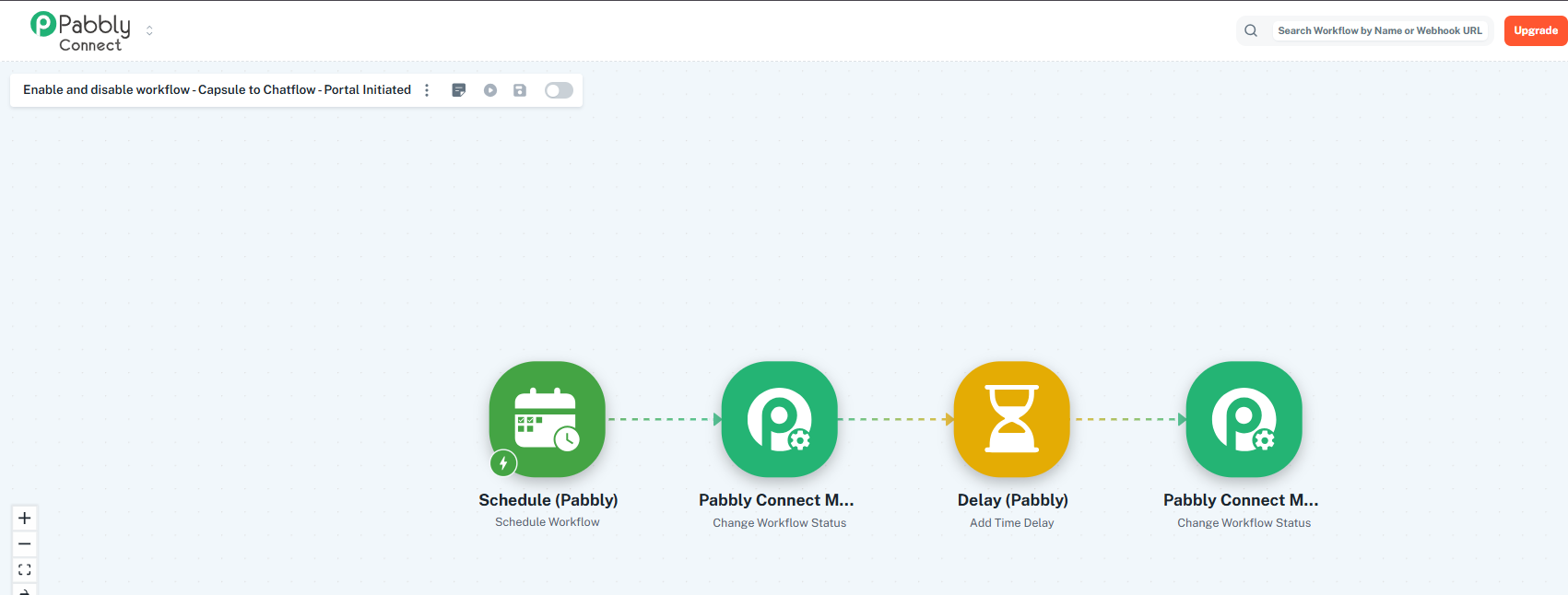
What this workflow does:
- Every day at 8:00 AM, it enables your main workflow
- After a delay of 12 hours, it automatically disables the workflow at 8:00 PM
You can simply enable this workflow from your end.
Thank-you very much. All very clear. If I wanted this to work with all of the workflows that send chatflow templates then I presume I need to use a router? I will copy your workflow and try it out with the router
Hey @robwhite3uk,
Thanks for confirming that everything is clear.
Yes, if you want to apply the same setup for multiple workflows, then instead of using a router, you can simply add multiple Pabbly Connect Manager actions within the same workflow itself.
For example:
- Add multiple “Enable Workflow” actions before the delay step
- Then after the 12-hour delay, add multiple “Disable Workflow” actions for the respective workflows
This would work well if all workflows need to follow the same 08:00 AM – 08:00 PM schedule.
Alternatively, you can also create separate workflows for managing them — whichever is more convenient for you.