Todoist - Action from Webhook Data
Status: Open · Asked by gerald_martin on · 0 views
I have been successful in creating a Todoist task with information from a webhook.
Is it possible to take data from a webhook, search the todoist integration for the string of data, and if it is found mark the todoist task complete?
I would appreciate some guidance.
Gerald
Hi @gerald_martin,
Could you please state exactly what you want to search for in Todoist—project, section, task, comment, or labels?
Task. I want to search for a string of text which is one of the selectable values provided by the webhook. This string could be in the title of the task, or it could be in task description. I want to be able to find a task by searching for a matching value, then mark this task complete.
Dear @gerald_martin,
We have escalated your concern to our technical team for further investigation. Please allow us some time to review the issue. We will provide you with an update as soon as we have more information.
Thank you for your patience.
Hello @gerald_martin,
We are pleased to inform you that our team has created a new action named "Search Task by Keyword". You can now map the exact task title or description to fetch the relevant task.
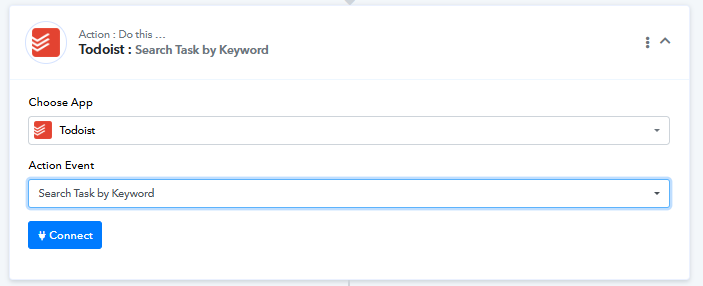
Please note that if two tasks contain the added keyword, both will be fetched in the response.
Hello @gerald_martin,We are pleased to inform you that our team has created a new action named "Search Task by Keyword". You can now map the exact task title or description to fetch the relevant task.
Please note that if two tasks contain the added keyword, both will be fetched in the response.
Ok, thank you, I will try it.
@Preeti Paryani Update: Yes, the search by keyword function returns raw task info. However, it is not clear to me how I can use this to mark the task complete. Can you provide some guidance?
"Please share the Workflow URL where you attempted to execute this action step.
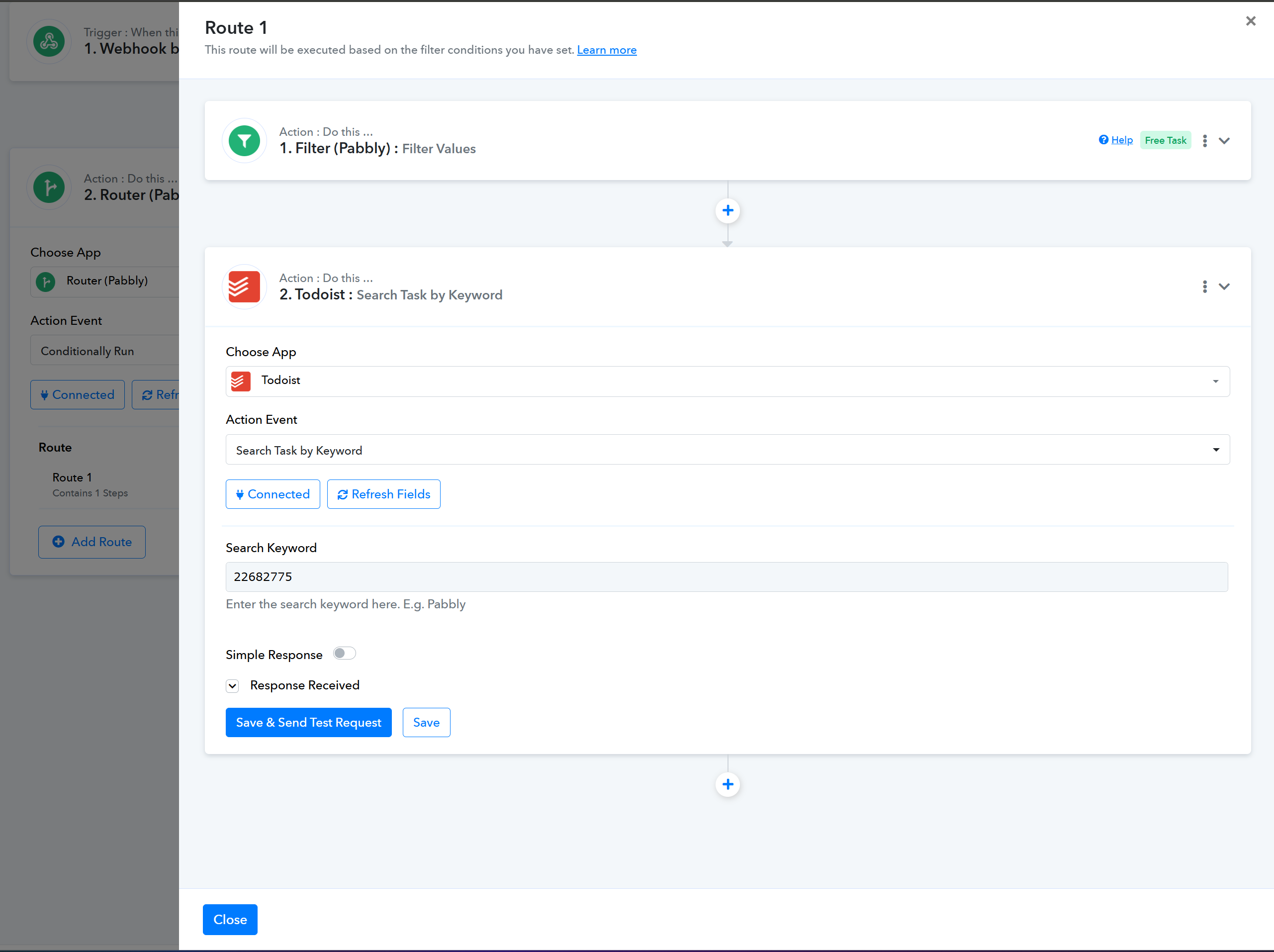
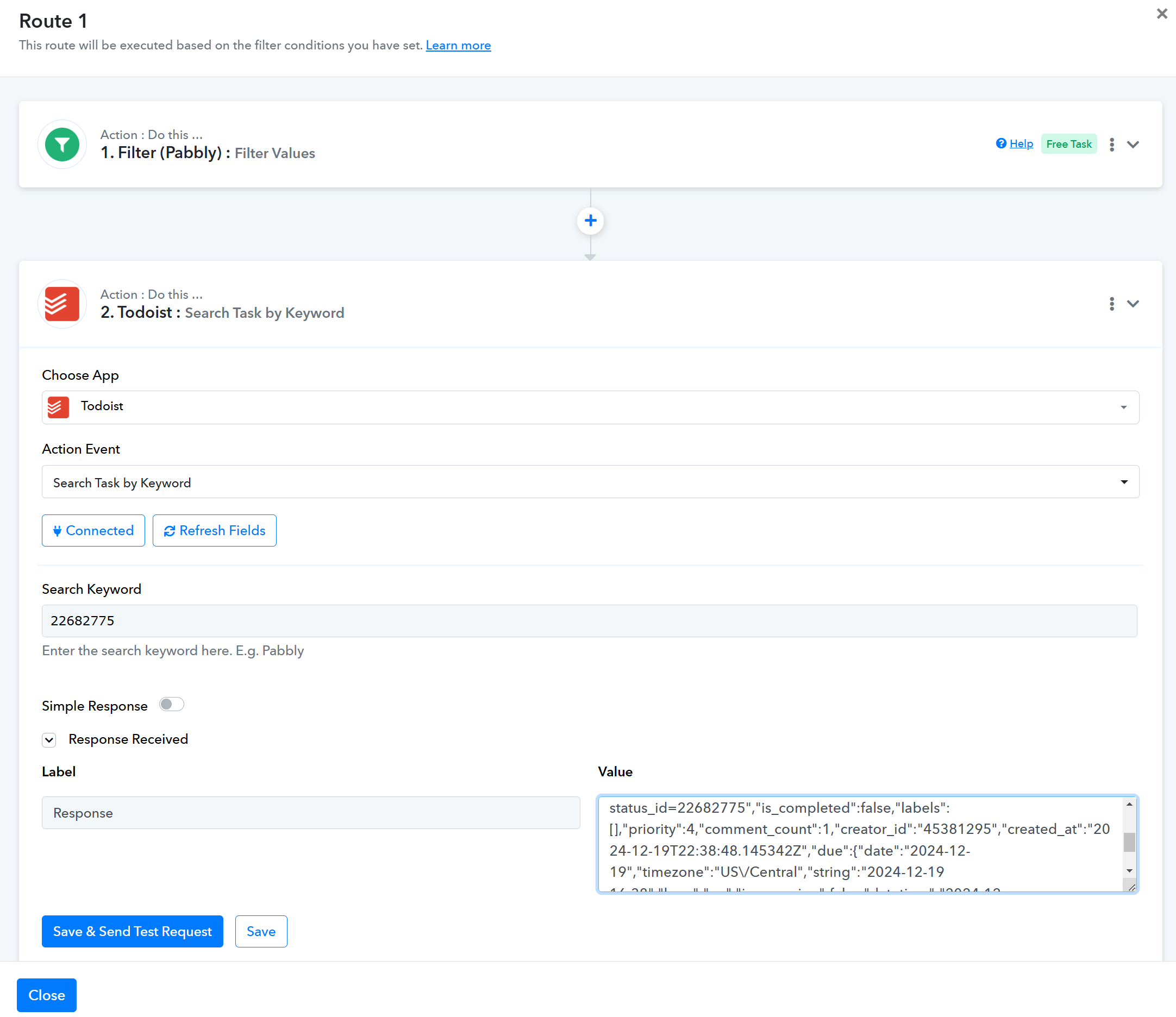
What I want to do is find the matching task, then either add a comment or mark the task as complete automatically
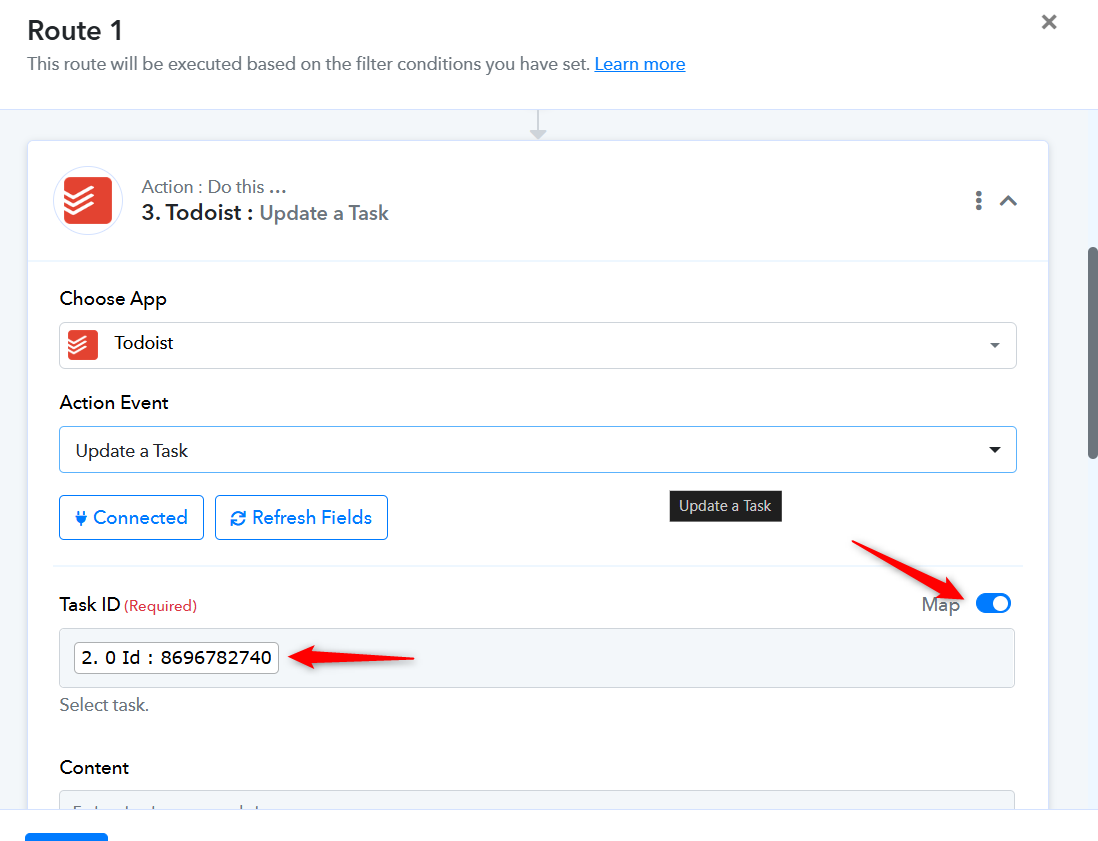
You can enable mapping and pass the Task ID received in the 'Search Task by Keyword' action step to the 'Update a Task' action step. This will allow you to update the task.