TRANSFER ZAPIER TO PABBLY
Status: Open · Asked by Support on · 0 views
How do we transfer a zapier zap to pabbly connect?
Hello @TheDigitalMarketers,
Yes, it is possible to recreate your Zapier workflows in Pabbly Connect. However, there is currently no direct one-click migration option available to automatically transfer Zaps from Zapier to Pabbly Connect.
You would need to manually rebuild the workflow in Pabbly Connect by:
- Creating the same trigger application
- Adding the required actions step-by-step
- Mapping the fields accordingly
- Recreating any filters, delays, routers, paths, or formatters used in Zapier
Most common Zapier workflows can be replicated successfully in Pabbly Connect depending on the apps and logic involved.
If you share:
- The Zapier workflow screenshot/export
- Apps used
- Workflow logic or steps involved
we can guide you on how to recreate it in Pabbly Connect.
Hello, thanks for your response.
Here's a screenshot of the workflow.
we are using google sheets and kartra. 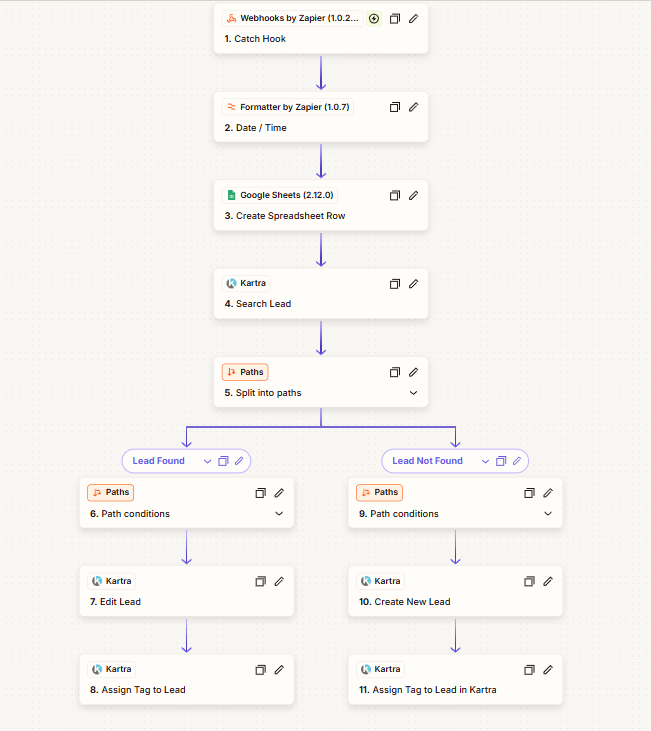
Hey @TheDigitalMarketers,
You can set up a similar workflow in Pabbly Connect by following the steps below:
- Add the trigger step:
- Use “Webhook by Pabbly → Catch Webhook”.
- Copy the webhook URL and send sample data to capture the response.
- Add a date/time formatter step (optional):
- Use “Date / Time Formatter” if you want to format timestamps before storing them.
- Store the data in Google Sheets:
- Add “Google Sheets → Add New Row”.
- Map the required fields from the webhook response.
- Search for the lead in Kartra:
- Add “Kartra → Get Lead Details”.
- Use the email address or any unique identifier to search the contact.
- Add Router / Filter conditions:
- Create two paths:
- Lead Found
- Lead Not Found
- Create two paths:
- For the “Lead Found” path:
- Add a filter condition checking whether the lead exists.
- Then use:
- “Kartra → Update Lead”
- “Kartra → Assign Tag to Lead”
- For the “Lead Not Found” path:
- Add a filter condition checking if no lead is found.
- Then use:
- “Kartra → Create Lead”
- “Kartra → Assign Tag to Lead”
This setup will automatically check whether the contact already exists in Kartra and then either update the existing lead or create a new one accordingly.
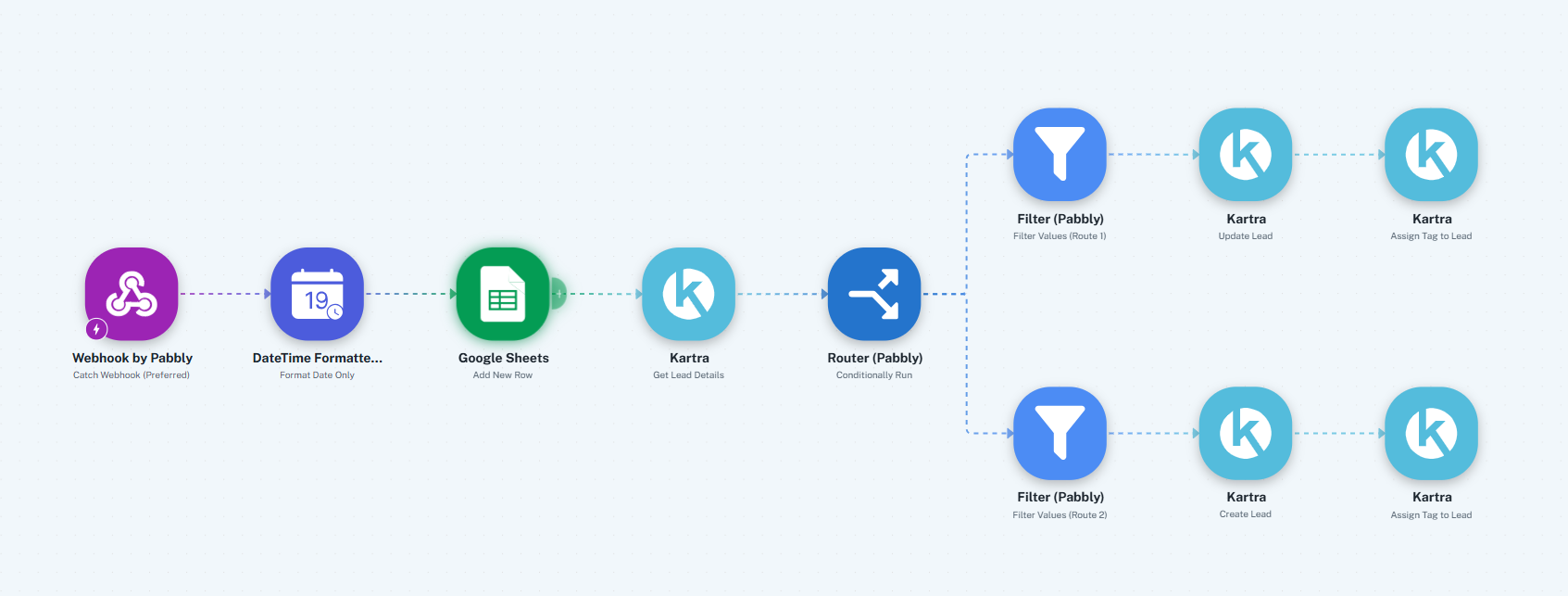
Please try setting it up this way and let us know if you face any issue at any particular step. Sharing your workflow URL and a detailed screencast with audio would also help us guide you more accurately.
Also, to make it easy you can provide the above workflow structure to AI to create the workflow once create you can set up the webhook in the source and connect with all the applications and configure the actions.
