youtube upload error 403 - PERMISSION_DENIED
Status: Open · Asked by vignesh L on · 0 views
while im trying to upload zoom recording in to youtube, the workflow is not working as it states PERMISSION_DENIED, Request had insufficient authentication scopes.
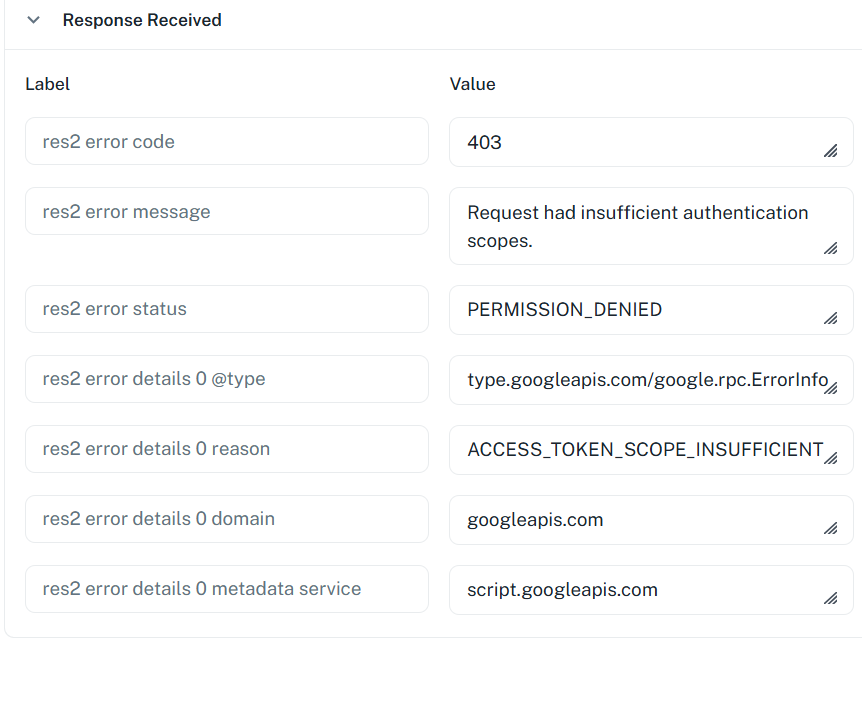
How to fix this issue??
Hi @vignesh L,
It looks like the meeting recording uploaded to your Zoom account is password protected, which is why you're encountering this issue. Please ensure that the Zoom video link is publicly accessible and does not require a password to open.
To make all new Zoom cloud recordings publicly accessible (without requiring a password), you need to disable the setting that automatically protects shared recordings.
Steps:
- Sign in to your Zoom account.
- Go to:
- Personal account: Settings → Recording
- Account admins: Account Management → Account Settings → Recording
- Under the "Cloud Recording" section, locate:
- "Require password to access shared cloud recordings"
- Turn this setting Off.
- If the setting is locked (you see a lock icon), an account administrator will need to unlock or change it at the account level.
You may also want to disable these related settings if they are enabled:
- "Only authenticated users can view cloud recordings"
- "Viewers can download"
Important notes:
- This change only affects recordings shared after the setting is disabled. Existing recordings that already have passwords may still require one, and you may need to edit their sharing settings individually.
- All future cloud recordings will automatically be shared without a password, and the share_url received in the Zoom webhook will be publicly accessible.
You can verify this by opening the share_url in an incognito browser window. If it opens without asking for a password or requiring a Zoom login, the recording is publicly accessible.
Thanks & Regards,
Arshil Ahmad
Customer Support Associate
Pabbly.com
Turned off password required for zoom recordings in the settings page.
still the issue is same, i guess google is not allowing to upload the video.
Hi @vignesh L,
Thank you for the update.
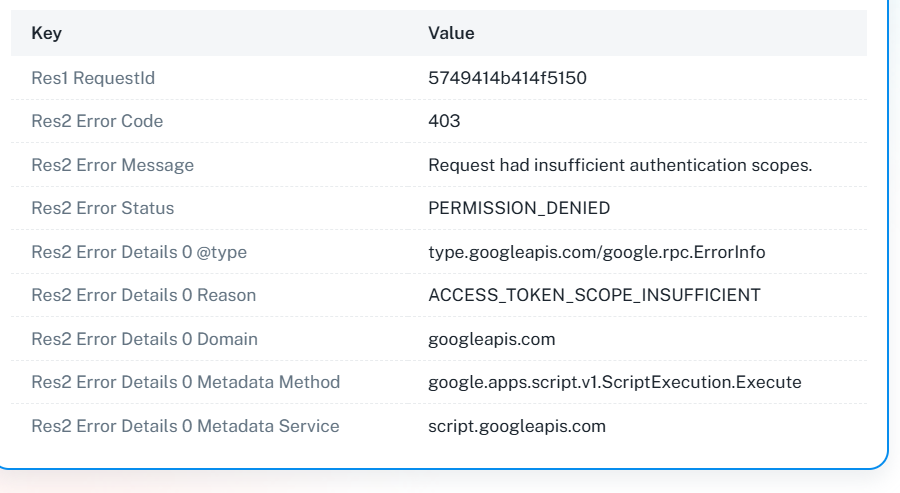
The error shown in your screenshot is:
403 - PERMISSION_DENIED
Request had insufficient authentication scopes
Reason: ACCESS_TOKEN_SCOPE_INSUFFICIENT
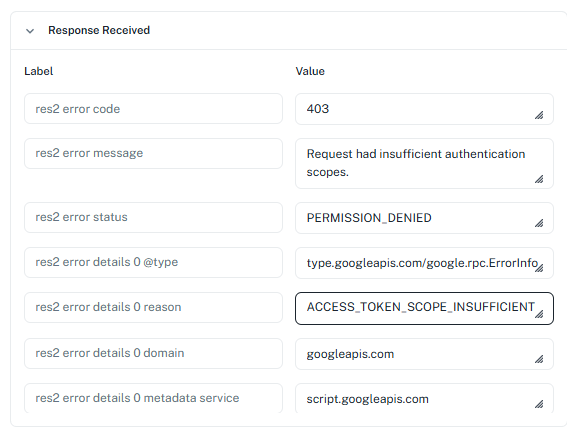
This typically indicates that the YouTube account connection does not have the required permissions to perform the upload operation.
Could you please confirm the following:
- Which account was used while creating the YouTube connection in Pabbly Connect?
- Is that account the owner of the YouTube channel where you are trying to upload the video?
- Is the selected YouTube channel a Primary Channel or a Brand Channel?
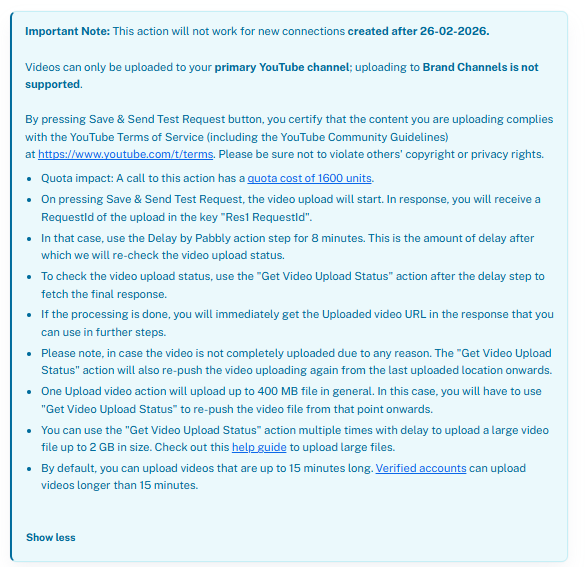
Please note that the YouTube Upload Video action only supports uploads to the Primary YouTube Channel. Uploading to Brand Channels is not supported.
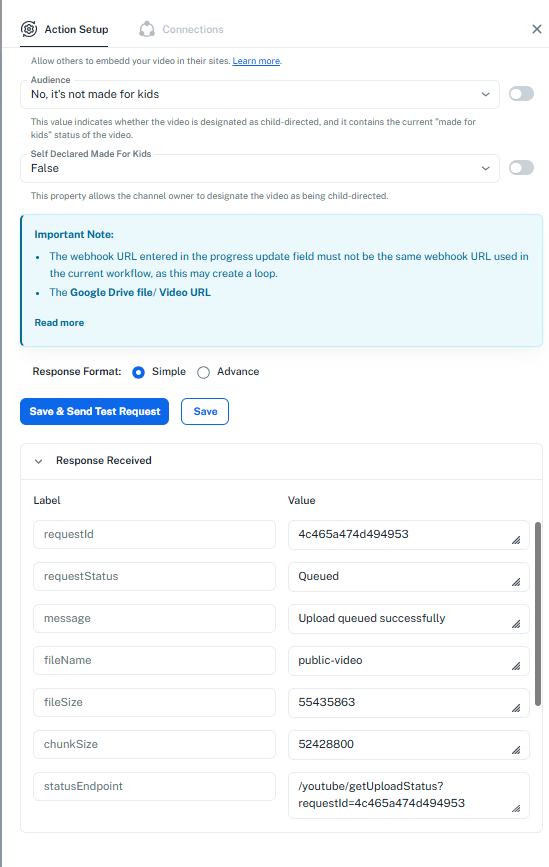
Additionally, we have attached a screenshot of the important notes displayed within the action. Kindly review them carefully and ensure that the action is configured according to all the points mentioned there, especially regarding channel type and connection requirements.
Once you confirm the above details, we will be able to investigate the issue further and assist you accordingly.
We are using the owner acount and there is only one channel associated to this account. Doesn't know why im getting permission denied error. If i need to change any settings in youtube please let me know.
Hi @vignesh L,
Thank you for reaching out and for sharing all the details.
We checked your workflow and noticed an issue with the YouTube Upload Video action you were using. The action does not display the newly added field, which may have been causing the permission-related error.
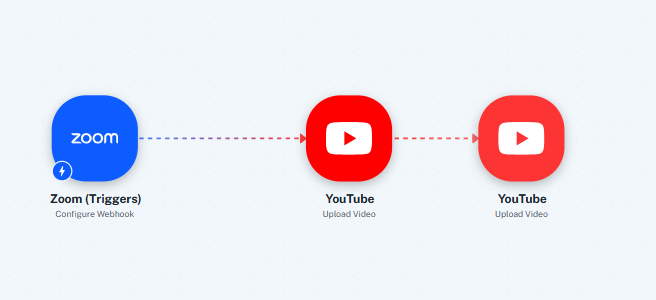
To test this, we have added a new YouTube: Upload Video action to your workflow and clicked Save & Send Test Request. This is the 3rd step in your workflow. The response from this step was successful, and the video upload request has been queued successfully, as shown in the action response.
Could you please wait a few minutes and check whether the video gets uploaded to your YouTube channel?
If the upload is successful, you can remove the previous YouTube Upload Video action (the 2nd step) and continue using the newly added action going forward.
Please let us know the outcome, and we'll be happy to assist further if needed.